56 - How to Use SmarTach
®
- Advanced Functions - Copyright
©
2005 ACTIA
English
18. SmarTach
®
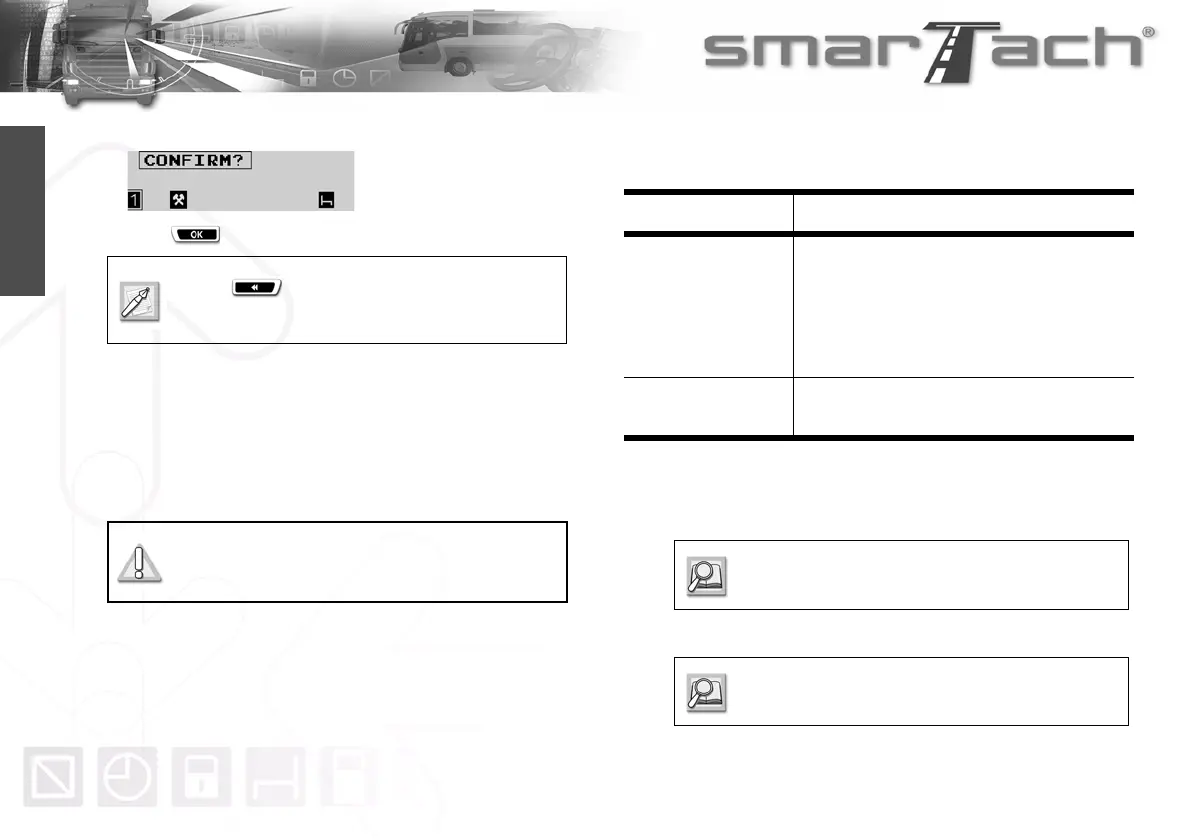
prompts you to confirm all data entered.
Press to confirm all data entered
19. The entered activities are confirmed. They are stored in your
driver card.
4.8 How to Manage Company Locks
Company locks allow the confidentiality of data belonging to a
company to be protected.
Any company lock consists of two markers, as explained in the
following table:
A company can lock its data when:
• no lock has been applied,
• a lock has already been applied.
Press to cancel.
In this case, you have to enter your activities again.
Companies are highly recommended to lock
their data systematically before SmarTach
®
is
used by any driver from the company.
Marker Description
Lock start marker
From this moment, all data recorded in SmarTach
®
are locked by the company (as identified by its
company card number).
Data locked by a company are not available to any
other company: they cannot be downloaded,
printed out or displayed.
Lock end marker
From this moment, all data recorded in SmarTach
®
are no longer locked by a company.
Table 32
Refer to Section 4.8.1 How to Place a Lock when
no Lock has been Placed.
Refer to Section 4.8.2 How to Place a Lock when
a Lock has already been Placed.


 To Next Page