GENERAL
4-49
Keyboard locking and display blanking
You may lock the keyboard to prevent unauthorized use of the instrument. Additionally you may
blank the display to prevent sensitive data from being displayed. Selection is made as follows:
(1) Unlock the protection by selecting Util 80: Protection Lock/Unlock and entering the 4-digit
password for Level 1 using the keypad and pressing [ENTER].
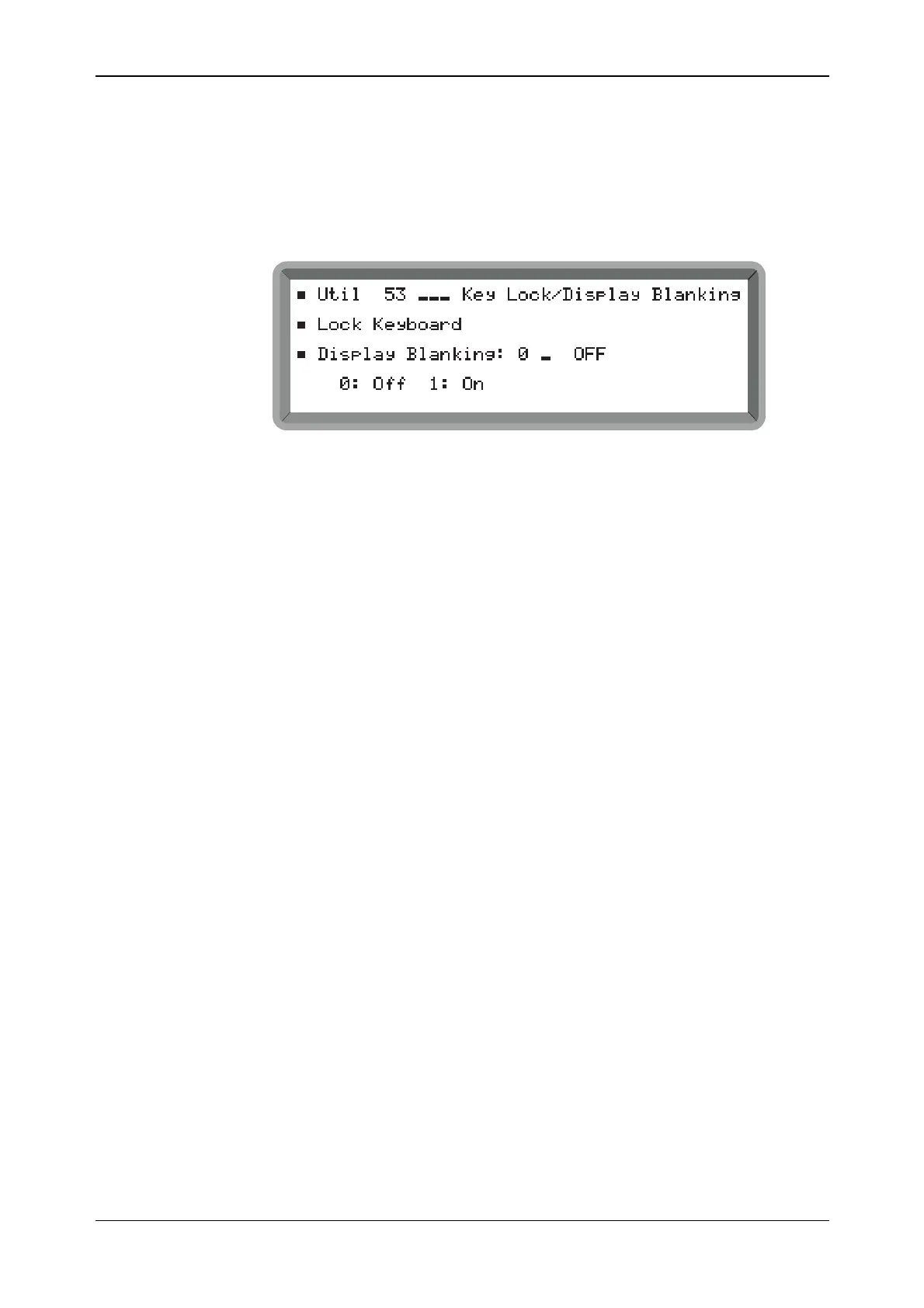
(2) Select the Util 53: Key Lock/Display Blanking menu shown in Fig. 4-44.
B2077UT053
Fig. 4-44 Key lock/display blanking menu
Keyboard locking/unlocking
(3) To lock the keyboard highlight Lock Keyboard and press [SELECT]. The instrument
automatically returns to the main screen which indicates the locked status by displaying a
key-shaped icon at the top right of the display. Now the keyboard is locked, although the
instrument still responds to GPIB or RS-232 commands.
(4) To unlock the keyboard enter the 4-digit password for Level 1 using the keypad and
pressing [ENTER].
Display blanking
(5) To blank the display highlight Display Blanking and press 1 [ENTER]. Press any function
key to return to the main screen. Here it can be seen that the main parameters are blanked
and replaced by dashes. This also applies to Util 1: Carrier Sweep Parameters where the
start and stop frequencies are blanked, and to Util 3: Carrier Sweep Control where the
carrier frequency is blanked.
(6) To unblank the display re-enter Util 53 and press 0 [ENTER].
(7) You may lock the display in the blank state by using Util 80 to enter an incorrect password.



 To Next Page