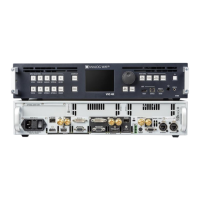
The VIO 4K allows you to select a channel pair (input or output) to prelisten to your audio content on the
headphone output.
You can then use the headphone volume to independently adjust the volume of the selected prelist channel
pair.
To prelisten to an input or output:
Front Panel
1. Enter the AUDIO menu on the Front Panel interface.
2. Select Headphone Settings to access the audio headphone setup menu.
3. Select Audio Source to choose the input (or output) prelist source.
4. Select Pair to choose the input or output prelist channel pair.
5. If required, adjust the Volume of the headphone output.
TIP: In the headphone setup menu, select Shortcut to Source Settings to quickly access the prelist channel
pair settings.
Web RCS
1. Go to the Setup menu on the Web RCS interface.
2. Click on the AUDIO tab to access the audio management page.
3. In the left side toolbar, select General to access the audio inputs and outputs setup page.
NOTE: You can also access the audio outputs setup page via the A/V Mapping tab.
4. In the Headphone window (top left window), select the prelist source (input or output).
5. Select a channel pair to prelisten to the selected input or output channel pair.
TIP: Click on an input (or output) Headphone button to quickly send the currently selected input (or output)
channel pair to the headphone output.
6. If required, adjust the Volume of the headphone output.


 To Next Page
 Loading...