2 INSTALLATION
2.1 WINDOWS INSTALLATION (7/XP/VISTA)
• Place the Windows®-specific installation DVD in your computer's DVD-ROM
drive.
• Use Windows® Explorer to browse the content of the DVD-ROM.
• Double-click the installer file named SPARK Setup.exe.
• Click Next.
• To continue, you need to first accept the license agreement. After you have
read the license agreement, check the corresponding checkbox and click
Next.
• To perform a complete installation, leave the Complete option checked and
click Next. To deselect components or to install the SPARK application and
sound library to an alternative location, select Custom. Then click Next. In
the next dialog, choose the destination folders for the installation. To use the
default path, just click Next. If you wish to select a custom path for a SPARK
component, click Change, browse to the folder where you want to install the
application or sound library. Then click Next. If you select VST (and/or VST
64 bits) you will have to select your VST (and/or VST 64 bits) folder.
• The Setup Program will lead you through the installation procedure. Follow
the onscreen instructions.
• After the installation has been performed successfully, click Finish.
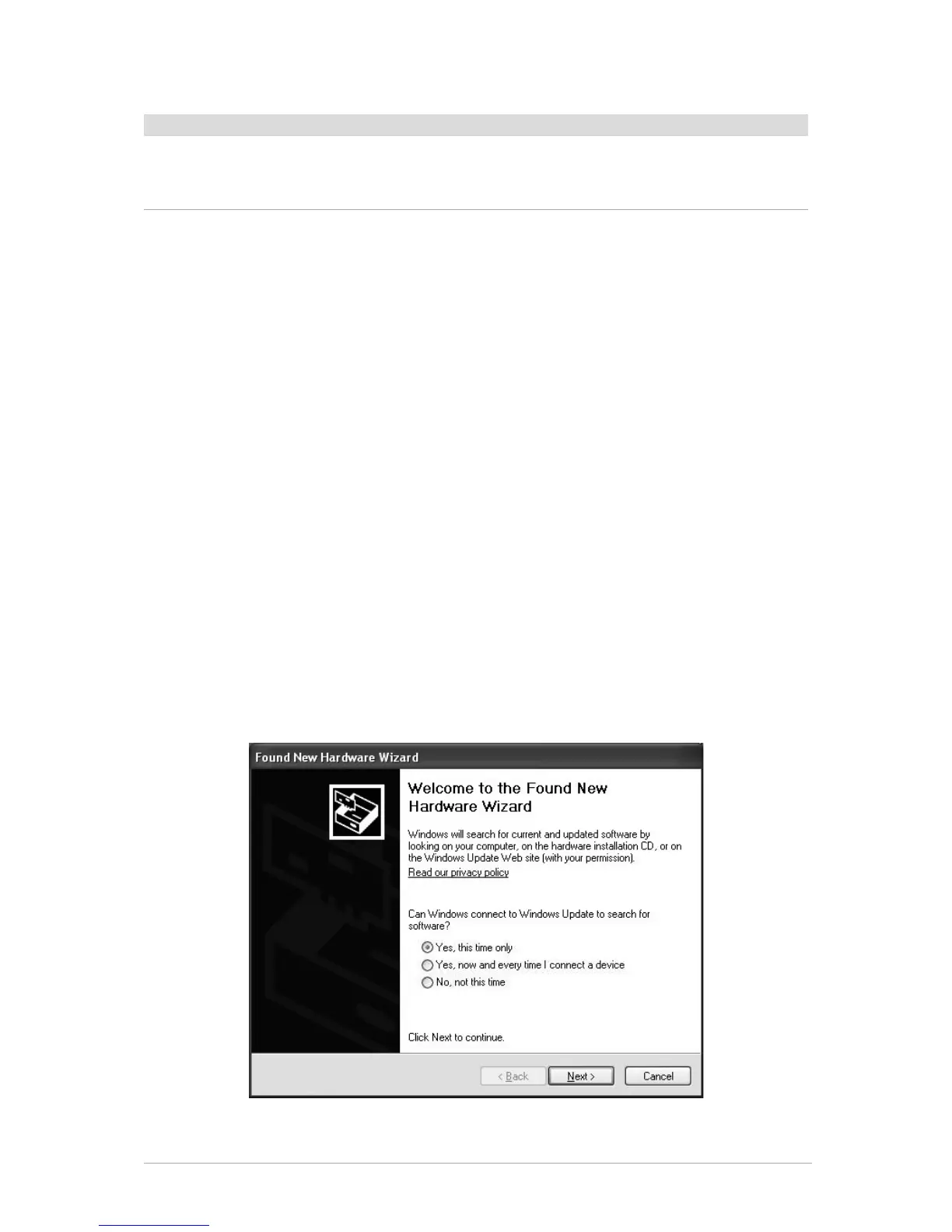
• Next, in order to install the SPARK Controller hardware driver, you need to
connect the SPARK Controller to your computer. On Windows® Vista, the
driver setup will finish automatically. On Windows® XP, installation is a two
step process, described below. The following screen should appear:
• Installation starts with Composite Device install:
• Choose “Yes this time only”, and click next.


 To Next Page