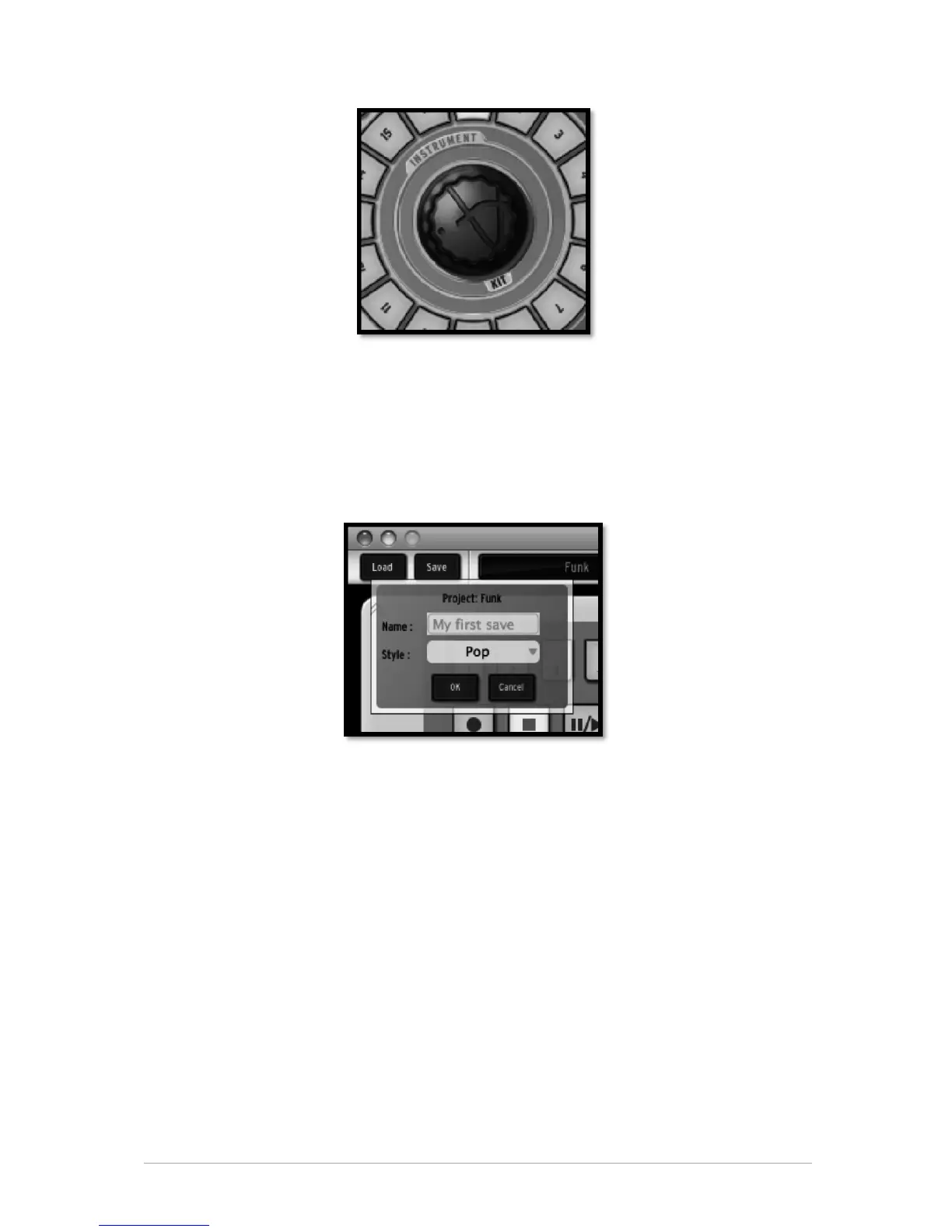
The procedure to change a Kit is the same, except that you do not need to select an
instrument since you're loading all of them. Just click below the Jog Dial where it says:
"Kit", and follow the same procedure as with the instrument selection.
4.5.8 Save your project
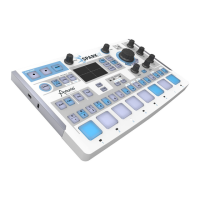
To save your project, go to the toolbar and click "Save". A drop down menu will appear.
Choose “Save as…”
Give a name to your project and choose a style from the drop down menu. Click "OK".
Your first project is now saved. Congratulations!
The name you gave to your project is now showing in the display window next to the
button save.
4.5.9 Switching views
SPARK's interface is made up of 3 main panels. The "TOP" panel, the "CENTER" panel,
and the "BOTTOM" panel. Up until now, you have only been introduced to the main or
"CENTER" panel.
You are now ready to discover everything SPARK has to offer.
To show the "TOP" panel, go to the toolbar and click on "TOP".
To show the "BOTTOM" panel, click on "BOTTOM"
All 3 panels are now showing, you can scroll up and down to go from one panel to
another.


 To Next Page