6.5 PRO TOOLS
6.5.1 Installation
In Mac OS X, the plug-in is directly installed in the folder reserved for the ProTools plug-
ins in:
/Library/Application Support/Digidesign/Plug-Ins
In Windows, at the time of the installation procedure, select the RTAS plug-in among the
proposed choices of plug-ins. Then, when the system asks, indicate the folder in which
the other RTAS plug-ins are located.
Usually, this path is:
C:\Program Files\CommonFiles\Digidesign\DAE\Plug-Ins\
6.5.2 Utilization and opening of the Plug-in
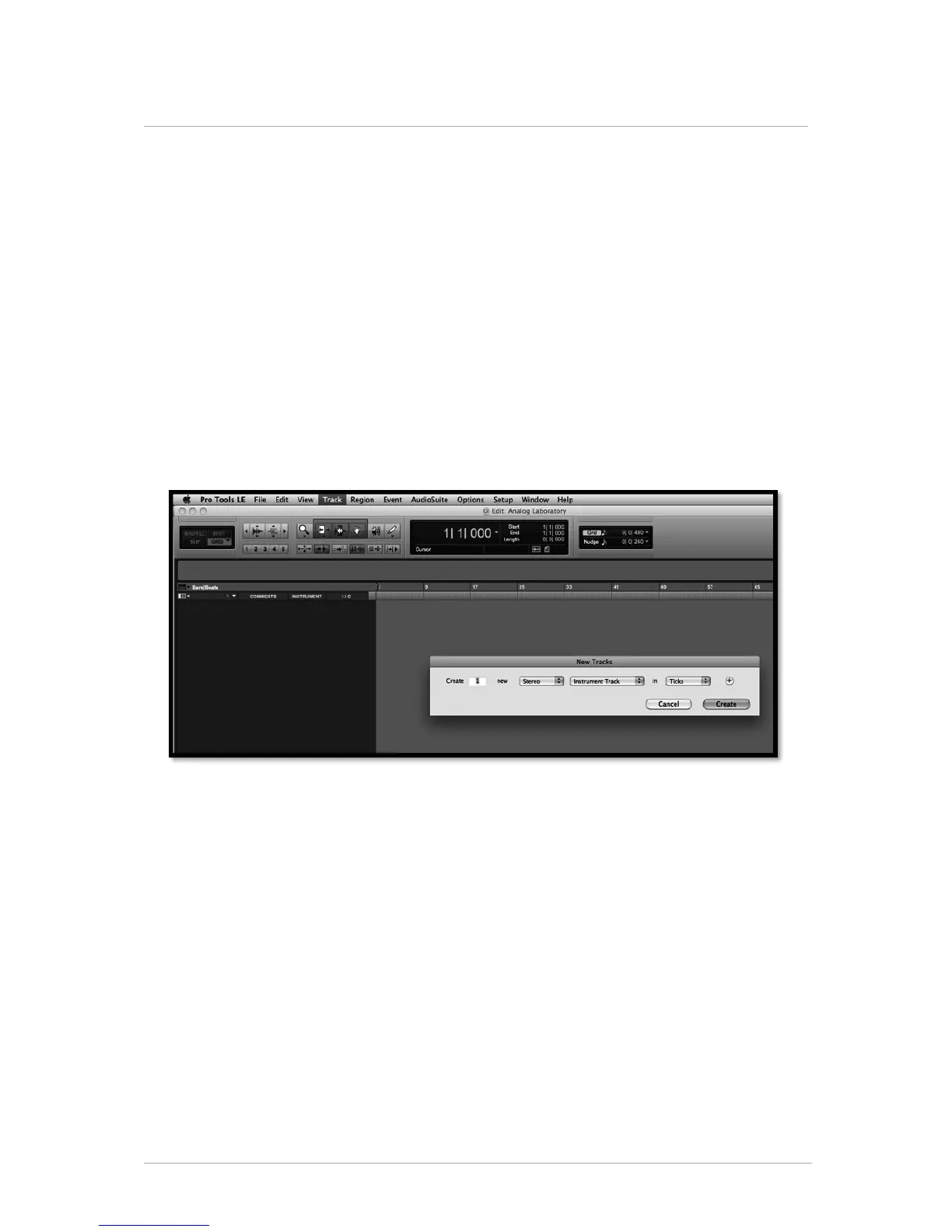
Access to the SPARK plug-in is like all other plug-ins; simply create a stereo Instrument
track:
In order for SPARK to play the information coming from the Instrument track, you have
to associate it to an Insert channel via the appropriate menu.
More information on plug-in connections can be found in the Pro Tools User’s Manual.
6.5.3 Saving the project
When the session is saved, the status of SPARK is saved as it is, even if its programming
does not correspond to the preset. For example, you are working on a project in which
you have modified the parameters (without saving them in the plug-in itself), the next
time you open the session SPARK will load the project plus the modifications.
The Librarian Menu of Pro Tools can be used with SPARK as with any other plug-in.
Nevertheless, it is highly recommended to use the internal SPARK menu: with the
presets saved this way, they are usable no matter which mode is used (standalone or
other sequencer), and they can be exported and exchanged more easily. They will stay
compatible with the future versions of SPARK.


 To Next Page