In this example, Pattern 1 is being copied to pattern 13.
To swap patterns, simply drag and Drop a pattern number onto another one. A pop-up
menu will ask you to confirm your choice.
The exact same procedure applies to copying or swapping Banks.
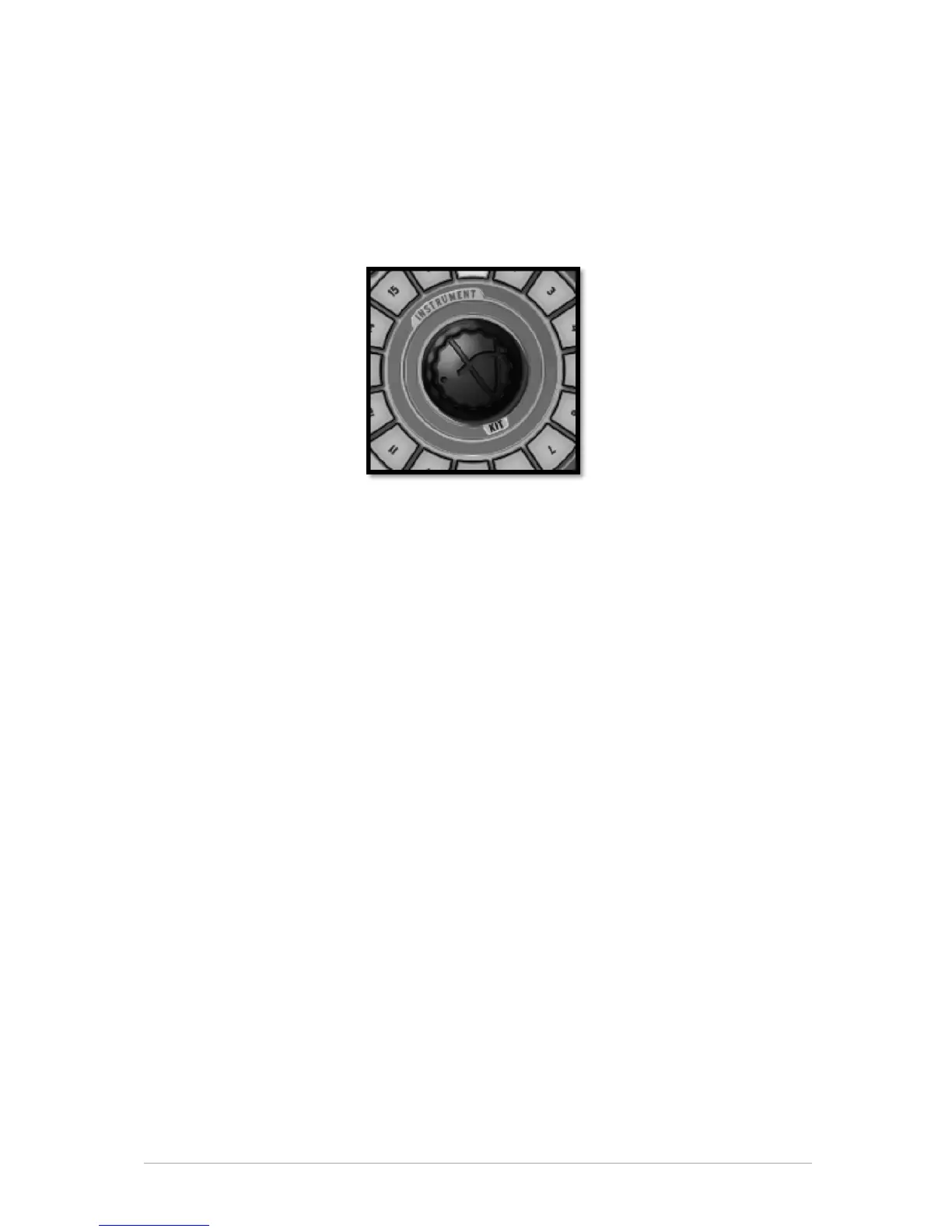
5.2.4 The Jog Dial
The Jog Dial allows you to load Kits, Instruments or projects when working on an open
project. You may choose (via the preferences tab in the upper screen) to assign the Jog
dial to switch between either Instruments and Kits using the “Switch from Instrument to
Kit Mode”, or else between Instruments and Projects using the “Switch from Instruments
to Projects Mode”. By default Spark is set to “Switch from Instrument to Kit Mode”.
To load a kit (or Project, depending on preference settings), click on "Kit" under the Jog
Dial. Click on the Jog dial and while maintaining your click, move your mouse up or down
to select a kit.
The kits name will appear in the center display window. Then, click on the Jog dial again
to load a new kit.
To load a new instrument to an instrument pad, first select the instrument pad you want
the instrument to be assigned to. Then, click on “Instrument" above the Jog dial. Next,
click on the Jog Dial and while holding move your mouse up or down to select a different
instrument. The list of Instruments will appear in the center display window. Select an
Instrument and then click on the Jog dial once again to confirm your selection.
You may switch between Kit and Instrument modes by either clicking on their names, or
else by right clicking on the Jog Dial. A contextual menu will appear and allow you to
choose between the two Jog Dial modes.
The new instrument is now assigned to the previously selected Instrument pad; the new
instrument's name appears below the pad.
The instrument list is organized this way:
• Same type first (BD, Snare,…)
• Other types but same style (Rock, etc…)
• Other types.


 To Next Page