5.3.3.4 How to load Kits and Instruments
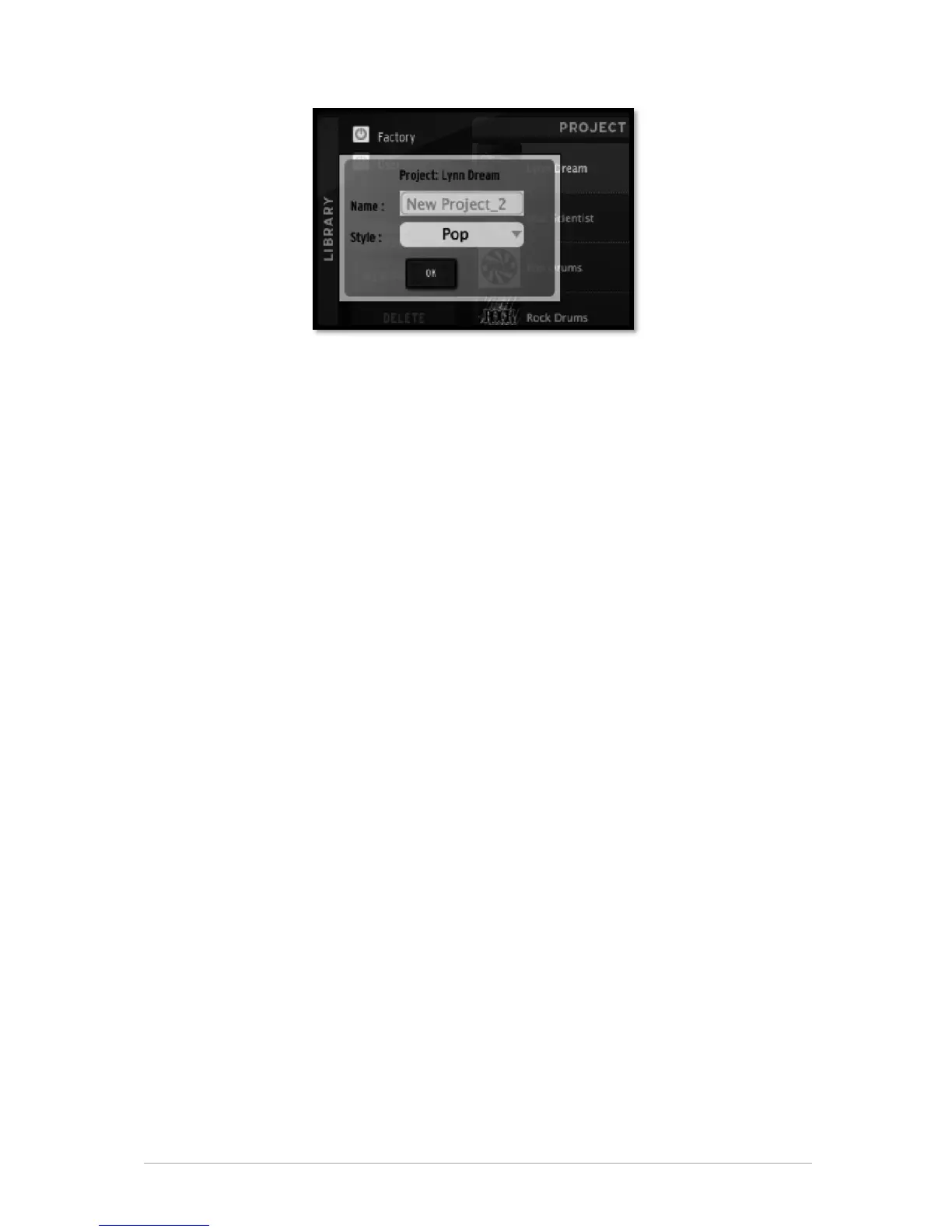
To load a Factory or user project in your current project, double click on an instrument
kit in the Library/Project window. This will load the entire kit to your current project.
To load one or several instruments from a kit, go to the Library/Instruments window.
Double click on an instrument to load it to your project. When double clicking on an
instrument, it is placed in the selected instrument slot in the Loaded Instruments window
in the current project window. To select a slot, click on the instrument number in the
Loaded Instruments window.
An easier way is to "Drag and Drop" an instrument from the “Instruments" window to
any slot in the Loaded Instruments window.
You do not need to select an instrument slot when doing it this way.
5.3.3.5 How to load Banks and Patterns
In the same way, you can load a bank or a pattern from the library to the same bank or
same pattern number in your current project by double clicking on it.
If you want to load Bank A from the Library to Bank D of your current project, drag and
drop Bank A on to Bank D.
To load pattern A1 to pattern C3 of your current project, simply drag and drop A1 to C3.
Pattern C3 will light up to confirm your selection.
5.3.3.6 Importing and Exporting a project
To import a project click on the "Import" button in the current project window. A menu
lets you choose between MIDI file and REX file formats.
To export a project click on the "Export" button in the current project window. A menu
lets you choose between:
• Exporting as a SPARK project (.spk)
• Exporting selected pattern as a MIDI file (.mid)
• Exporting selected pattern as an AUDIO file (.wav)
It is also possible to export a bank or pattern as a MIDI or WAV file (option to be set in
the Preferences Panel) by simply dragging and dropping. To do this click on the bank or
pattern you wish to export. Hold your click and drag the element to the place of your
choice on your computer (desktop or host sequencer for example). If you dragged a
Pattern, a single MIDI or WAV file will appear. If you dragged a bank, 16 separate
MIDI/WAV files (corresponding to the 16 patterns of the Bank) will be created.
You can personalize the cover image of your project:


 To Next Page