You do not need to select a specific instrument to change its parameter. Any effect is
applied in real time while the pattern is playing.
The parameter motion can be recorded as an automation into the pattern and edited
later accurately using the automation graphic editor. (see chapter 5.4.5 ).
Right click on a parameter knob to edit the corresponding automation. You can also
choose to momentarily disable a Motion parameter in this way.
5.2.7.3 Select Button
The Select button allows you to easily select an instrument. Just click on [Select] and
then on the instrument pad of your choice to specifically select the corresponding
instrument.
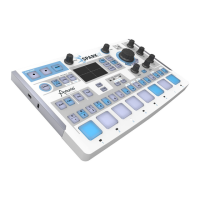
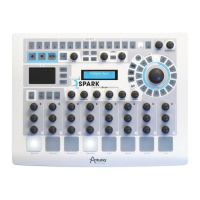
This function was designed to quickly select an instrument when using the Spark
controller.
5.2.7.4 1-8 / 9-16 Button
The main panel interface shows 8 instrument pads while a kit contains 16 instruments.
To navigate to the next set of 8 instruments, click on this button.
5.2.7.5 Mute button
This button allows you to bypass the audio sound of a specific instrument. Click on the
Mute button and then choose the instrument you wish to mute. You will no longer hear
that instrument when playing your pattern. When in mute mode, you can select multiple
instruments to mute them together.
5.2.7.6 Solo button
The Solo button mutes the other instruments besides the one(s) selected. Click on the
Solo button and then choose the instrument you wish to solo. You will only hear that
instrument when playing your pattern. When in solo mode, you can select multiple
instruments in order to solo them together.
5.2.7.7 Filter/Mixer parameters
A specific filter is applied to each instrument of a kit. The filter type can be changed in
the Studio Edit instrument view. (See next chapter 5.3.1 The Studio).
To change the filter and/or the mixer parameters, first select an instrument and simply
click on one of the filter or mixer parameter knobs and while maintaining your click,
move your mouse up or down to change the parameter. The Digital display window in
the center of the main panel shows you the changes applied to the selected parameter in
real time.
These motion parameters can be recorded as automations into the pattern and edited
later accurately using the automation graphic editor. (See chapter 5.4.5 ).
Right-click on a Filter or Mixer knob to edit or disable its Motion.
• Cutoff: Set Filter cutoff on current instrument
• Resonance: Set Filter resonance on current instrument.
• Aux1/Aux2: Set Aux1 or Aux2 amount on current instrument.
• Pan: Set amount of Pan on current instrument.
• Volume: Set the volume on current instrument.


 To Next Page