ARTURIA – SPARK CREATIVE DRUM MACHINE – USER’S MANUAL
5.4.4.2 How to copy or swap tracks
To copy a track, move your cursor over the track. When the track lights up, click
[Option/alt] on Mac / [Ctrl] on Windows, then click and drag the track onto another one.
To swap tracks, just drag a track onto another one.
5.4.4.3 How to copy or swap Step parts
To copy step parts click on a step part button while holding [Option/Alt] on Mac / [Ctrl]
on Windows and drag it onto another one.
To swap step parts, click on a step part and drag it onto another one.
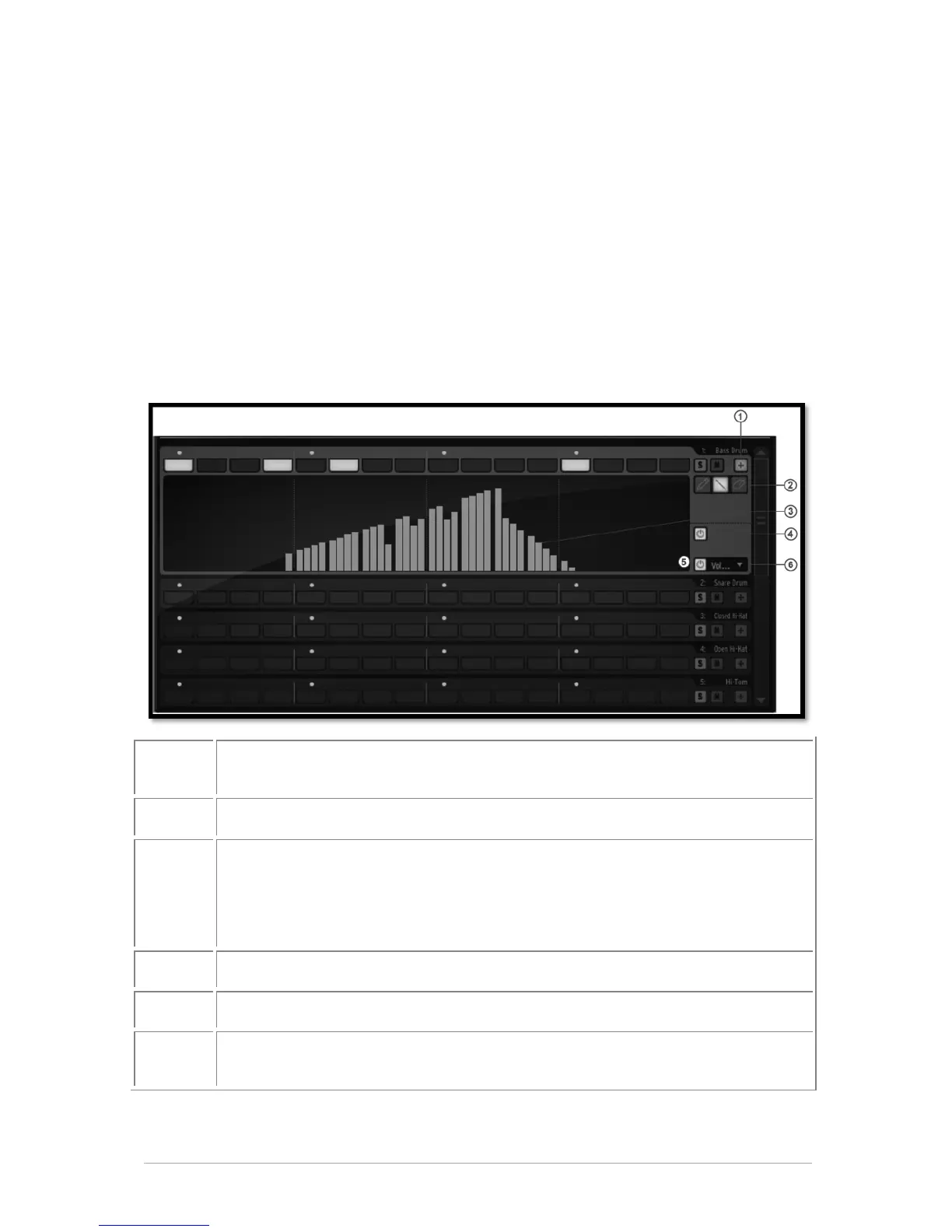
5.4.5 The Automation editor
Click to display the automation value of a single parameter in the current
pattern.
Pen tool – Line tool – Eraser tool
Click and drag to draw automation on a single parameter using the pen or
line tool or erase drawing. Except for velocity, repeat and shift parameters,
you can use up to 4 sub-values per single step. Use Cmd on mac and Ctrl on
windows to erase or move the four automation sub-values of a single step
note together
Disable/Enable all automations in the current pattern.
Disable/Enable one single automation in the current pattern.
Click to trigger drop down menu of parameters on to which automations may
be applied.


 To Next Page