4.5.5 Play and edit a pattern
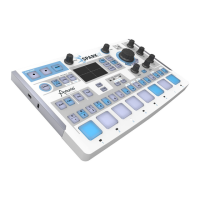
To play a pattern use the Play/Pause button located in the upper left corner of the
CENTER PANEL interface.
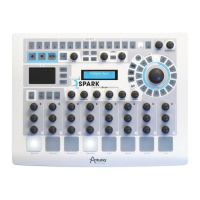
To edit a pattern, you will use the 16 small pads located at the top of the main panel.
You will notice that when you play a pattern, the current playing position is shown with a
lit pad in real time. When a pad lights up, it means that the sequencer will play a MIDI
note-on (a beat) at this pattern's position. If a pad is not lit, it means that no note will
be played, therefore no sound will be heard. You can trigger a note-on or remove it by
pressing these pads.
To better understand, click on Bank A / pattern #1 and then select the snare drum
track:
Look at the 16 small pads at the top of the main panel: some pads are lit and others are
not. The ones lit are the note-ons, those unlit are not triggering note-on messages.
Every lit pad is a Snare drum's beat. You can edit this track by pressing a pad to add or
remove a note-on. Try it! While the pattern plays, click on pads 2, 3, 4 and 5. They
are now unlit, therefore you do not hear any snare drum beats any more. Now click on
pads 1 and 4: you are starting to compose your own pattern.
4.5.6 Record a pattern with instrument pads
To do so, we will start by erasing the current pattern and start from scratch.
First, click on the "ERASE" BUTTON, right above the digital display window and then go
to the Song/Pattern zone and click on the currently selected pattern – it should be
Pattern #1 of BANK A:


 To Next Page