ARTURIA – SPARK CREATIVE DRUM MACHINE – USER’S MANUAL
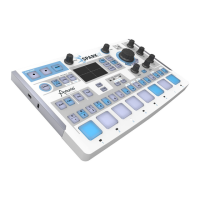
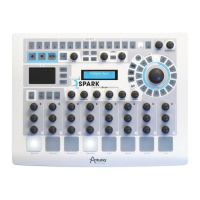
The SPARK MIDI controller software interface is rigorously the same as the SPARK
Hardware interface or SPARK software main panel.
All the buttons, pads and knobs can be reprogrammed to suit your needs.
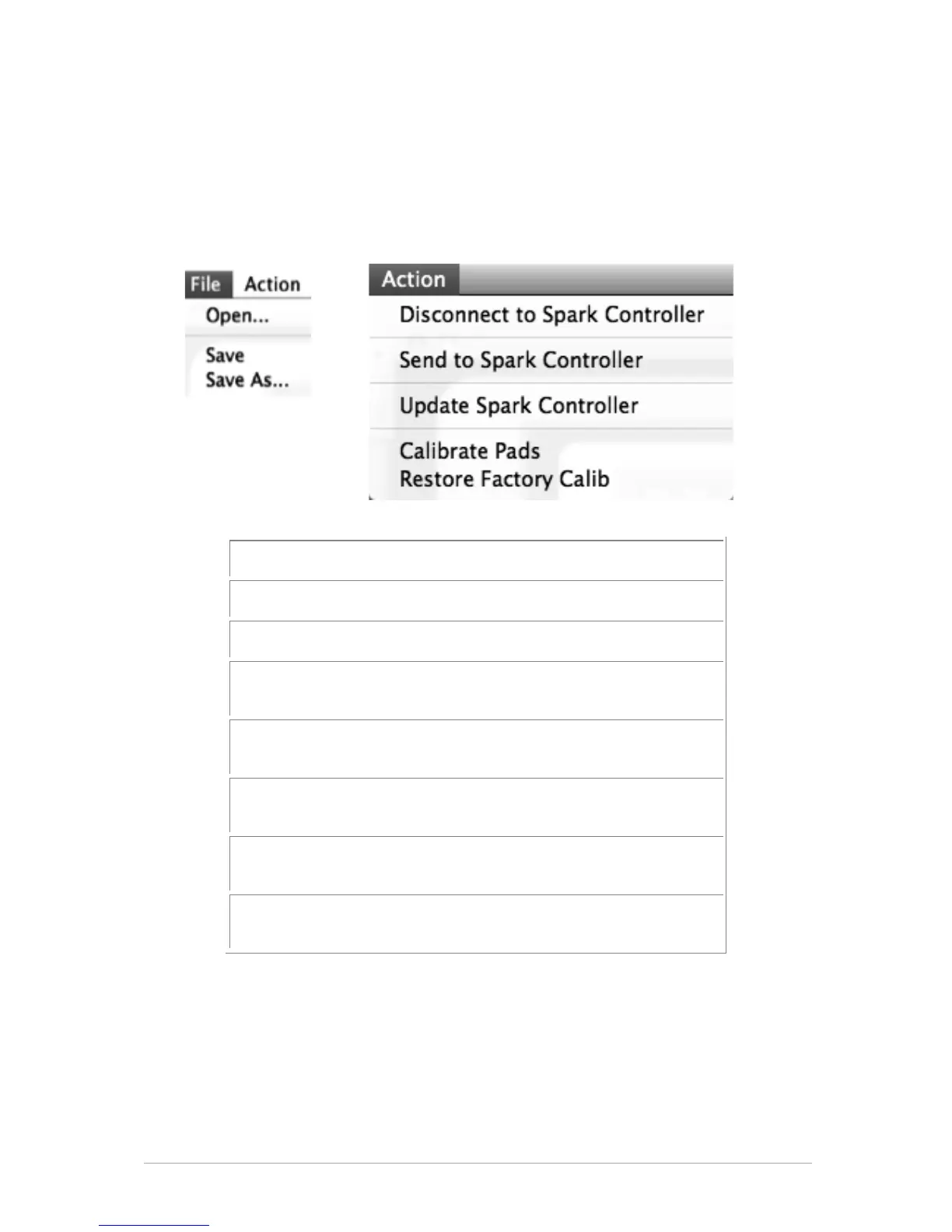
7.3.2 The Menu
1. File > Open…: Open and Load a Template
2. File > Save: Save A Template on the Computer
3. File > Save As…: Save As A Template on the Computer
4. Action > Disconnect to Spark Controller: Disconnect Or
Connect to Spark Controller
5. Action > Send To Spark Controller: Send Template to Spark
Controller
6. Action > Update Spark Controller: Update Spark Controller
Firmware
7. Action > Calibrate Pads: Calibrate the velocity sensitivity of
the Pads
8. Action > Restore Factory Calib: Restore Factory Calibration of
the Pads
7.3.2.1 Midi Templates
Midi Templates: Each control (Pad, Knob or Button) sends a Midi message to the USB
output. Default midi mapping is used for controlling Spark Software. You can customize
this mapping, editing Midi messages sent from any of the controls. New mappings can be
saved as Template Files using the File > Save command. In order for a template to be
active on Spark controller you need to send your template to Spark controller with
'Action > Send to Spark Controller' command. Only one template can be active on Spark
controller at a time.


 To Next Page