5.2.5 The FX Live Pad
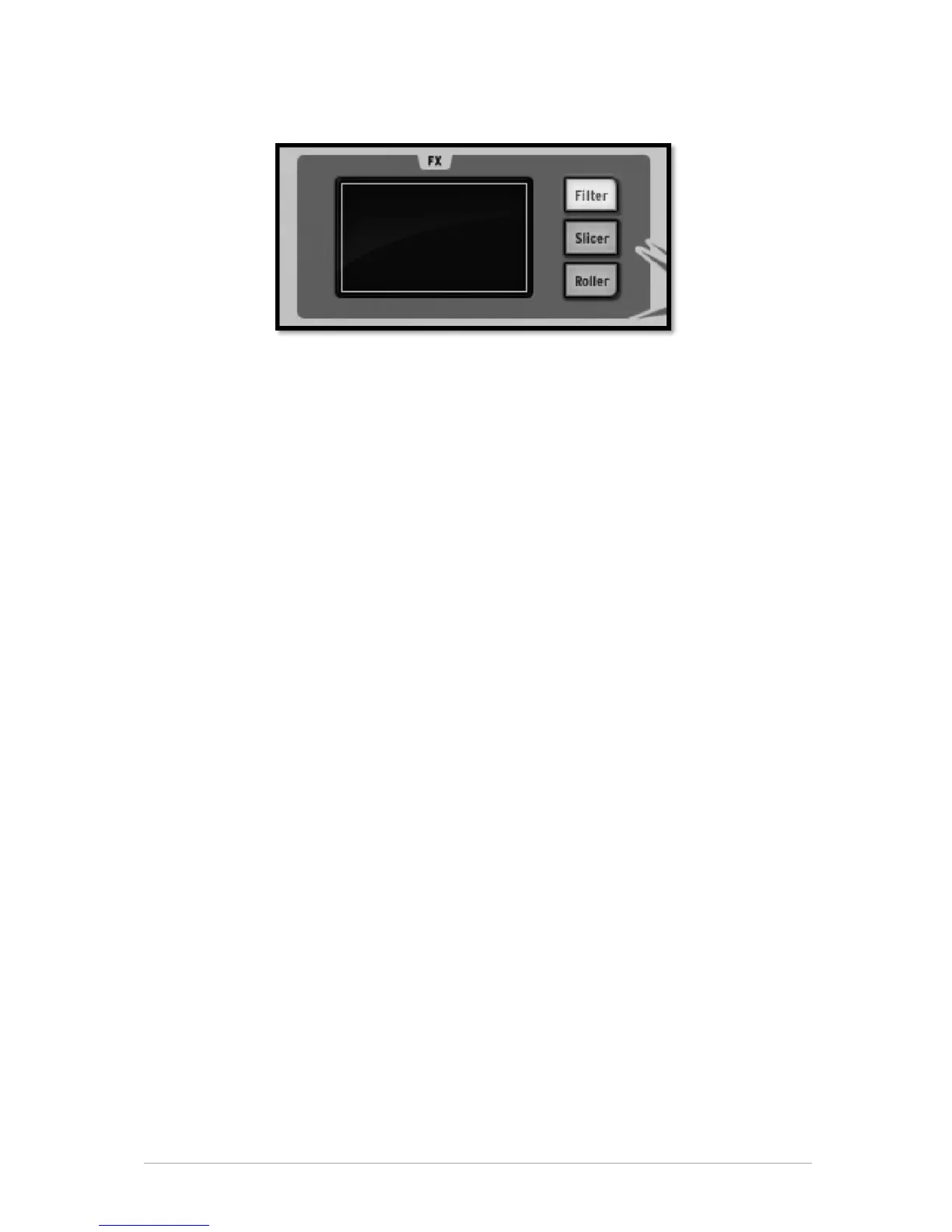
The FX live pad is a striking tool, especially if you plan on playing live. Its touch sensitive
screen will apply live effects in real time to your song or patterns, allowing you to shape
your sound with great precision. When your cursor enters the FX pad zone, it turns from
an arrow to a cross.
The FX Pad features 3 main effect buttons called Filter, Slicer and Roller. By right clicking
on any of them, you can choose between: "Latch" or "Touch". "Latch" will not cut off the
effect when releasing your click, the "Touch" option will cut off the effect upon releasing
your click: the effect is only active when the Pad is touched/clicked on.
5.2.6 The Filter / Slicer / Roller
5.2.6.1 The Filter Button
The Filter button offers a Low pass, a Band pass and a High pass filter with cutoff and
resonance.
To select Low pass, Band pass or High pass, click on the FILTER button repeatedly. Your
choice will be displayed on the center display window.
The Cutoff and resonance can be modulated with the mouse on the software version or
your finger on the hardware version.
The resonance is modulated vertically from the bottom of the pad to the top of the
pad.
Cutoff is modulated horizontally, from the right side of the pad to the left side of the
pad.
Play a pattern of your choice and click anywhere on the right edge of the FX pad while
maintaining your click; draw a straight horizontal line towards the left side of the FX pad.
You will hear the cutoff modulating. The amount of modulation applied can be seen on
the center display panel.
Now place the cursor close to the bottom right corner of the FX pad and trace a line
straight up to the top edge of the pad. You are modulating the resonance.
Of course, both Cutoff and Resonance can be modulated simultaneously by moving the
mouse in any direction and at any speed you wish.
5.2.6.2 The Slicer button
The Slicer will repeat the value of the note selected while applying an effect. You can
choose between the following effects:


 To Next Page