ARTURIA – SPARK CREATIVE DRUM MACHINE – USER’S MANUAL
From here you can load instruments into slots, apply filters and effects, etc.
The picture above shows the 1-8 instrument view.
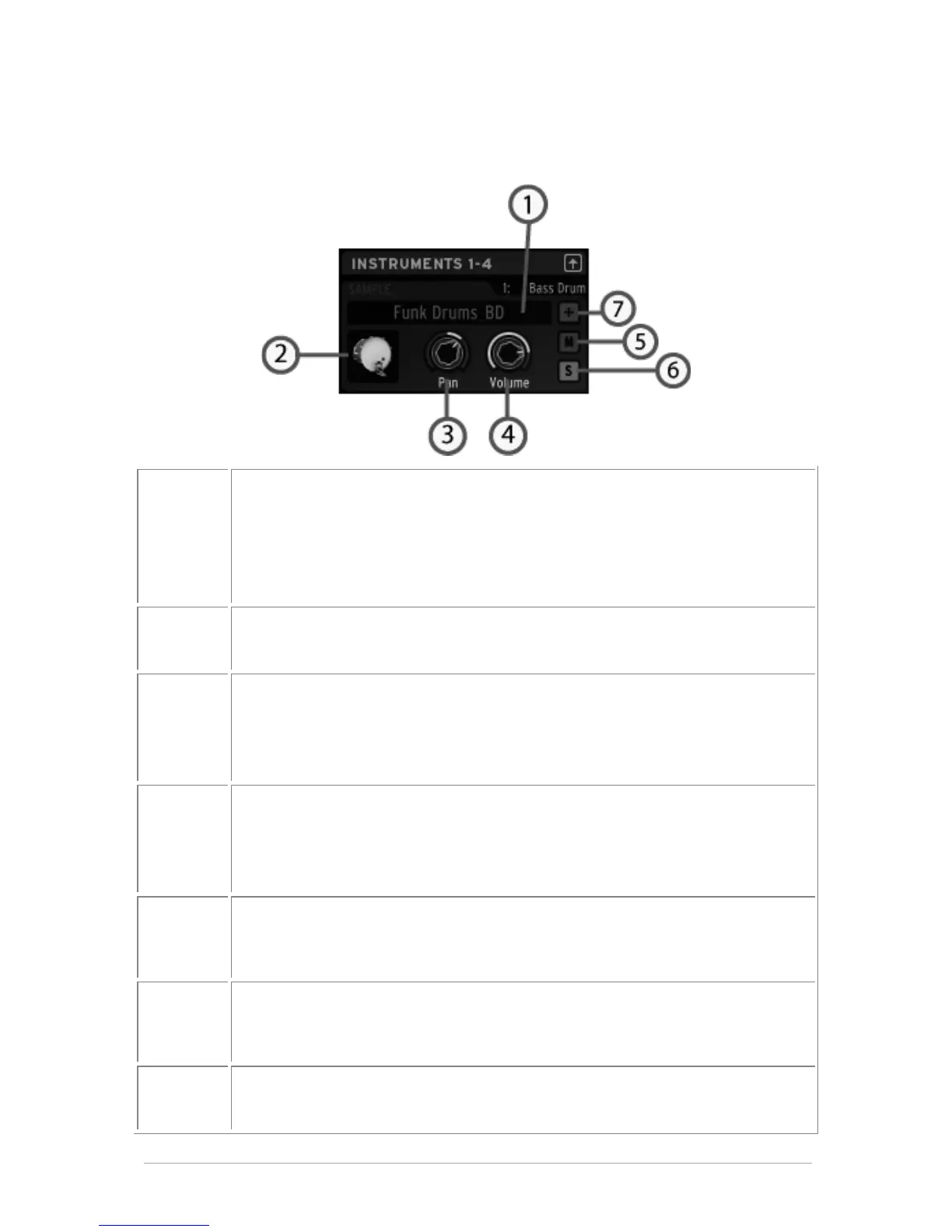
Let’s look at the Bass drum window:
Load a new instrument
To load a new instrument, click on the down arrow. A drop-down menu will
appear listing all the instruments available in Spark. They are organized by
type (16) from Bass Drum to Synth, and each type has 3 categories
(Analog, Physical Model or Sample). Choose a new instrument in the list and
click on its name.
Instrument icon
Clicking on this icon will trigger the instrument's sound.
Set Pan
Click and maintain click to set panning.
A small window appears next to the knob to let you know the amount and
direction of pan applied. Click right to edit or disable pan motion.
Set volume
Click and maintain click to set volume.
A small window appears next to the knob to let you know the amount and
direction of volume applied. Click right to edit or disable volume motion.
Mute an instrument
The Mute button on the center panel will flash to indicate that a Mute has
been set from another panel (studio, mixer or sequencer).
Set solo on an instrument
The solo button on the center panel will flash to indicate that a solo has
been set from another panel (studio, mixer or sequencer).
Edit mode button
Click on the Edit mode button to enter the instrument edit Mode.


 To Next Page