Standard Features AW00089317000
222 Basler ace GigE
10.6.1 Setting Stacked Zone Imaging
Guidelines
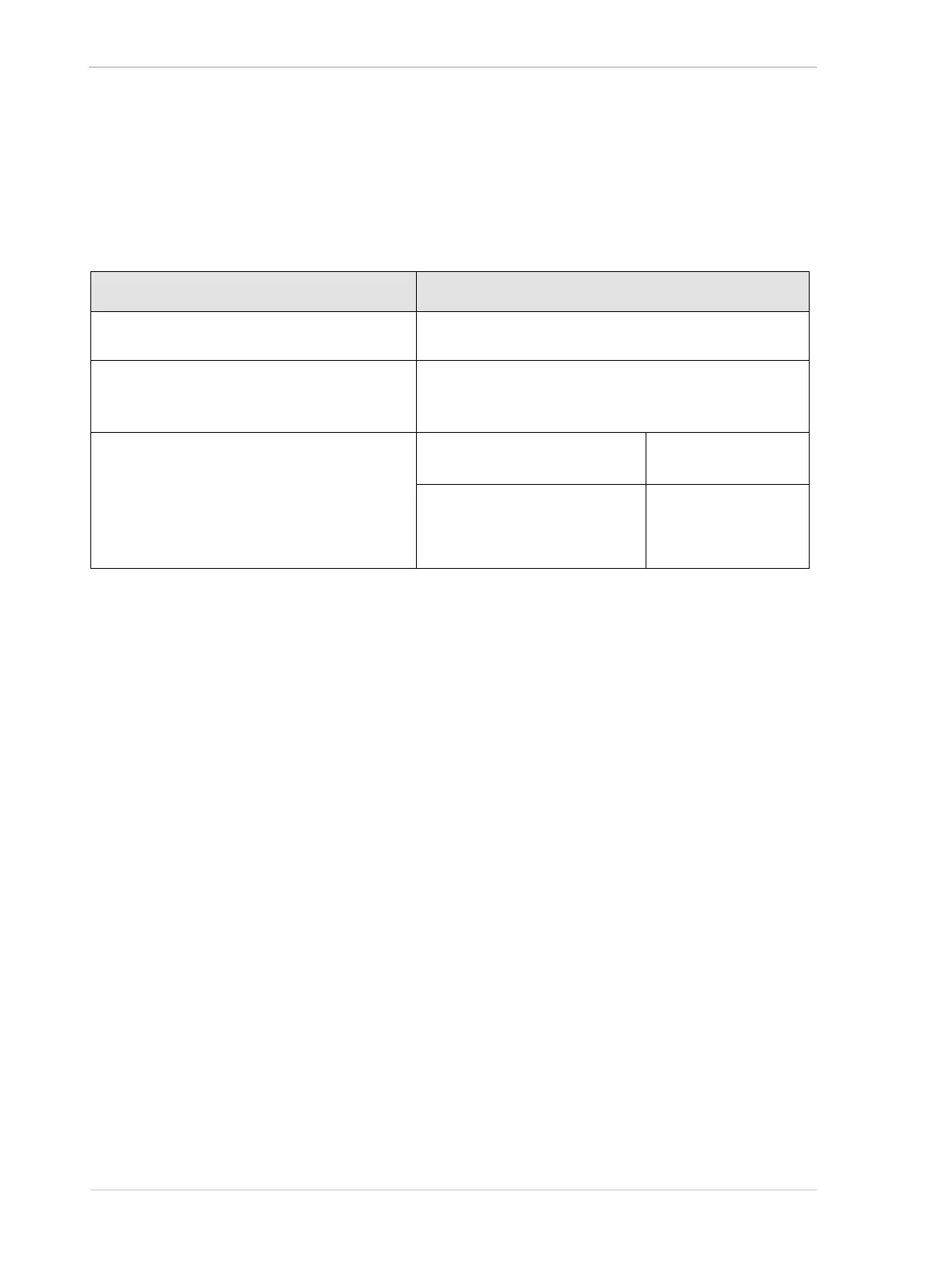
When you are setting the stacked zones, you must follow these guidelines:
Setting Stacked Zone Imaging Using Basler pylon
You can set the parameter values associated with stacked zone imaging from within your
application software by using the Basler pylon API. The following code snippets illustrate using the
API to set up two zones.
// Enable stacked zone imaging
Camera.StackedZoneImagingEnable.SetValue( true );
// Set the width and offset X for the zones
Camera.Width.SetValue( 200 );
Camera.OffsetX.SetValue( 100 );
// Set zone 1
// Select the zone
Camera.StackedZoneImagingIndex.SetValue( 1 );
// Enable the selected zone
Camera.StackedZoneImagingZoneEnable.SetValue( true );
// Set the offset Y for the selected zone
Camera.StackedZoneImagingZoneOffsetY.SetValue( 100 );
// Set the height for the selected zone
Valid for All Camera Models
Offset X + Stacked zone imaging zone width
< Width of camera sensor
Example:
acA2000-50gm: Sum of Offset X + Width < 2048.
Offset Y + Stacked zone imaging zone height
< Height of camera sensor
Example:
acA2000-50gm: Sum of Offset Y+ Height < 1088.
Offset X
Offset Y
Width
Height
Mono cameras:
Can be set in increments of 1
Example:
1, 2, 3, 4, 5, etc.
Color cameras:
Can be set in increments of 2
Must be set to an even
number
Example:
0, 2, 4, 6, 8, etc.


 To Next Page
 Loading...