Using the Ingredient Group Editor
Operator Manual for the Baxter ExactaMix 2400 Compounder
53007410 Rev. C Page 149
2. Enter the Name of the group.
3. Specify the members of this group.
• To add an ingredient to this group:
a. Select the ingredient in the Nonmembers list.
b. Tap >> to move the ingredient to the Members list.
• To remove an ingredient from this group:
a. Select the ingredient in the Members list.
b. Tap << to move the ingredient to the Nonmembers list.
4. Specify the groups that are incompatible with this group.
• To make another group incompatible with this group:
a. Select the other group in the Compatible Groups list.
b. Enter a Flush Volume.
NOTE: The flush ingredient will be any ingredient that is not listed as
incompatible.
c. Tap >> to move the group to the Incompatible Groups list.
• To make another group compatible with this group:
a. Select the other group in the Incompatible Groups list.
b. Tap << to move the group to the Compatible Groups list.
5. To modify the flush volume for an incompatible group:
a. Select the group in the Incompatible Groups list.
b. Edit the Flush Volume.
c. Tap Modify Flush.
6. Tap Save.
7. At the Ingredient Groups window, tap Close.
DELETING AN INGREDIENT GROUP
1. At the Ingredient Groups window:
a. Select one or more ingredient groups you want to delete.
b. Tap Delete.
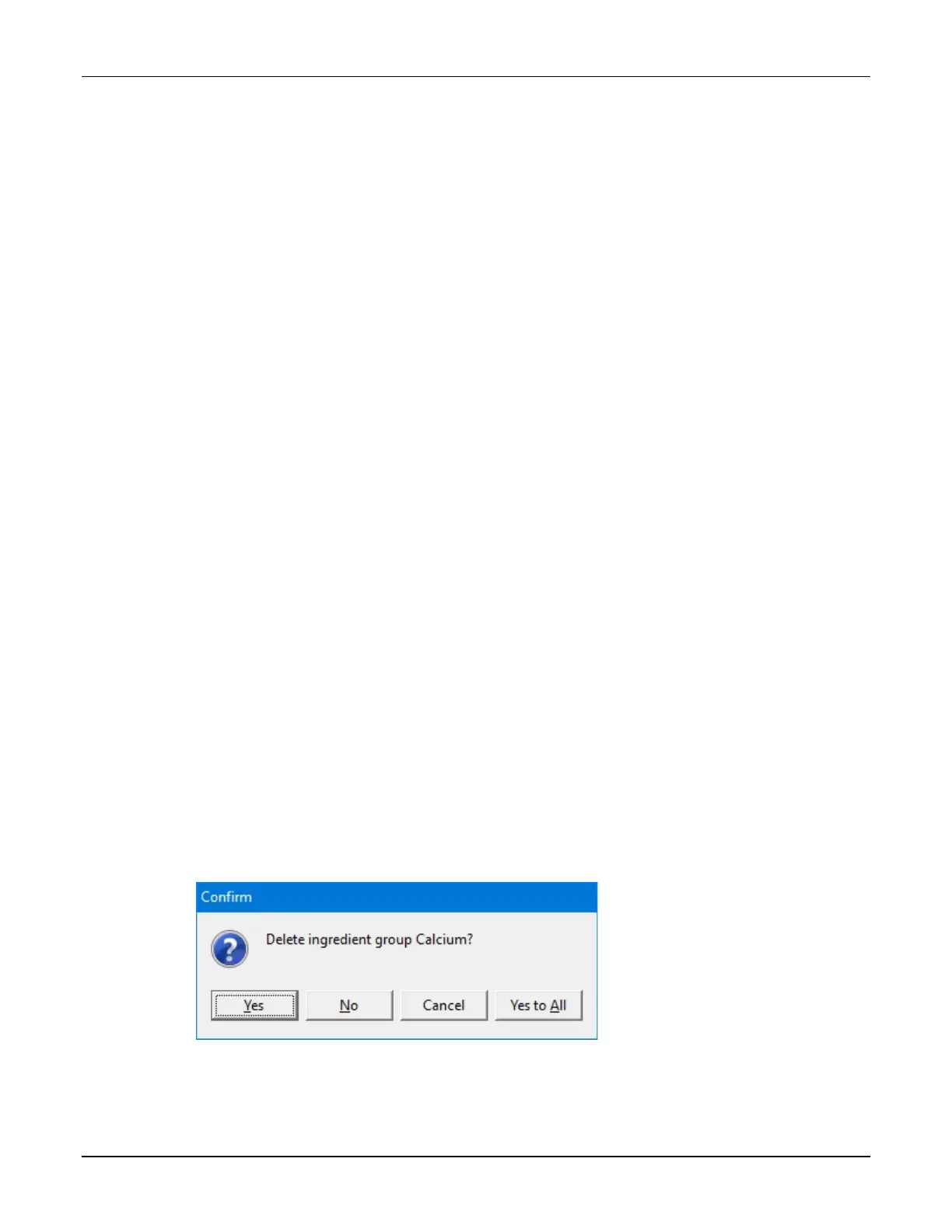
2. At the Delete ingredient group <name>? message, tap:
• Yes to delete the ingredient group
• Yes to All to delete all ingredient groups selected in the Ingredient Groups window
NOTE: If only one ingredient group is selected, only one will be deleted.
Message
3. At the Ingredient Groups window, tap Close.



 To Next Page