123
Combi Mode
Deleting Stitch patterns
Deleting individual stitches
⦁
touch «i»-icon
⦁
touch «Delete»-icon
►
the stitch pattern above the cursor is deleted
⦁
touch «Delete»-icon as many times until the Stitch Altering Area is empty or
⦁
select the desired stitch pattern with finger, keep it pressed and move it to
the right
⦁
remove finger from the Display
►
the stitch pattern is deleted
►
repeat the procedure until the Stitch Altering Area is empty
Deleting entire combination
⦁
touch «i»-icon
⦁
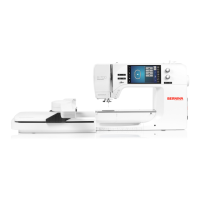
touch «Edit whole combination»-icon
⦁
touch «Delete»-icon
⦁
touch to confirm
►
the Stitch Altering Area is empty
⦁
touch «Close»- or «i»-icon
⦁
a new pattern combination can be programmed
Overview Combination
⦁
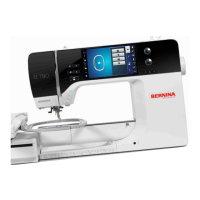
touch «Combination overview»-icon
►
the Display shows following:
1 Stitch width of the active stitch pattern
2 Stitch length of the active stitch pattern
3 «Combi mode»-icon
4 «Combination overview»-icon
5 Complete stitch combination
6 Reducing the combination view
7 Enlarging the combination view
8 Stitch pattern combination can be scrolled via the arrow icons
9 «i»-icon to show the functions in this Display
⦁
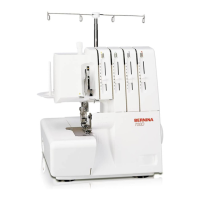
touch «i»-icon
►
following functions can be used:
10 Connecting stitches
11 Moving single pattern or parts of a combination
12 Mirror Image left/right
13 Mirror Image up/down
14 Balance
15 Multi-Directional sewing
16 Long stitch
17 Font size in alphabets
18 Deleting single pattern or parts of a combination
19 Editing the whole combination
►
each stitch pattern can be directly selected e.g. for alterations
⦁
touch «Combination overview»-icon
►
the Display closes
1
2
3 4
5
9
76 8
10 11
12 13
14 15
16 17
18 19


 To Next Page