166
Embroidery motifs
Lettering and embroidery motifs
Combining
⦁
select desired embroidery motif
►
the motif appears in the «Edit»-display
⦁
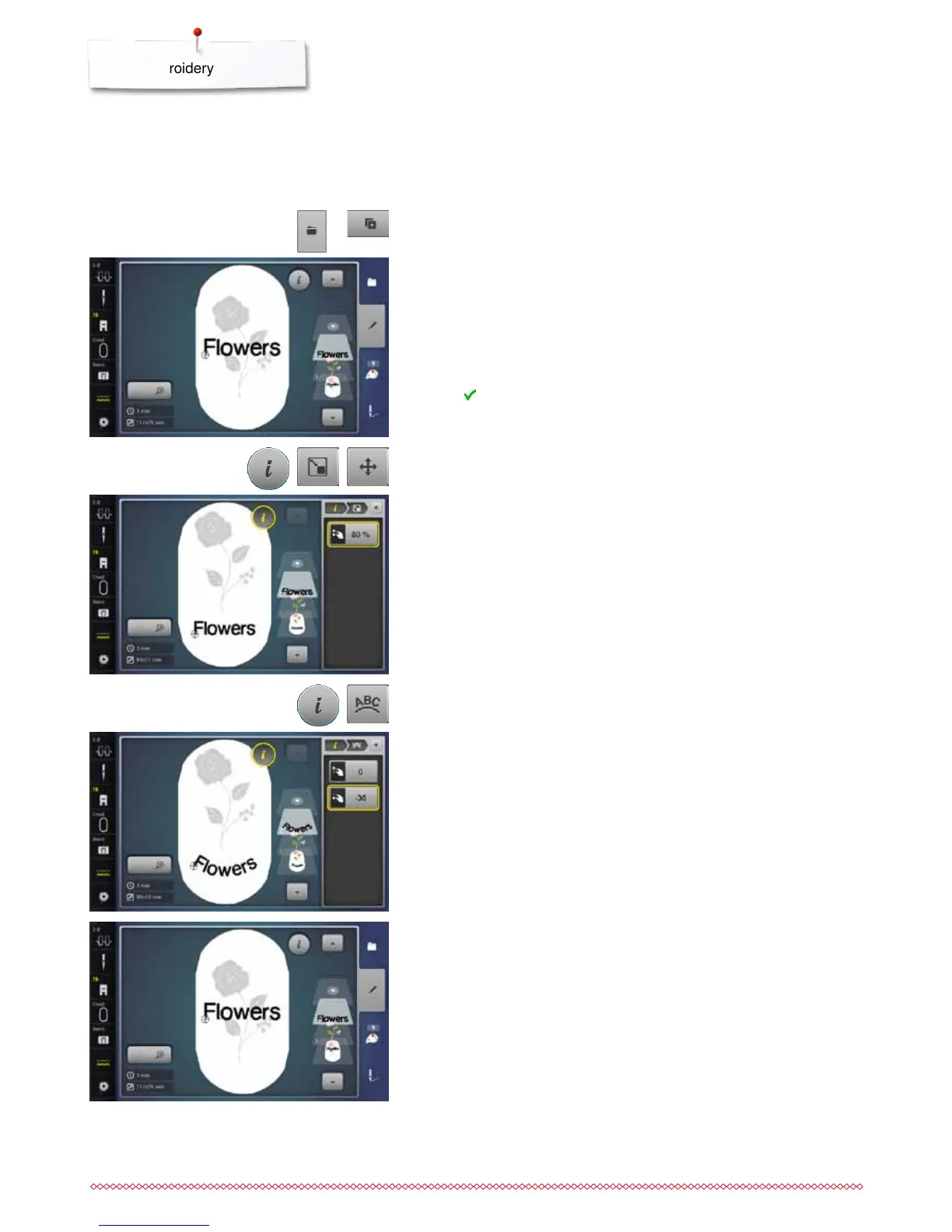
press «Selection»-button
⦁
touch «Add motif»-icon
⦁
touch the dark «Embroidery computer»-icon at the top of the Display
►
selection menu appears
⦁
select desired alphabet
►
the Display with keyboard appears
⦁
enter text, e.g. Flowers
Select the characters using the Lower/Upper Case icon.
⦁
touch to confirm the combined characters
►
the text appears above the motif in the «Edit»-display
Depending on the application, the characters are added after an embroidery
motif is selected or the characters are combined first and then added to the
motif (e.g. embellished lettering).
Adjusting text to motif
⦁
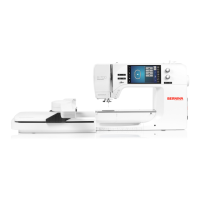
touch «i»-icon
⦁
touch «Rescale motif»-icon
⦁
adjusting text to motif
⦁
touch «i»-icon above the function Display
⦁
touch «Move motif»-icon
⦁
position the text as desired
Lettering Manipulation
⦁
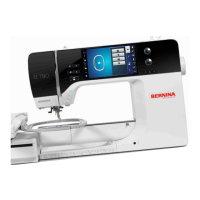
touch «i»-icon
⦁
touch «Letter manipulation»-icon
⦁
turn stitch length knob to the left
►
the lettering is bent upwards
Deleting stitch patterns/individual characters/text
Single parts of combinations which have not been saved yet can be deleted as
follows:
⦁
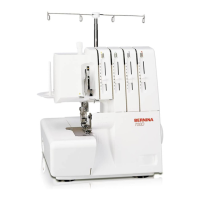
select the part of the combination to be deleted
⦁
touch «i»-icon
⦁
touch «Delete»-icon
⦁
touch «ok» to confirm or
⦁
select the part of the combination to be deleted using the finger, keep it
pressed and move to the right
⦁
remove the finger from the Display
⦁
touch «ok» to confirm
►
the selected part is deleted


 To Next Page