EasyManua.ls Logo

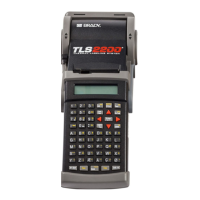
Brady TLS2200 - User Manual

Brady TLS2200
82 pages
Print Icon
To Next Page IconTo Next Page
Loading...
TLS2200™ Thermal
Labeling System
User’s Guide
Version 4

Table of Contents

Other manuals for Brady TLS2200

Questions and Answers

  • S
    Susan MorganAug 29, 2025
    How to resolve poor quality printing on Brady Label Maker?
    • A
      Amanda AndrewsAug 29, 2025
      Poor quality printing on your Brady Label Maker may be due to an incorrect marker material/ribbon combination. Verify the correct ribbon for the marker roll is loaded in the printer. Refer to the Ribbon Cross Reference Guide chart that came with the printer for proper ribbon selection.
  • J
    John RobinsonAug 28, 2025
    What does 'Memory Full' mean on my Brady Label Maker and how to fix it?
    • L
      Lorraine DiazAug 28, 2025
      The 'Memory Full' message on your Brady Label Maker indicates that either there are ten lists (the maximum) already saved in memory, or the memory has reached capacity while trying to save a legend to a list. To resolve this, delete one or more lists or legends.
  • G
    gnguyenAug 27, 2025
    How to fix Brady Label Maker cutting through top of marker?
    • A
      Angela MyersAug 27, 2025
      If the top of the marker is cut through when cutting PSPT markers on your Brady Label Maker, verify the movable material guide is fully locked into the proper notch in the guide plate.
  • T
    Taylor PatrickAug 26, 2025
    What does 'Error Out of Label' mean on my Brady Printer and how do I fix it?
    • A
      aaron89Aug 27, 2025
      The 'Error Out of Label' message on your Brady Printer means the roll of markers is either not feeding properly or has run out. Press the or button to clear the display. If the roll is empty, install a new one. If the markers aren't feeding correctly, ensure the leading edge is inserted into the material path until it hits the feed roller and that the edge is straight. If skewed or jammed, press the key to recalibrate, or open the print head and pull the markers through to clear the jam.
  • M
    Michael GomezAug 25, 2025
    How to clear 'Error Head Open' on Brady TLS2200?
    • G
      gonzalezrhondaAug 26, 2025
      If your Brady Printer displays the 'Error Head Open' message, it means the print head is unlocked. Move the lever on the right side of the TLS2200™ printer to the lock position. Then, press the or button to clear the display.
  • T
    thomasjeffreyAug 25, 2025
    What to do if my Brady TLS2200 Printer displays 'Error Head Too Hot'?
    • M
      melissa60Aug 25, 2025
      If your Brady Printer shows 'Error Head Too Hot', the print head can't reliably print due to heat buildup. Press the or button to clear the display, and then allow the printer to cool for ten minutes before printing again.

Summary

Document Administration

Copyright Information

Details the copyright status and restrictions for the manual.

Trademarks

Lists trademarks associated with the product and software.

Company Information

Provides contact details and address for Brady Worldwide, Inc.

Regulatory Notices

FCC Notice-U.S. Only

Advises on radio frequency energy and compliance for US users.

Europe and WEEE Directive

Information regarding European regulations and recycling.

Canada Regulations

Details compliance with Canadian interference-causing equipment regulations.

BRADY Warranty

License Agreement

License Restrictions

Outlines prohibited actions regarding software and documentation.

Nature of Agreement

Clarifies that the license is not a sale and ownership remains with BRADY.

Limited Warranty Terms

Specifies the warranty period and BRADY's obligations.

Limitation of Liability

Defines BRADY's liability limits for damages.

General License Terms

Technical Support

Manual Structure and Support

Tutorial Guide Overview

Introduces the step-by-step tutorials for printer functions.

Maintenance Procedures

Covers recommended maintenance for the printer.

Accessory Parts List

Lists available parts and accessories for order.

Appendices

Lists supplementary information like troubleshooting and glossaries.

Introduction to TLS2200

Unpacking Your TLS2200 System

Guides users on checking items received in the printer package.

Saving Packaging

Advises on retaining original packaging for future shipments.

TLS2200 System Specifications

Physical and Environmental Characteristics

Details the printer's dimensions, weight, and operating conditions.

Certification

Lists the certifications the TLS2200™ printer has obtained.

Knowing Your Software Version Number

Quick Start Guide

Summary of Steps

Provides a high-level overview of the label creation process.

Step 1: Charge the Battery

Instructions for charging the printer's battery pack.

Step 2: Install the Battery

Step 3: Turn the Power On

Step 4: Select Your Marker and Ribbon

Step 5: Install the Ribbon Cartridge

Step 6: Remove a Marker Roll

Step 7: Install a Marker Roll

Step 8: Type Text

Step 9: Edit Text

Changing Font Sizes

Explains how to adjust font size for label lines.

Cursor and Editing Keys

Details the function of various keys for text editing.

Step 10: Print Labels

Working with Screens and Menus

The Text Editor Screen

Describes the primary screen for label text entry.

The Setup Menu

Explains how to access and navigate printer setup options.

Setup Menu Options

Printer Settings

Configuration options for printer functions like margins and cleaning.

Barcode Settings

Options for configuring barcode type, height, and readability.

Continuous Printing Settings

Style Settings

Options for text rotation and justification.

Format Options

Serial Number Settings

Configuration for serial number schemes (standard, octal).

Language Settings

Selection of menu and prompt language.

Units Settings

Choice between metric and imperial units for measurements.

Peripheral Mode

Enables printer use with PC software like LabelMark/WIN.

Other Setup Menu Options

Setup Menu Tree

Creating Legends

Using the <Enter> Key

Explains the function of the Enter key in legend composition.

Default Font Size

Details how the printer automatically sets the initial font size.

Changing the Font Size

TLS2200 Printer Fonts

Lists available font types and their point sizes.

Clearing the Legend

Saving and Recalling Legends

Function Keys Overview

Printing Your Labels

Adjusting Burn Temperature

How to adjust print density for darker or lighter output.

Setting Peel Time

Configures the delay before the label is cut after printing.

Printing Larger Labels

Information on printing larger label formats with different software versions.

Reloading Marker Rolls and Ribbons

Advanced Features

Serialized Labels

Instructions for creating labels with sequential numbering or lettering.

General Guidelines for Serializing

Legend Lists

What Is A Legend List?

Defines a legend list and its storage capabilities.

General Guidelines for Legend Lists

Rules and considerations for creating and managing legend lists.

The List Menu

Creating a New List

Step-by-step guide to creating a new list of legends.

Selecting a List

Printing a List

Editing a List

Using Edit Mode

Appending a List

Deleting a List

Continuous Printing-Terminal Block Labels

Creating Terminal Block Labels

How to create labels for terminal blocks.

Setting the Center-to-Center Spacing

Adjusts the repeat value for terminal block labels.

Continuous Printing-Banners

Banner Rotation

Options for printing banners horizontally or vertically.

Default Font Size for Banners

Specifies the default font size for continuous banner printing.

Fixed Length Banners

Barcode Labels

Creating Barcode Labels

Guides on creating various barcode types (Code 39, 128, etc.).

Setting Barcode Options

Customization options for barcode formatting and printing.

Barcode Symbology Specifications

TLS2200 Printer Barcode Parameters

Maximum Barcode Characters

Details the maximum number of characters per line for barcodes.

Multiple Barcodes and Mode Switching

Multiple Barcodes

Information on entering multiple barcodes on a single label.

Switching Between Text and Barcode Mode

How to toggle between text and barcode entry modes.

Tutorial Guide

T1: Creating a One-Line Legend, Component Marker

Step-by-step guide for creating a simple component marker label.

T2: Creating a Component Label Utilizing Multiple Font Sizes

T3: Creating a Wiremarker

T4: Creating Serialized Wiremarkers

T5: Creating a Label with Rotated Text, Printing Multiple Copies

T6: Creating a Barcode Label

T7: Creating a Serialized Barcode Label

T8: Creating a Terminal Block Label

T9: Creating a Patch Panel Label

T10: Creating a Continuous Label

T11: Creating a Banner Label of Fixed Length

T12: Creating a Legend List, Component Markers

T13: Creating a Legend List Utilizing Multiple Font Sizes and Rotations

T14: Creating a Legend List, Wiremarkers, Printing Multiple Copies

T15: Creating and Recalling a Legend List, Barcode Labels

T16: Creating a Legend List, Recalling and Editing a Legend

T17: Creating a Legend List, Banner Legends

Maintenance

Cleaning the Drive Roller and Cutter

Instructions for cleaning the drive roller and cutter.

Cleaning the Print Head

Procedure for cleaning the printer's print head.

Accessory Parts List

Catalog of available replacement parts and accessories.

Appendix 1: Troubleshooting and Error Message Guide

Troubleshooting Guide

Helps diagnose and resolve common printer issues and symptoms.

Error Messages

Lists error messages, their causes, and corrective actions.

Appendix 2: Glossary of Terms

Appendix 3: Using the TLS2200 Device Loader

System Requirements

Specifies the PC requirements for the device loader software.

Downloading the Device Loader

Instructions for downloading the software from the Brady website.

Installing the Device Loader

Step-by-step guide for installing the loader software on a PC.

Connecting the TLS2200 Printer to a PC

Running the TLS2200 Device Loader

Preparing the Printer for New Firmware

Steps to ready the printer for a firmware update.

Downloading New Firmware

Process for transferring new firmware to the printer.

Appendix 4: Direct Printing from LabelMark;Win

Brady TLS2200 Specifications

General IconGeneral
BrandBrady
ModelTLS2200
CategoryPrinter
LanguageEnglish

Related product manuals