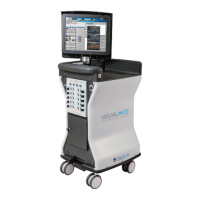
Visual-ICE™ Cryoablation System
5-3
Setting Description
Automatic Flush
Unless disabled by removing the check from this box, an
automated gas line ushing will occur after argon is connected
and the gas lines pressurized.
Custom Fields
Enter custom names to label the two custom elds available for
entering information in the Registration screen.
Upload
Registration
Use the drop-down menu to enable or disable the option to
upload registration data with the procedure reports. By default,
registration data is not uploaded. This function is only available
to administrative or service personnel.
Clear Hospital
Information
Clear the hospital name, address, and physician name from the
system history le.
Time Zone
The time zone can be changed by administrative or service
personnel. The Visual-ICE System automatically adjusts for
Daylight Saving Time.
Pressure Units Select the units of pressure that the Gas Indicator displays.
Temperature Units
Select the temperature units that the Temperature Sensors
section displays and graphs.
Control buttons at the top of the screen provide options for Calibrate Touch Screen, Manage Users,
Manual Software Update, and Congure Ethernet.
Calibrate Touch Screen: Press the center of the ‘+’ symbols to calibrate the touch screen. Follow
the on-screen prompts as you move from one location to another. The system begins the calibration
process by displaying a ‘+’ symbol in the upper left-hand area of the touch screen. The ‘+’ symbol
then moves counter-clockwise to the lower left, lower right, and upper right-hand areas of the screen.
The nal calibration location is in the center of the screen.
Manage Users: Select your username and press the Change Password button to change your
password. Administrative users may add users, remove users, or change the password of any user.
Manual Software Update: Press the Manual Software Update button to install a software update
via a Galil Medical USB ash drive. This function is available only to administrative and service
users.
Congure Ethernet: Pressing this button allows administrative and service users to congure
the Ethernet connection for remote uploading of reports or downloading of software versions. This
function is available only to administrative and service users.


 To Next Page