7. Click Save to apply the offset to the Scanner 3100, and exit the Maintenance mode.
Note Zero offset values are cleared when a new calibration is saved.
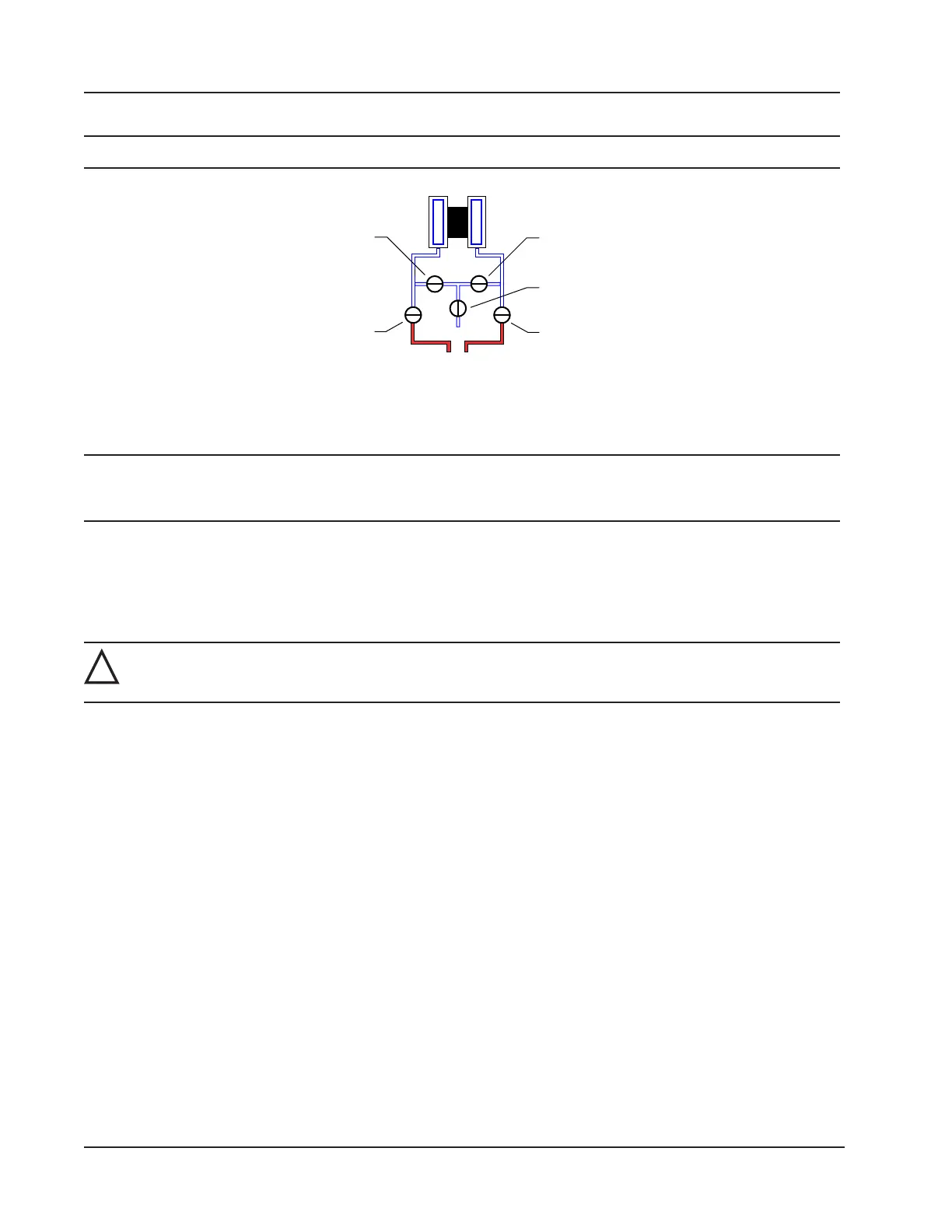
VENT
BYPASS/
BLOCK
EQUALIZER
BYPASS/
BLOCK
EQUALIZER
Figure 2.16—Valve positions for zero offset
Static Pressure Calibration and Verication
Note The pressure range stamped on the MVT is expressed as psia (absolute). However, Scanner 3100 pressure
inputs are recalibrated as psig (gauge) at the factory before the device is shipped. Therefore, default pressure
readings displayed on the LCD and in the web interface are in terms of psig.
The static pressure and differential pressure inputs are calibrated and veried before the Scanner 3100 leaves the factory,
and recalibration in the eld may or may not be required. To comply with API standards for verication, “as found” read-
ings should be recorded at approximately 0, 50, and 100 percent of the operating pressure range, increasing, and at 80, 20
and 0 percent of the operating pressure range, decreasing. For example, the static pressure measurements of a 1500-psi
sensor should be veried at 0 psi, 750 psi, and 1500 psi, then at 1200 psi, 300 psi, and 0 psi.
!
WARNING: Do not subject the Scanner 3100 to unnecessary shock or over-range pressure during mainte-
nance operations.
To calibrate the static pressure:
1. Close the bypass valves to isolate the pressure below the manifold (Figure 2.17, page 53).
2. Open the equalizer valves and vent valve to purge the lines.
3. Close the vent valve.
4. Connect a static pressure simulator to either side of the manifold.
5. Connect to the Scanner 3100 via the web interface.
6. Navigate to the Local I/O>SP:Stat Pres screen, click the Calibration tab, and click the Modify button. You will
be prompted to enter the Maintenance mode. See the Scanner 3100 Web Interface User Manual for complete
instructions.
7. Click the “Applied/As Left” eld, enter a known pressure.
8. Apply the same pressure to the MVT using the simulator and wait for the reading to be acquired.
9. Click Accept to accept the reading and exit the dialog. The pressure read by the simulator will be displayed in the
As Found eld and the calculated error between the pressure applied and the pressure read will appear beside it.
10. Repeat steps 7 through 9 to enter multiple calibration points.
11. When all calibration points have been entered, click Save to apply the new calibration settings.
12. Exit the Maintenance mode.
52
Section 2 Scanner 3100 EFM




 To Next Page