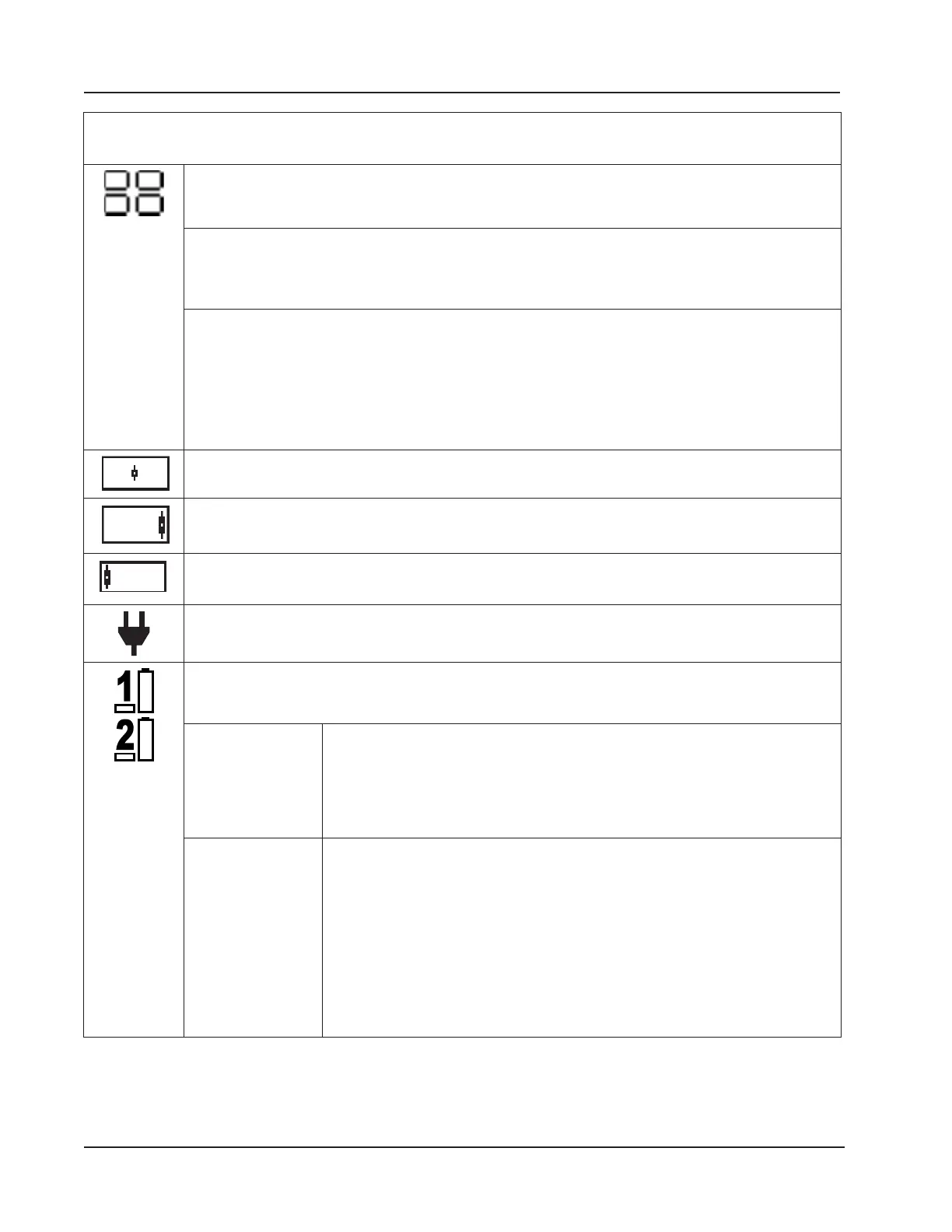
Table 5.1—Device Status Glyph Denitions
Keypad Use. This glyph depicts the four keys positioned on either side of the LCD. Pressing a key
on the keypad causes the corresponding key in the glyph to appear lled, verifying that the key is
actuated.
Device Boot-up Failure. The illumination of all four keys in the keypad glyph when no keys are
depressed signals a boot failure. Should this occur, the LEP and UIC rmware versions will appear as
“0.000” in the web interface (Device menu), and the communication ports and turbine inputs will not
function properly.
To rule out a hardware failure:
1. Remove all power sources and unplug power at the terminal block.
2. Let the device sit idle for at least 10 seconds.
3. Check the power supply to ensure it complies with the Scanner’s external power supply rating.
4. Restore power and check the keypad glyph. If the four quadrants are still illuminated, contact
Cameron for assistance.
LCD Display Indicator (Center/Asleep). The default mode for the LCD display indicator.
LCD Display Indicator (Right). Cover the right half of the LCD display to stop auto-scrolling
parameters and begin advancing parameters manually.
LCD Display Indicator (Left). Cover the left half of the LCD display to view the device name, rmware
version, serial number, metrology hash codes, and the IP address.
External Power. An external power source has been detected.
Battery Status. These numbered glyphs represent the Scanner 3100’s two lithium battery packs. The
left-most indicator represents the battery on the left as you face the display. Each glyph provides two
indications.
Battery Capacity The tall battery shape indicates battery capacity. A lled “battery pack” (black
on a light gray background) indicates full capacity. An empty “battery pack”
indicates a nearly depleted battery pack or none installed. Battery replacement
is recommended when the indicator shows capacity to be 50% or less. Battery
levels typically remain high (full) for the majority of a battery’s life and then
deplete quickly near the end of the battery’s life.
Battery State
(In Use or Not in
Use)
A lled block under the number indicates the battery is in use. One or both
batteries may be in use at any given time. When external power is available,
neither battery block should appear lled. If a mostly depleted battery is shown
to be in use when you are ready to replace it, you may proceed without concern.
The Scanner 3100 will automatically switch to the remaining battery pack when
one pack is disconnected from the device. To avoid interrupting operations: If
both batteries are nearly depleted, connect an external power source before
disconnecting the battery pack(s) for replacement. If external power is not
available and at least one installed battery pack has the capacity to power the
device momentarily, disconnect and replace the fully depleted pack before
disconnecting and replacing the second pack.
80
Section 5 Scanner 3100 EFM




 To Next Page