• To upload a register map via the web interface, log into the Scanner 3100 interface, select ADMINISTRATION>
GENERAL from the taskbar and click Installed Files at the left of the screen. To erase the map currently installed,
click Uninstall PMAP File and click OK at the Conrm prompt. Then, click Browse under “Install Protocol Map
File,” select the desired conguration (.pmap) le to upload, and click Open. From the interface screen, click
Submit, click OK at the Conrm dialog, and wait for the le to upload.
• To upload a register map le via the ScanFlash utility, follow the upload instructions under ScanFlash Upload, page
C-2.
ScanFlash Upload
Important To download ScanFlash software, visit Cameron’s Measurement website at http://www.cameron.
slb.com/owcomputers, choose CAMERON Flow Computer Scanner 3100, and click the link for the
software install.
Important To upload rmware to the Scanner 3100, you must have Administrator-level user access. To upload
conguration les or custom Modbus register maps, you must have Conguration Editor-level or
Administrator-level user access.
1. Download ScanFlash from the Cameron website, as noted above.
2. Open a web browser and enter the IP address of the Scanner 3100 to establish a connection to the device.
3. Download all historical data from the Scanner 3100.
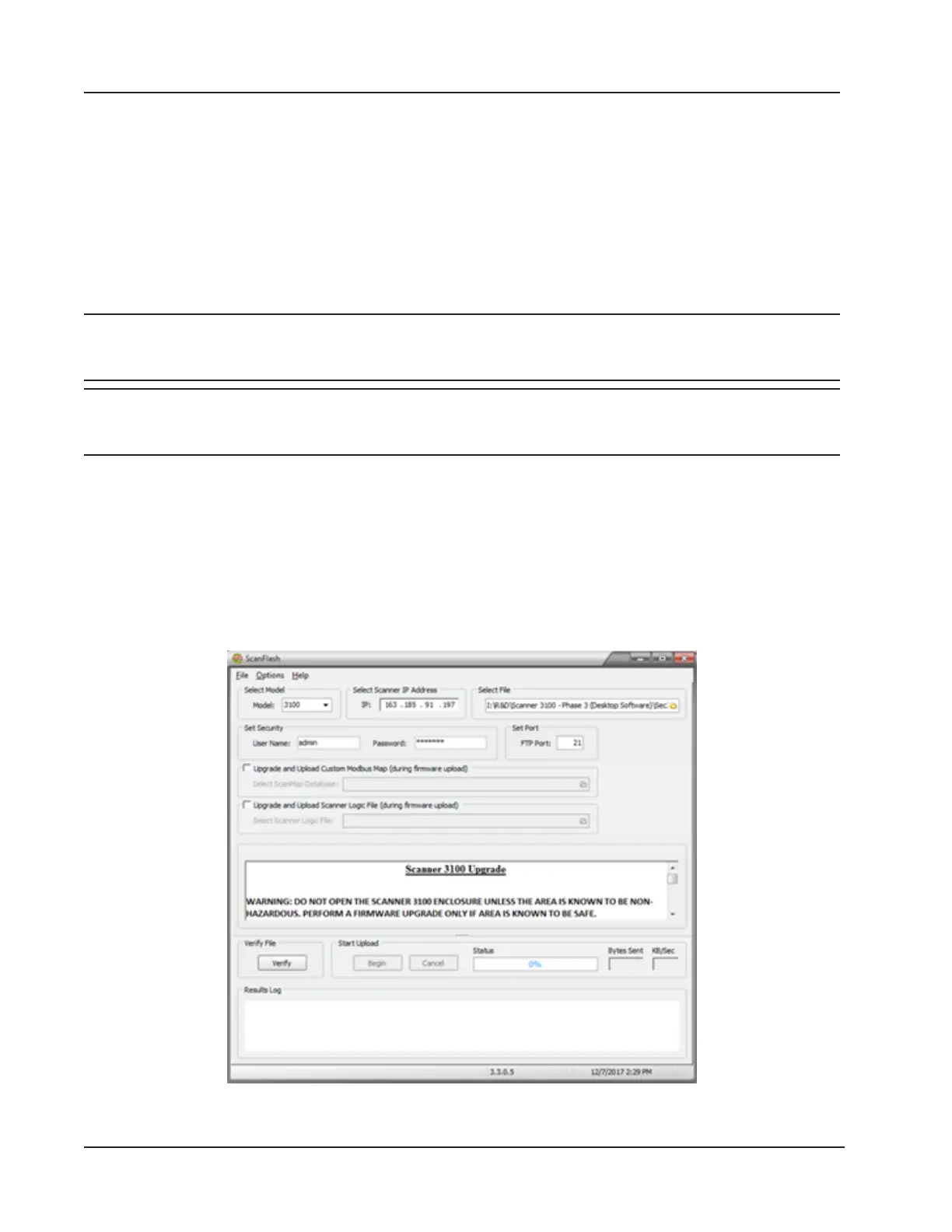
4. Open ScanFlash (shown in Figure C.1) and enter the IP address for the Scanner 3100.
5. Close the browser and clear the browser cache.
6. Select the rmware (BIN), conguration (SCF), Scanner Logic (SLBIN), or Modbus map (PMAP) le to be
uploaded.
Figure C.1—ScanFlash interface
C-2
Appendix C Scanner 3100 EFM




 To Next Page