Cellwatch Frontier System Installation & User Manual
Section IV – Integration Guide-118
To remove an existing SNMPv3 user, click the Remove button next to the user in the table that you wish
to remove from the system. Clicking Remove will immediately remove the user from the USM user
table, so a restart of the Frontier device is not required.
If any other SNMP settings are modified and changes are saved (by clicking the Save settings button),
SNMPv3 user management will be unavailable until the Frontier device is restarted.
Trap Management
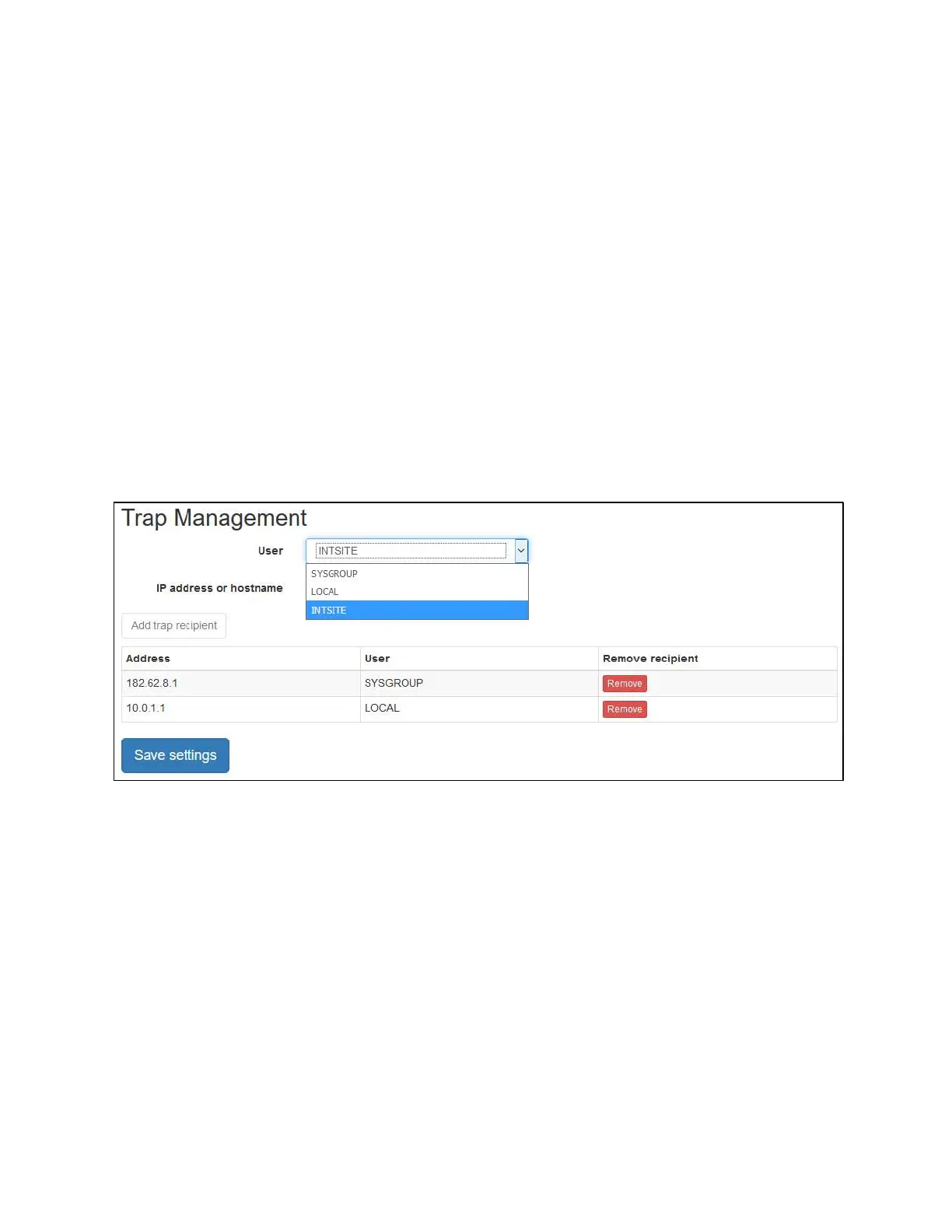
SNMPv3 trap management is located under the SNMPv3 Traps tab.
In order to configure a SNMPv3 trap recipient, at least one SNMPv3 user must be created that will be
used to authenticate the trap. Choose the SNMPv3 user that you wish to use to send the trap in the
User dropdown box, then fill in the IP address or hostname of the trap recipient. To add the trap
recipient, click the Add trap recipient button.
Any number of SNMPv3 trap recipients can be added to a Frontier system. Inform traps are not
supported in Frontier.
Select an existing SNMPv3 user from the User dropdown box.
To remove a trap recipient, click the Remove button next to the trap recipient that you wish to remove.
To apply any changes to trap recipients on this page, click the Save settings button. Modifying any SNMP
settings on this page will require a restart of the device.
Advanced
The Advanced tab allows saving the SNMP configuration file to your computer or restoring a previously
saved configuration file.
The SNMP configuration will be downloaded as a text file with a .conf extension. This file may be
renamed but the .conf extension must remain in order to be uploaded.


 To Next Page