Cellwatch Frontier System Installation & User Manual
Section III – Configuration Build and Hardware Integration Guide-106
Diagnostics
The Diagnostics tab allows the user to pull down FED diagnostic data for later evaluation. The List
Registers button will display the latest FED register data. This information can then be downloaded as a
.csv file or as a .txt file. The FED database pulls down historical data from the system.
Common Errors
A configuration or communication error can be returned from the FEDs for two main reasons.
1. The number of configured FEDs in Battery Design does not match the number of FED devices
discovered.
Reason: The Battery Design was configured for the wrong number of FEDs.
Fix: Return to Battery Design and confirm that the correct number of FEDs have been configured
for each string. Save your changes and recalibrate. Force a manual scan in Diagnostics or allow
the status of each FED to update on the next hourly scan.
2. The number of FEDs discovered during the previous scan does not match the configuration.
Reason: The communication has been broken at the FED connections.
Fix: Identify location of the break using the Frontier user interface and reseat the connection at
the FED. Force a manual scan in Diagnostics or allow the FED to update on the next hourly scan.
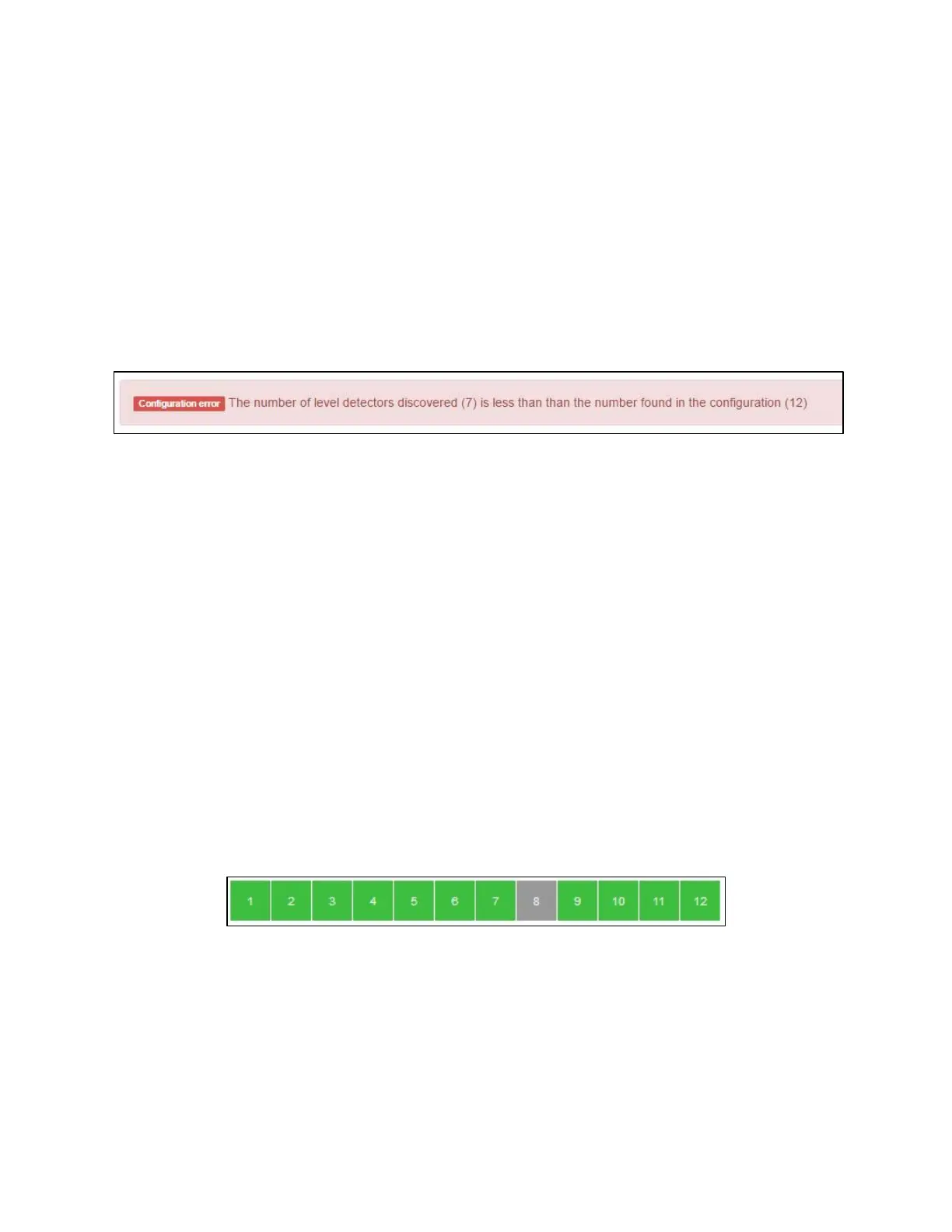
A break in FED communications will be easy to spot on the Frontier Home page. The location of the
break can be seen as the first cell that is colored grey in a string. The previous FEDs in the string returned
their readings but the break in communications began at the FED that is colored grey.
A break in communication has occurred at FED #8.


 To Next Page