Cellwatch Frontier System Installation & User Manual
Section II – User Guide-85
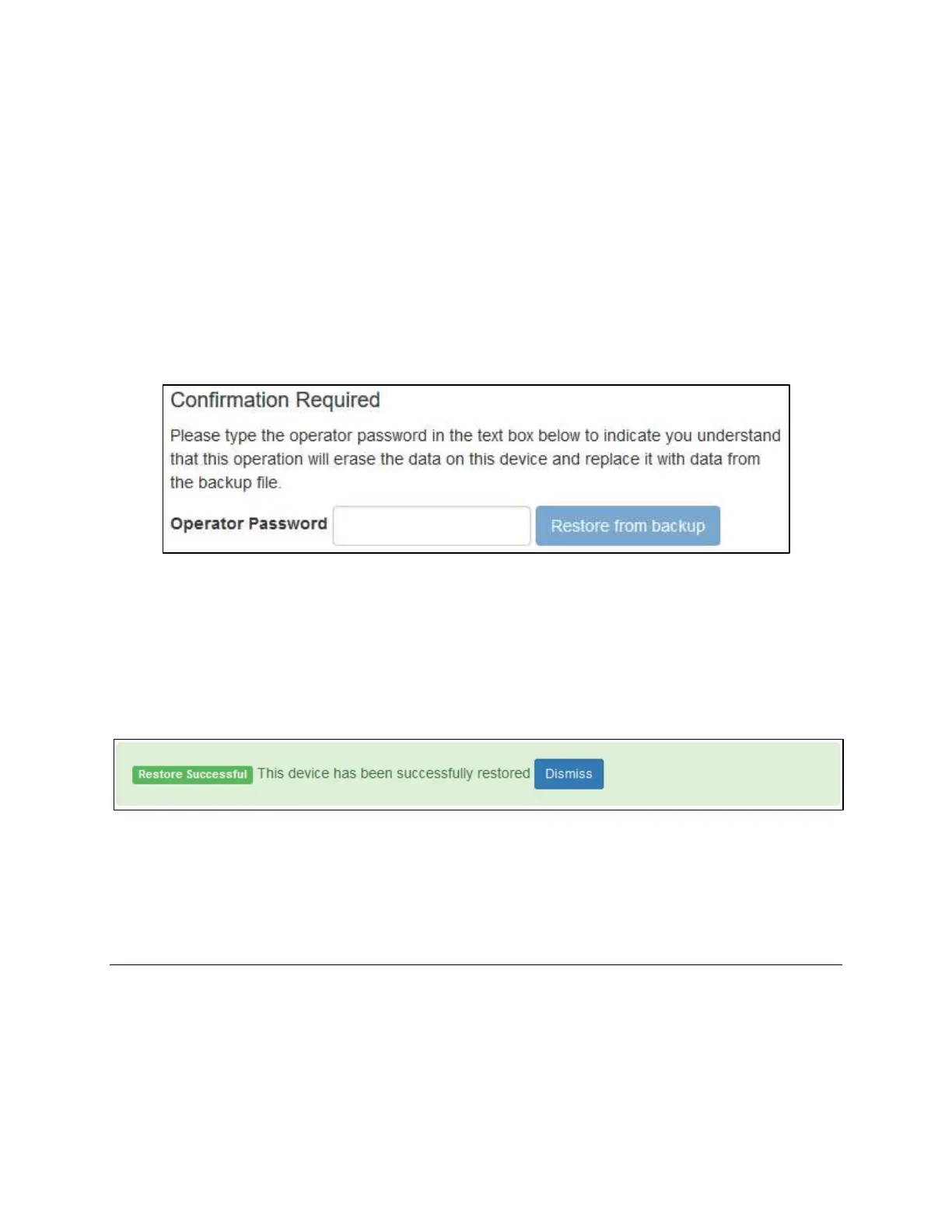
3. Enter the operator password (“deafcat”).
4. To start the restore, click the Restore from backup button. The maximum size that Frontier can
restore from backup is 2GB (gigabytes).
5. Wait for the backup file to upload to the Frontier device.
The amount of time needed for the restore process will be largely dependent on the size of the backup
and the speed of your connection to the Frontier device. A backup file that is 100 megabytes (MB) in size
takes roughly 2 minutes when restoring over a local area network (LAN). It is not recommended
attempting to restore over a slow or unstable connection, as the process may take hours or fail to
complete. It is highly recommended that your machine and the Frontier device are inside a LAN before
attempting to restore from a backup.
The operator password must be entered into the text area above before the restore process can be started.
During the restore process, a progress bar is shown to indicate the progress of the restore. Once the
backup has been processed, Frontier will prompt the user to restart the device to complete the restore
procedure.
Important: Do not navigate away from the page during the restore process.
Once the restore procedure completes, a status message will display to indicate if the restore was
successful or not. If one or more files from the backup fail to restore, a restore log can be viewed to see
which file(s) failed during the restore process by clicking the View Details button.
Diagnostics
The Diagnostics menu contains additional information about the Frontier system and allows users to
resolve issues with system operation.


 To Next Page