Cellwatch Frontier System Installation & User Manual
Section II – User Guide-72
will be shown on the page. If any changes to settings are made, be sure to save them by clicking the
Save settings button. Once a battery report is generated, the user will be presented with a list of saved
reports that can be viewed at any time towards the bottom of the page, with options to export them as
CSV or HTML page or delete from the system.
Frontier Settings
The Settings drop-down menu contains configuration information for the Frontier system. Here users
can set alarm limits, change the battery configuration, as well as perform diagnostics on the Frontier
module.
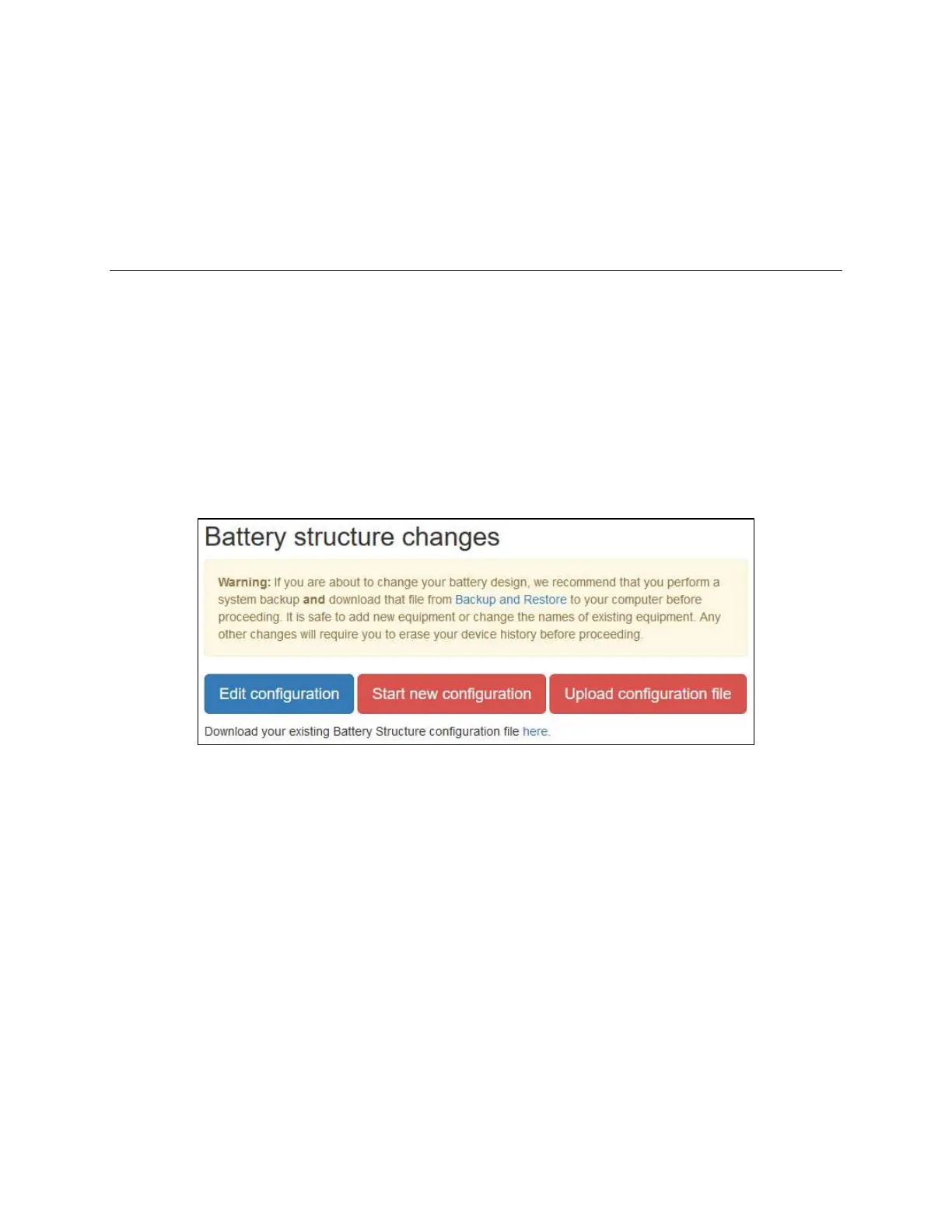
Battery Design
In Battery Design, users can create a new battery configuration or edit the existing battery configuration
for the Frontier system. Simply answer questions about the available hardware, how components are
connected, and the desired battery configuration to build all necessary battery configuration files
automatically.
Before making any changes to an existing battery design, it is recommended that you initiate and
download a backup of all Frontier data. Any changes to battery design, other than adding equipment
(CT, TP, DIB) or changing names of existing equipment, will require you to erase your device history
before proceeding.
Modifying the battery configuration will require users to enter new alarm settings.
A walkthrough and examples for building a new battery configuration are covered in Section III –
Configuration Build and Hardware Integration Guide.
Battery Profiles
Battery profiles are used by the Frontier system to calculate the temperature compensated ohmic
values. Battery Profiles can be created for each model of battery on a system. Once loaded into the


 To Next Page