Cellwatch Frontier System Installation & User Manual
Section I – Installation Guide-26
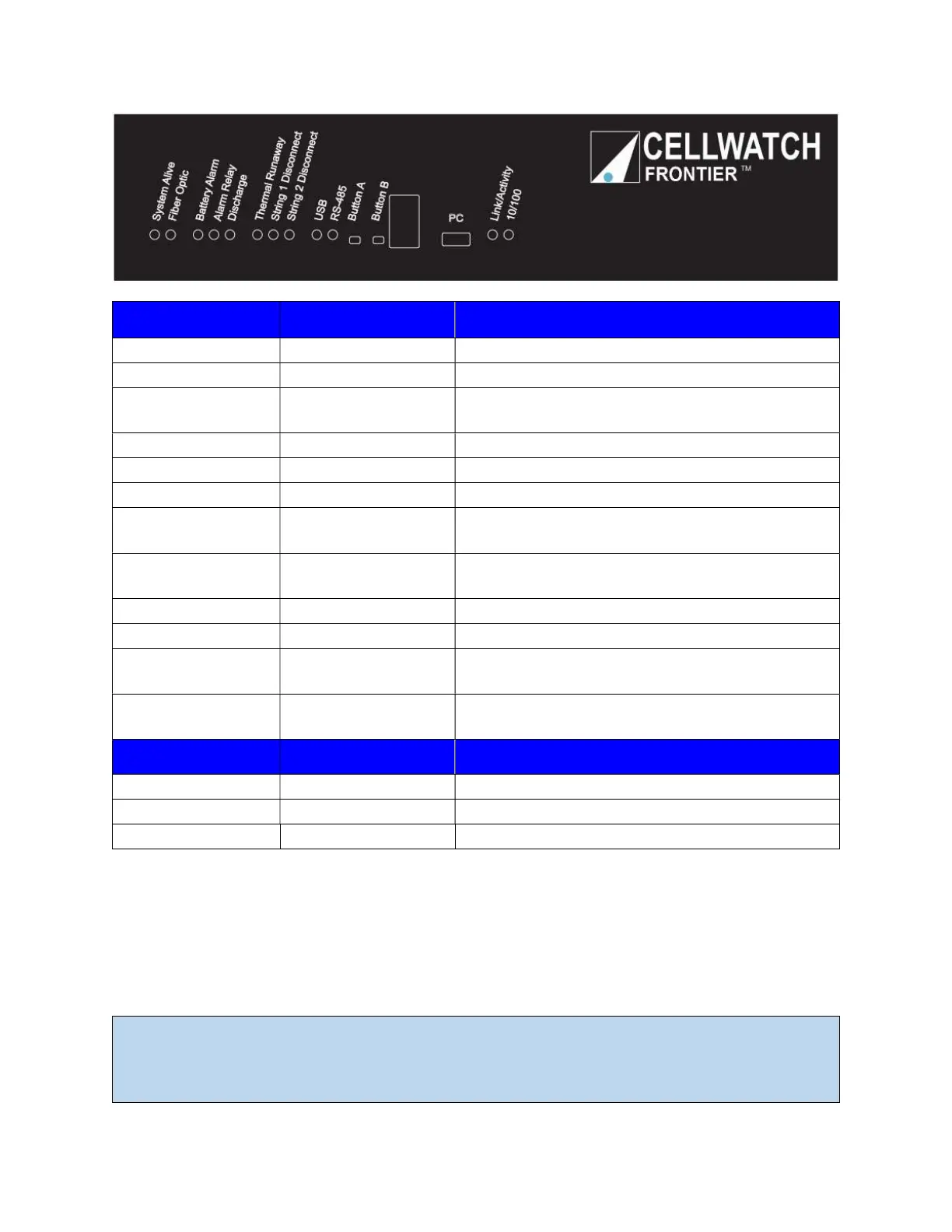
Status Indicator LED Description
System Alive Slow flash Powered on
Fiber Optic Rapid flash Flashes when FO communications are transmitted
Battery Alarm Solid
Indicates an active battery alarm and relay activated
if enabled
Alarm Relay Solid Indicates the alarm relay is active
Discharge Solid Indicates a discharge event is taking place
Thermal Runaway Solid Indicates thermal runaway conditions are present
String 1 Disconnect Solid
Frontier has attempted to isolate a string from
operation
String 2 Disconnect Solid
Frontier has attempted to isolate a string from
operation
USB Flashing Indicates USB service port activity
RS-485 Flashing Indicates RS-485 activity
Link/Activity Flashing
Indicates the Frontier system has been accessed via
the network port
10/100 Flashing
Indicates network activity, not specific to the
Frontier
Button Depress Time Description
A Short (1-5 seconds) Reload alarm limits
A Long (10-15 seconds) Reset the webpage password to default admin
B Short (1-5 seconds) Clear alarm relays
The USB ‘A’ port allows for the connection of a thumb drive to copy or remove files from the Frontier
system. This function is not supported at this time.
The mini-USB (2021+) port allows a PC to be connected directly to the Frontier system and access the
GUI via a USB to Ethernet bridge connection.
Note: Upon connecting the Frontier device to a Windows PC for the first time, the operating system
will attempt to download drivers to access the Frontier. A USB to Ethernet/RNDIS Gadget Port driver
will be downloaded and installed. It is highly recommended that the computer has a network
connection with internet access to allow the operating system to download the proper drivers to


 To Next Page