Cellwatch Frontier System Installation & User Manual
Section II – User Guide-76
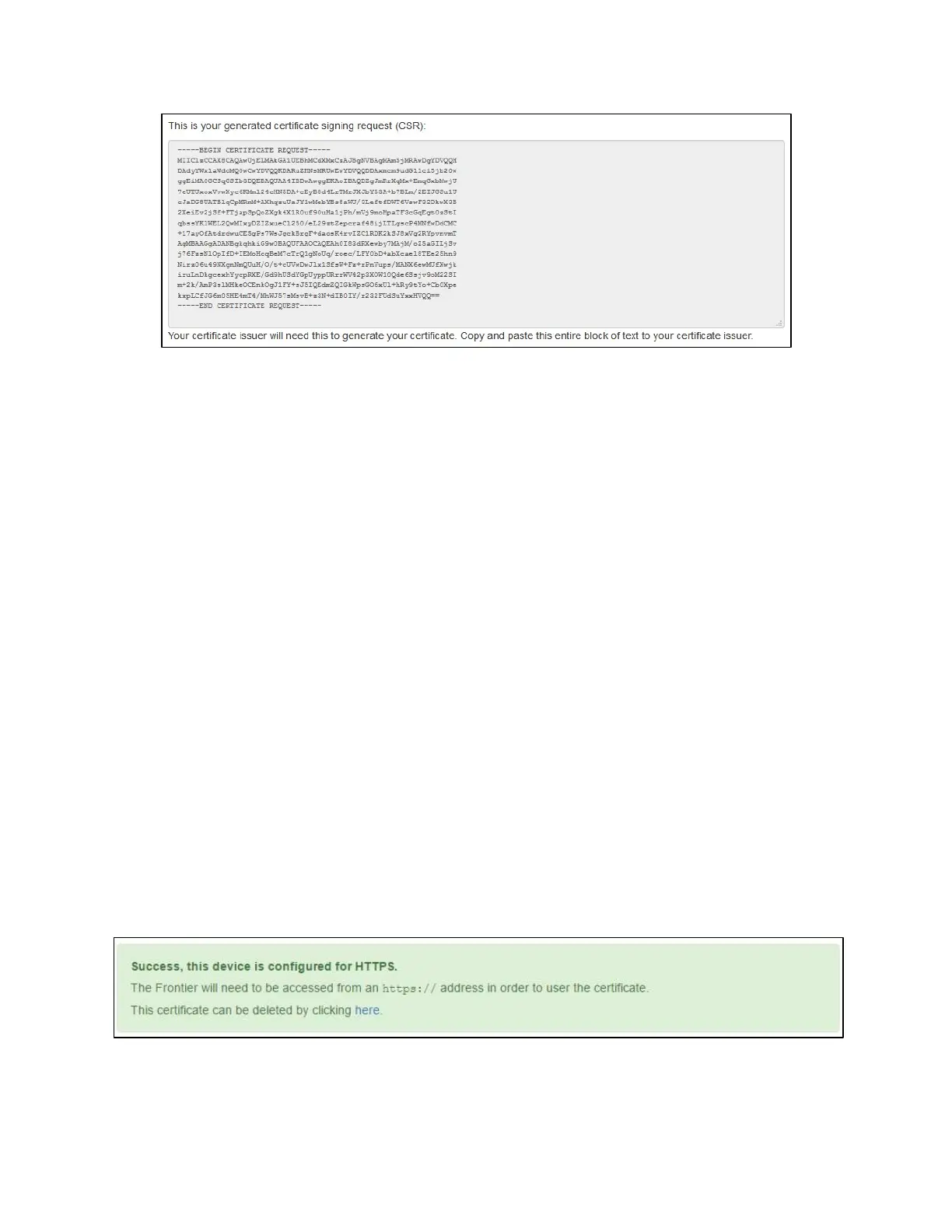
Example of a Frontier generated CSR. Begin and end markers must be included when requesting a certificate.
The CSR is stored on the Frontier device and can be retrieved again at any time by navigating to the
Network page.
Generating a new Certificate Signing Request
If the details of your CSR need to be changed, click the Generate new CSR button and a new set of
details can be entered into the form. The existing CSR will be removed. Any existing certificate is also
removed.
Uploading a signed certificate
After submitting the CSR to the Certificate Authority, a certificate file will be issued. This file should be
downloaded and saved to your computer. A certificate file typically has a .crt file extension. If the
certificate file is contained within an archive (such as .zip), be sure to extract it first before uploading the
certificate file.
Select Upload a certificate and then click Select file to locate the certificate file on your local machine.
Frontier will validate the certificate and match it against the Frontier device’s private key. The user
interface will indicate “Verifying certificate” during this process. Once successfully validated, a message
to restart the device will appear. A device restart is required in order for the Frontier to start listening on
the https:// address.
If an error appears, the contents of the certificate file are either not a valid certificate or the certificate
does not match your private key. Verify that the CSR was generated by the corresponding Frontier
device. If needed, a new CSR can be generated at any time by clicking the Generate new CSR button.


 To Next Page