123
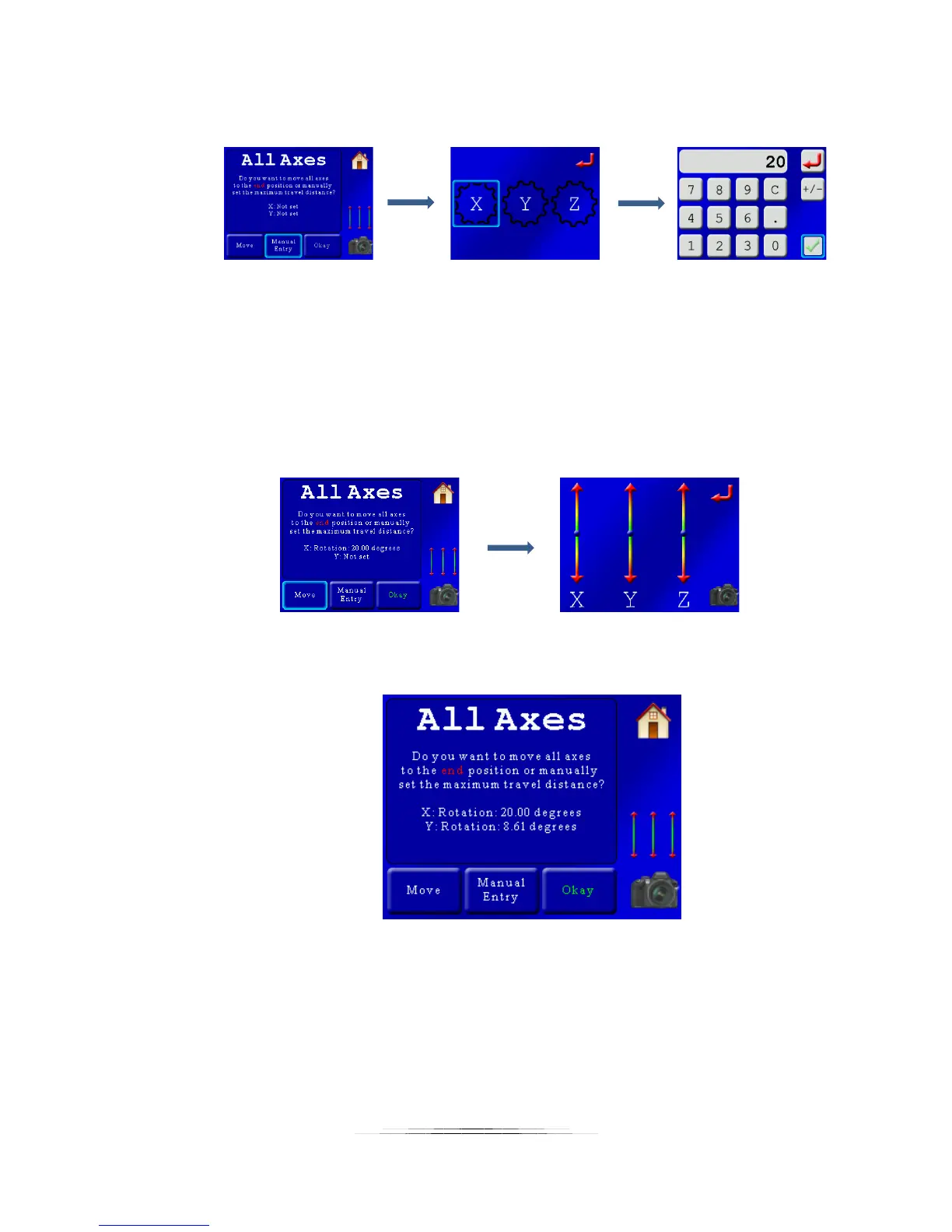
To do that, we’ll press the “Manual Entry” button, choose which axis we want to set,
and then enter the 20 degrees:
Great! The X-axis is set. Since we don’t exactly know the degrees for the Y-axis (tilt),
we’ll have to look at the live-view on our camera and adjust the position until it looks
right (photography isn’t always about the numbers, is it?!?). To do that, we press the
“Move” button, which will again bring up the three-axis control. Since we already set
the X-axis we probably don’t want to move that one so keep the fingers only on the Y-
axis:
After selecting the end position for the Y-axis, we press the red return button. Both
axes are now set and look at that! 8.61 degrees for the Y-axis:
It all looks good so we press the “Okay” button. The helper has done its job and we are
returned to the main motion screen:


 To Next Page