20
Live Screen at a glance
Getting
Started
Pan/Tilt Control
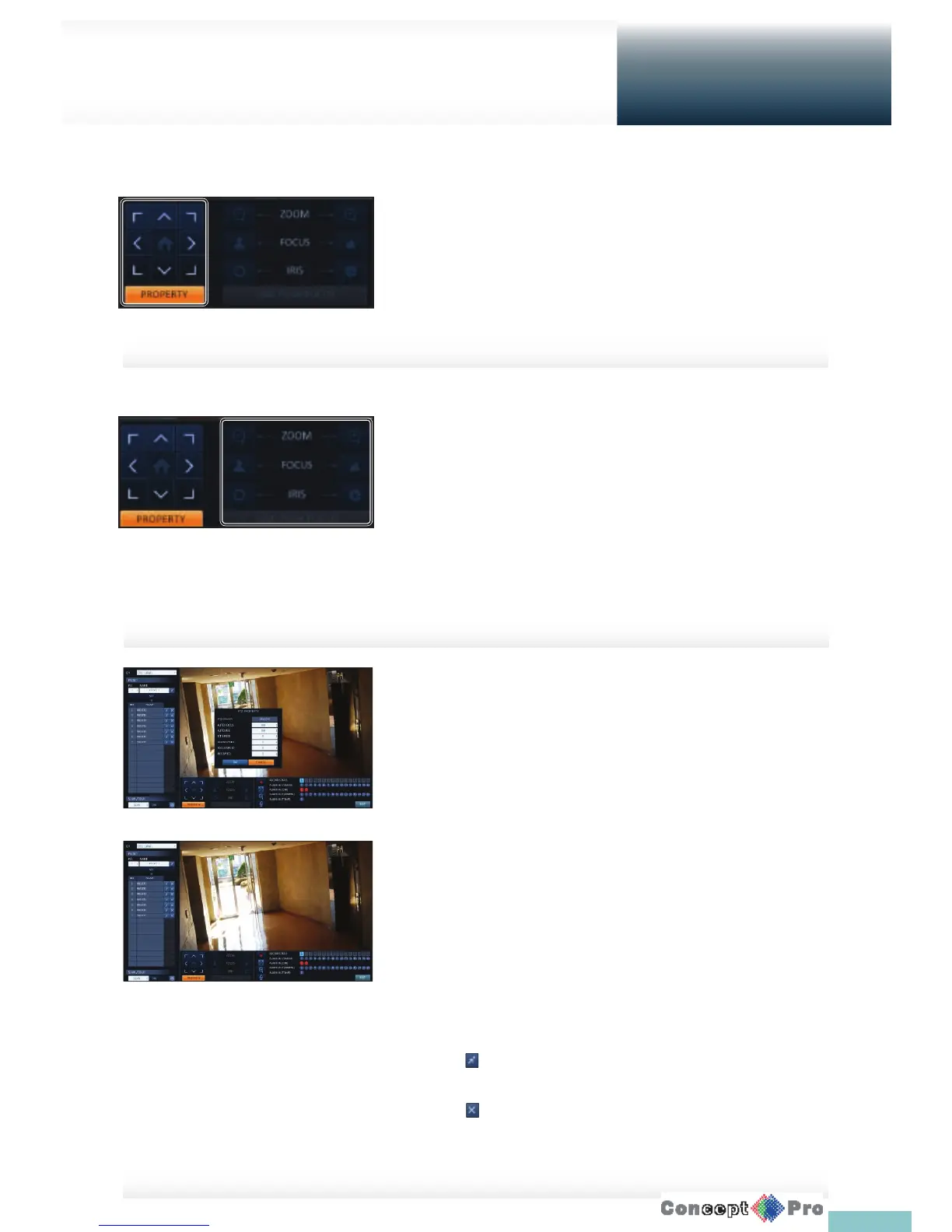
Use the mouse to rotate the PTZ camera in the direction of up/ down/left/
right and diagonal directions.
You can control Pan/Tilt with [pqtu] buttons of the
remote control.
Zoom / Focus Control
You can control the PTZ camera for zooming and focus adjustment.
Click <ONE PUSH FOCUS> button to adjust the camera’s
focus automatically. (Requires a supported camera)
If the connected camera supports manual iris adjustment,
you can adjust the iris setting.
With the remote control use the [ZOOM] and [FOCUS] button
1. To change the individual PTZ setting click <PROPERTY> (for auto focus,
auto IRIS, pan/tilt speed, zoom speed, focusing speed, iris speed).
R Depending on the PTZ camera manufacturer and model,
some of the PTZ properties may not be applicable.
> CH: Selects the PTZ camera connected to the DVR.
> PRESET (No. / Name): You can select the preset
number and name.
R Up to 255 presets can be selected for a PTZ camera, while
up to 16 presets can be registered to one DVR.
2. Control the Camera’s PTZ while watching the video. Press the <SET>
button to append the preset.
> Click the shortcut icon to move to the corresponding PTZ
(preset) position.
> Click Delete icon to delete the corresponding preset.
R PRESET: Memorizes the PTZ camera’s eld of view for direct
access at a later time.



 To Next Page