40
DDNS
You can con gure the DDNS settings so remote users who are connected to
the network can access the VXH960H remotely
R DDNS is an IP redirection service in a dynamic IP environment that
redirects the new IP address to a registered domain name each
time the IP address is changed..
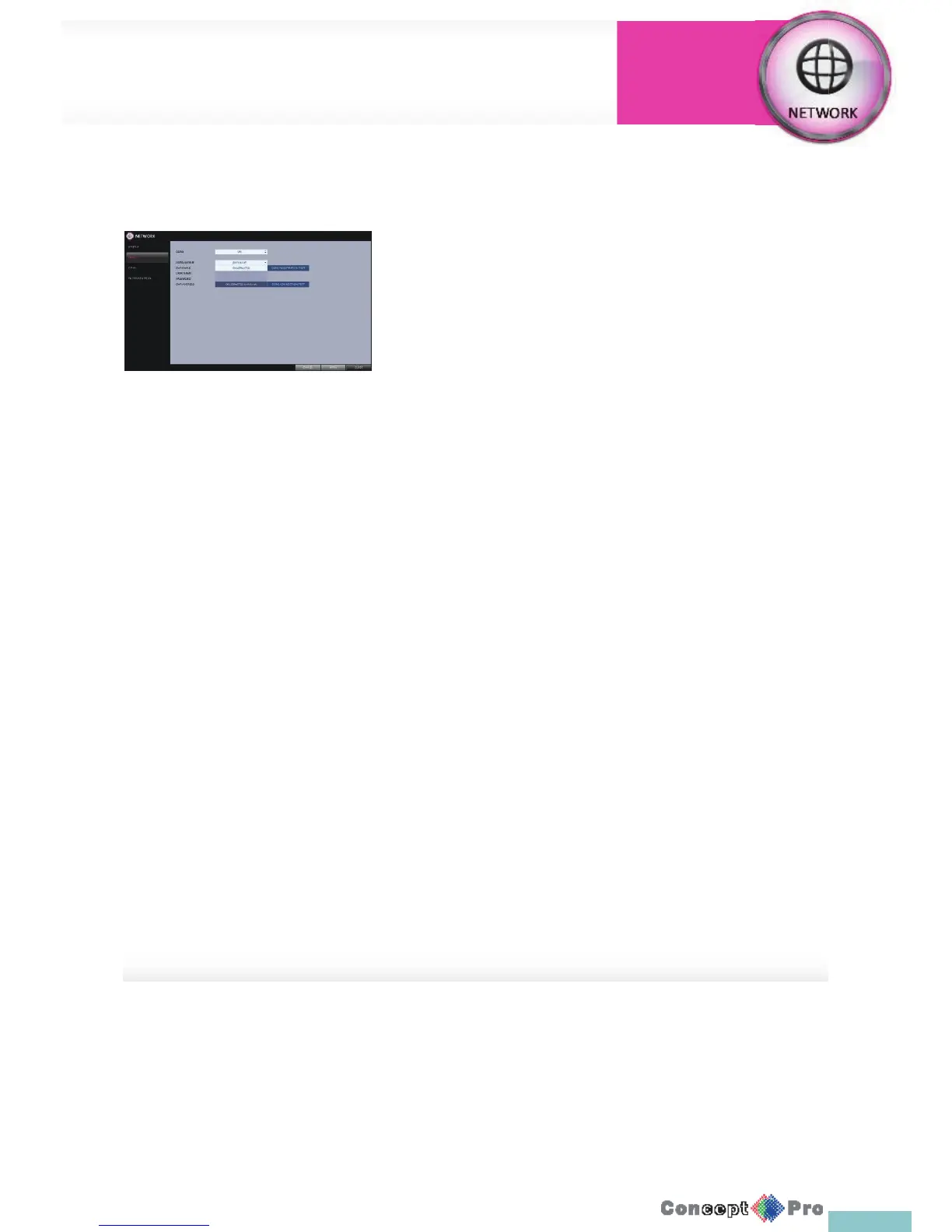
1. From <SYSTEM SETUP> - <NETWORK>, select <DDNS>
2. Use the [pqtu/ENTER] buttons on the remote control or use the
mouse to specify the use of DDNSand select a server.
> DDNS: Specify the use of DDNS connection.
> DDNS SERVER: Select a server to connect to.
> DVR NAME: Enter the name of the DVR that you want to use
as DDNS.
> DDNS REGISTRATION TEST: Check if the <DVR NAME>
can be set as DDNS. If there is a duplicate name in the server,
the registration will fail. If this is the case, rename the
<DVR NAME> and presstest to check if it works properly.
> DVR ADDRESS: Provide the <DVR NAME> and press the
<DDNS REGISTRATION TEST> button. The name will be added
automatically.
> DDNS CONNECTION TEST: Perform the connection test to
check if DDNS is normally registered
3. To apply the change, click <APPLY> in the bottom of the screen.
4. When done, press the [EXIT] button on the remote control or click
<CLOSE> in the lower screen. The con rmationmessage appears and
you will return to the previous menu.
Network Setup
System
Settings



 To Next Page