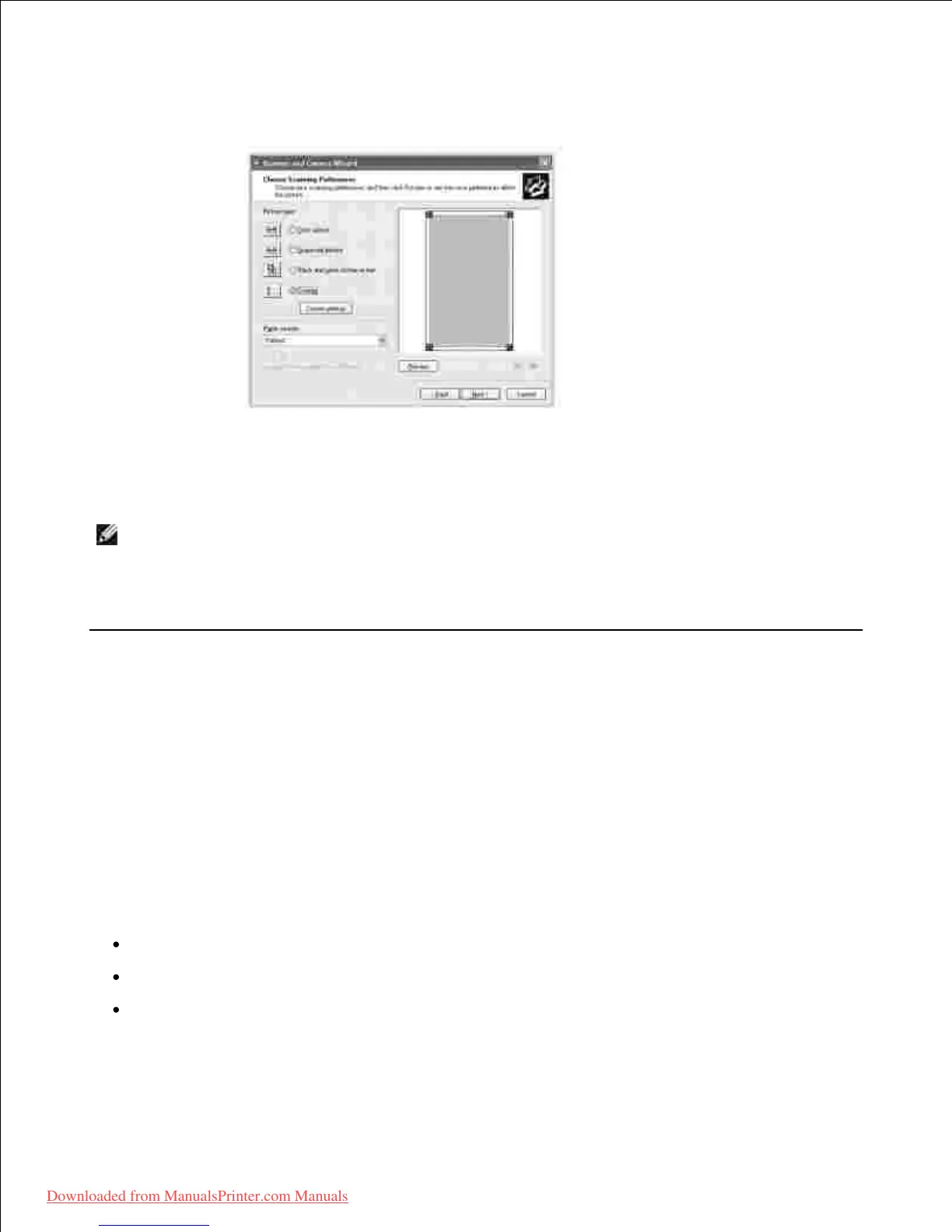
picture.
4.
Enter a picture name, and select a file format and destination to save the picture.5.
Follow the on-screen instructions to edit the picture after it is copied to your computer.6.
NOTE: PaperPort's built-in OCR software can copy text from scanned documents to any text editing,
word processing, or spreadsheet program. The OCR process requires textual images scanned at 150 to
600 dpi. 300 dpi or 600 dpi is recommended for graphics.
Scanning to the USB Memory
You can scan a document and save the scanned image on the USB memory. There are two ways of doing
this: you can scan to the USB Memory using the default settings, or you can manually select your own
settings.
About USB Memory
USB memory is available with various memory capacities to give you enough space to store documents,
presentations, downloaded music and videos, high resolution photographs, or whatever other files you want
to take with you.
You can do the following features using an optional USB memory:
Scan documents and save them on the USB Memory.
Format the USB Memory.
Check the available memory space.












 To Next Page