Dobot M1 User Guide 5 Installation and Commissioning
Issue V1.3.4 (2019-05-23) User Guide Copyright © Yuejiang Technology Co., Ltd
52
NOTICE
You can connect a Dobot M1 to a PC over a network cable, then select the
corresponding IP address from the serial drop-down list on the M1Studio page and
click Connect. For details, please see 5.2.4 Connecting Network Cable.
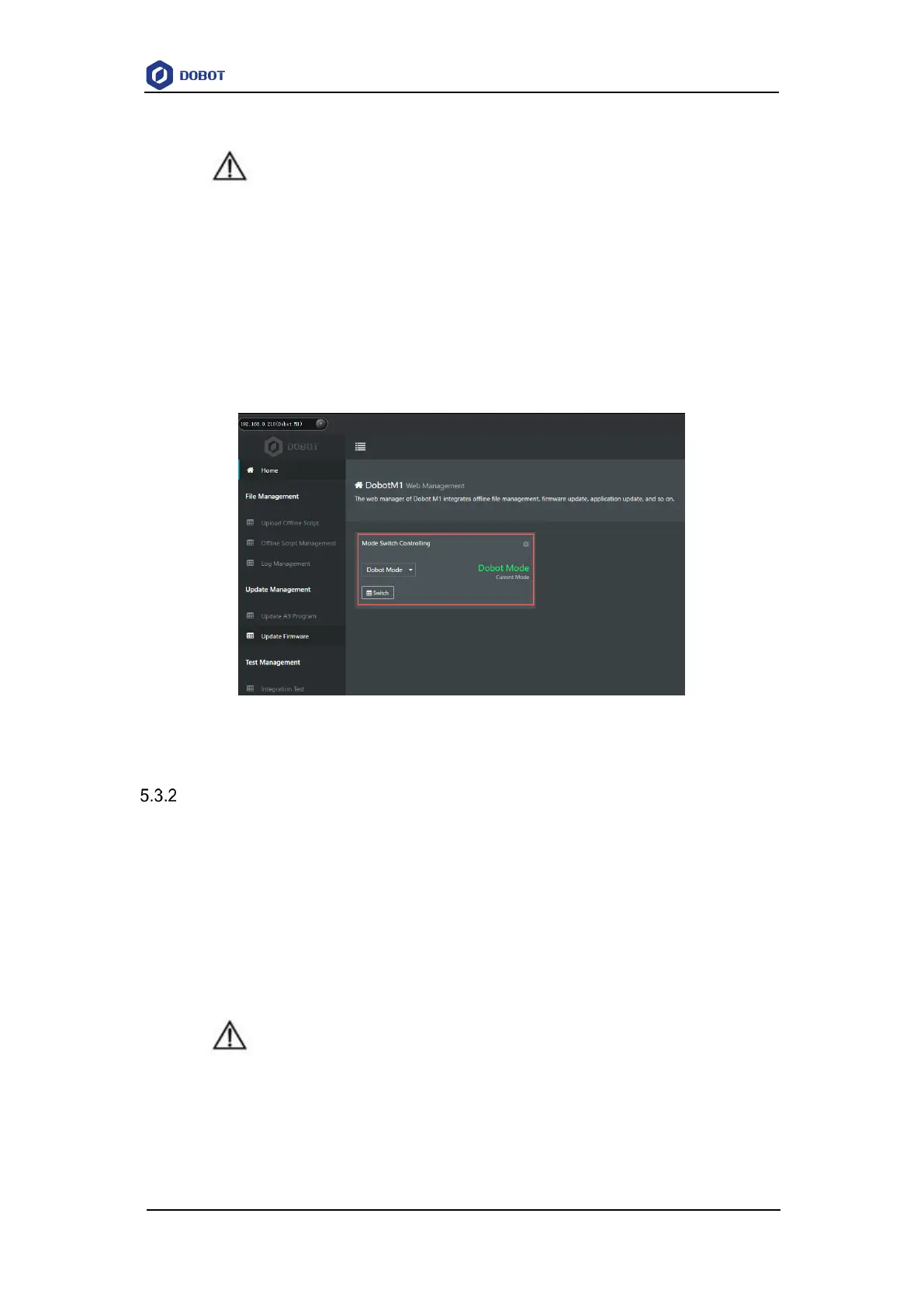
M1Studio can be connected to Dobot M1 only when the Dobot M1 is in the Dobot
Mode. You can check the current mode of Dobot M1 on the Tools > Web
Management page, as shown in Figure 5.19. For details, please see 6.9 Operating
Web Management.
Figure 5.19 Status of Dobot M1
Debugging the Power of Dobot M1
Prerequisites
You have powered on the Dobot M1.
You have connected the Dobot M1 to an emergency stop switch.
Procedure
Hold down the power button in the base of Dobot M1 for about 5 seconds, and then release the
button. If all LED indicators are off and the Dobot M1 moves down automatically, the Dobot M1 is
powered off successfully.
NOTICE
You cannot hold down the power button to power off Dobot M1 until Dobot M1 is in the
running state (when the green LED indicator is blinking). If the Dobot M1 fails to be
started, you must force to power off the Dobot M1.


 To Next Page