Dobot M1 User Guide 6 Operation
Issue V1.3.4 (2019-05-23) User Guide Copyright © Yuejiang Technology Co., Ltd
73
Command Setting page to jog the Dobot M1. The coordinate is displayed on
the Operation Panel pane of M1Studio page.
Click Get Current Pose to obtain the coordinate of Dobot M1.
Click Confirm to save the modified point.
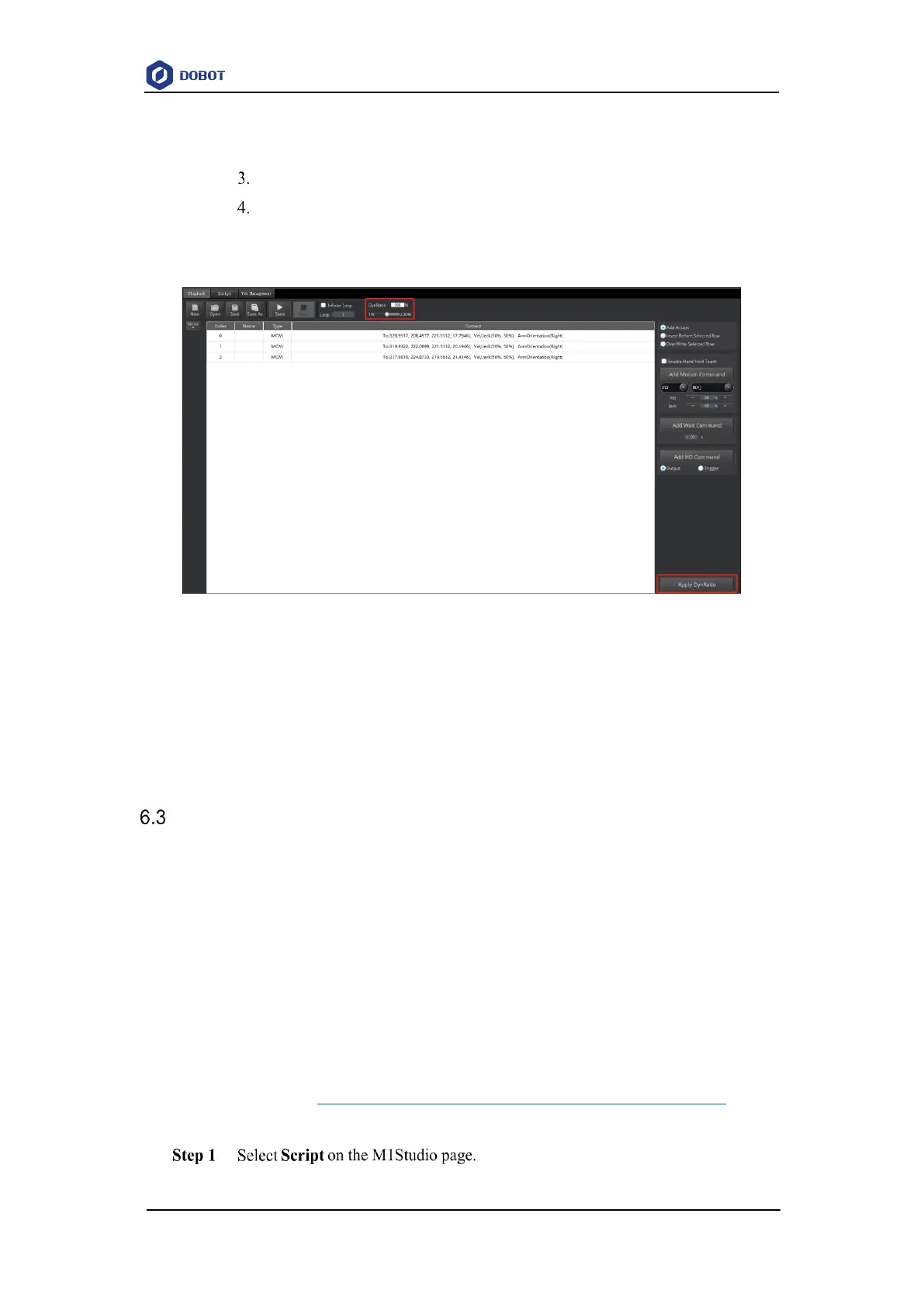
If modifying the speed of all saved points at the same time is necessary, you can drag
DynRatio to modify, as shown in Figure 6.13
Figure 6.13 Modify the peed of all saved points at the same time
If you do not click Apply DynRatio, the modified speed goes into effect temporarily.
Vel and Jerk displayed on the Playback page will not be changed, and the modified
speed will not be saved if you click save.
If you click Apply DynRatio, Vel and Jerk displayed on the Playback page will be
changed, and the modified speed will be saved to Playback files if you click save.
Scripting
Prerequisites
The Dobot M1 has been powered on.
The Dobot M1 has been connected to a PC successfully.
The Dobot M1 has been connected to an emergency stop switch.
Application Scenario
You can control a Dobot M1 over scripting. Dobot M1 supports various API, such as
velocity/acceleration setting, motion mode setting, and I/O configuration, which uses Python
language for secondary development. For details about the Dobot M1 API interface and function
description, please see Dobot API Interface Document.
The download path is www.dobot.cc/downloadcenter/dobot-m1.html#most-download.
Procedure


 To Next Page