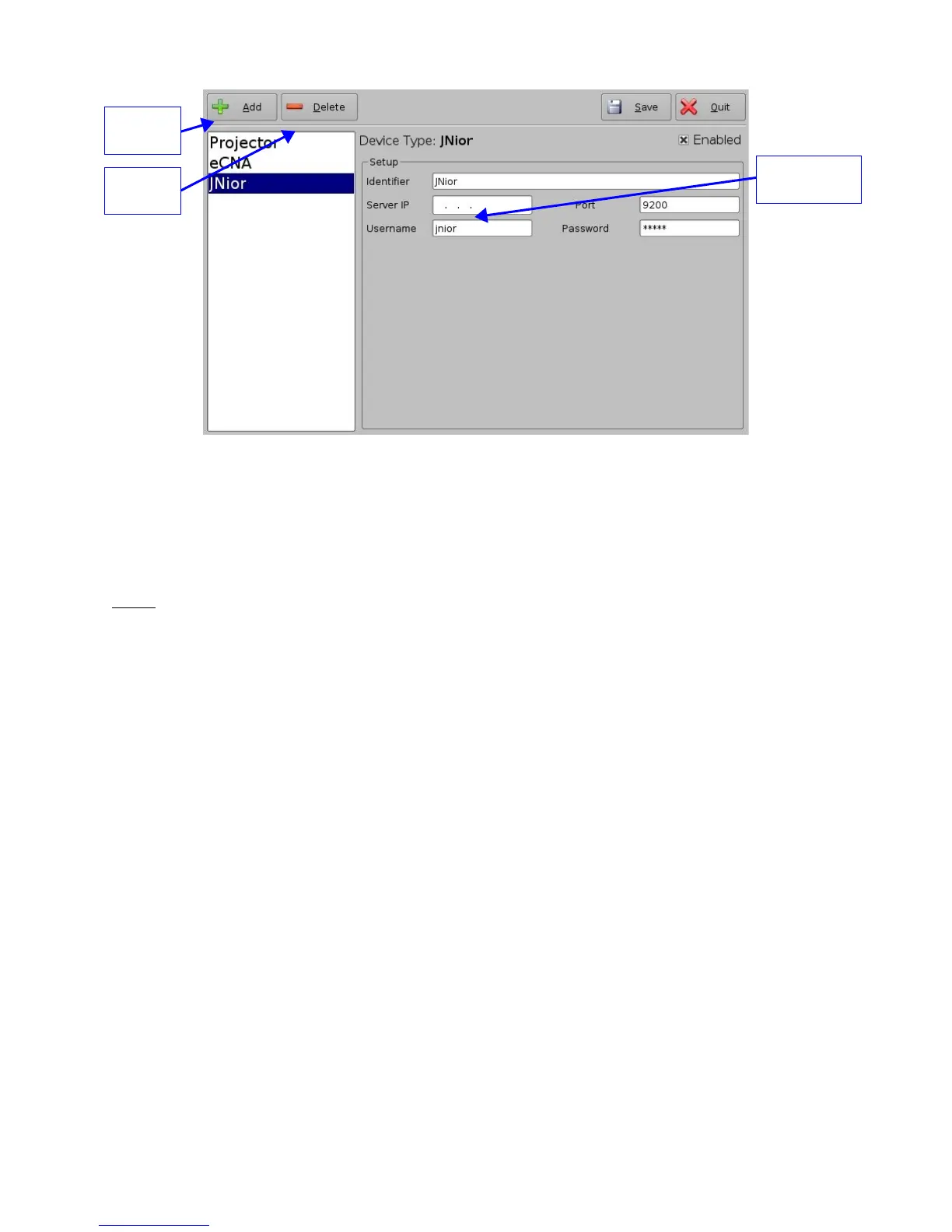
Figure 24: Device Manager GUI – JNior Device Setup
• Enter the IP address of the "JNior" device in the “Server IP” field
• The port number field should already contain the appropriate value (factory default
value)
Note: The "JNior" device documentation will provide the correct username and password
(factory default values).
• Click the “Save” button to record the settings
• A window will appear asking for a password, enter the password to proceed
5.2.2.2 JNior Device Removal
• To remove the JNior device click on its name on the left part of the "Device Manager"
GUI
• Click the “Delete” button (see Figure 24 above)
5.3 Raw Device
5.3.1 Raw Device Addition
A “Raw” device allows for communication with an external device across an Ethernet connection
using "Raw" data formatted as text or binary strings.
• To use a "Raw" device click the “Add” button and select “Raw”
• The "Raw" device setting window will be displayed within the "Device Manager" as
presented below:
_____________________________________________________________________________________
SHV.OM.001293.DRM Page 28 Version 1.3
Doremi Cinema LLC Confidential
JNior IP
address field
“Add”
button
“Delete”
button



 To Next Page