6.2 Automation Cue Tab
6.2.1 Macro Creation
• Click the “Add” button to start the creation of a new Macro Automation Cue (see Figure
19 above).
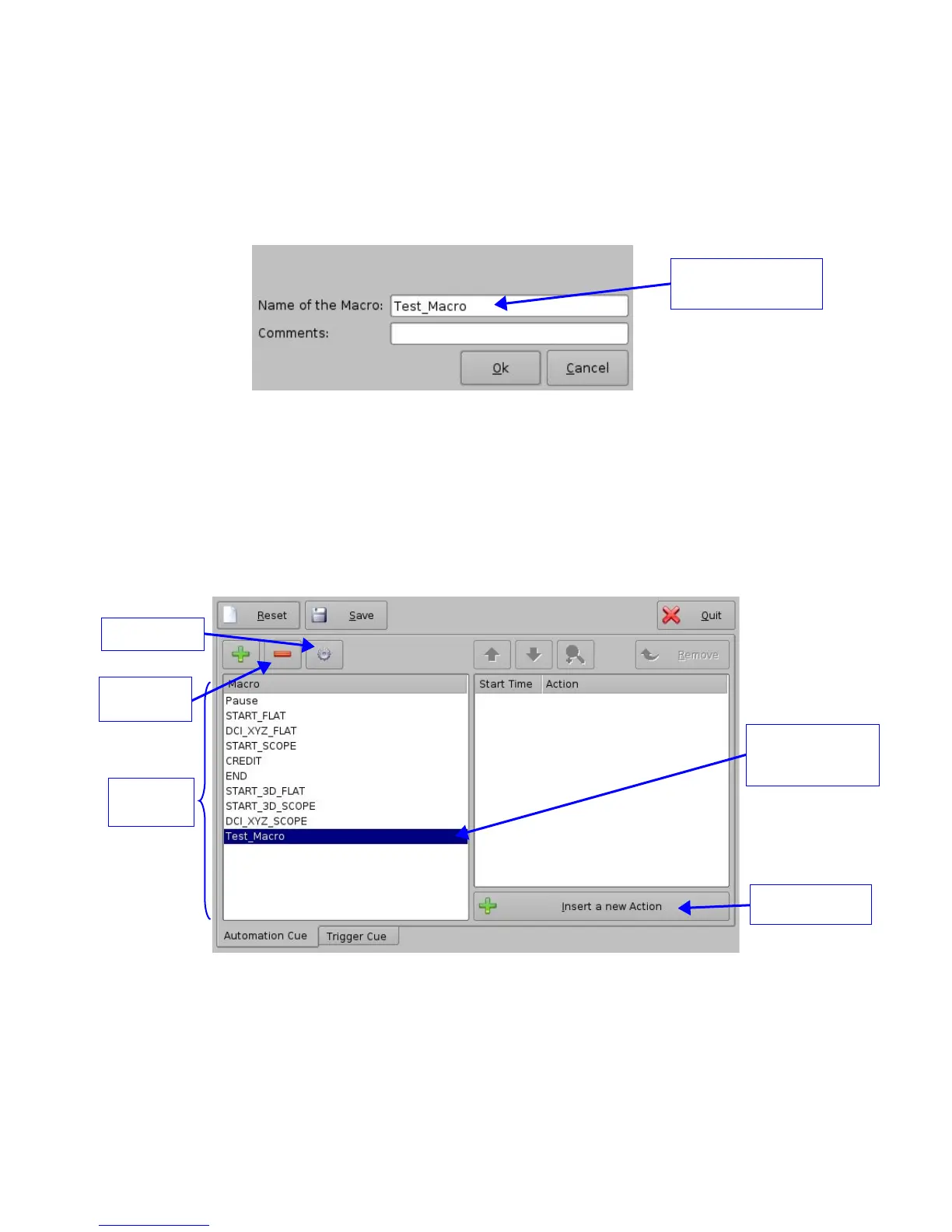
• The following window will be displayed:
Figure 27: Macro Automation Cue Name Assignment
• Enter a Macro Automation Cue name in the appropriate field.
• This will be the name used by the CineLister application to include the Macro
Automation Cue within a Show Playlist.
• Click the “Ok” button when finished.
• The user(s) will be back to the general Macro Editor GUI displaying the Macro
Automation Cue name in the “Macro Window” as presented below:
Figure 28: “Macro” Window Updated
• To remove a Macro Automation Cue select it in the “Macro” window and click the
“Remove” button (see Figure 28 above).
• To edit the name of an existing Macro Automation Cue click the “Edit” button and do the
change (see Figure 28 above).
_____________________________________________________________________________________
SHV.OM.001293.DRM Page 32 Version 1.3
Doremi Cinema LLC Confidential
“Insert a new
Macro Automation
Cue name
“Remove”
button
Macro Automation
Cue name
displayed
“Macro”
Window
“Edit” button



 To Next Page