14 Annex B: Device Manager Configuration for
Licensed Features
Note: This annex assumes that the appropriate license(s) has or have been ingested in the
ShowVault. For example, the “Dolby 3D Configuration” is only possible if a “Dolby 3D
License” has been installed on the ShowVault, as explained in Section 8.3.
14.1 Dolby 3D Configuration
To configure the Dolby 3D feature on the ShowVault, please refer to the procedure provided in
the document “DCP-2000 – Dolby 3D Calibration” or contact Doremi Technical Support to get
the document.
14.2 RealD 3D Configuration
This paragraph provides guidance on how to set up "Device Manager" for RealD 3D support.
Follow the steps below:
• Open the "Device Manager" GUI by clicking on “Menu → Doremi Labs, Inc. → Device
Manager”.
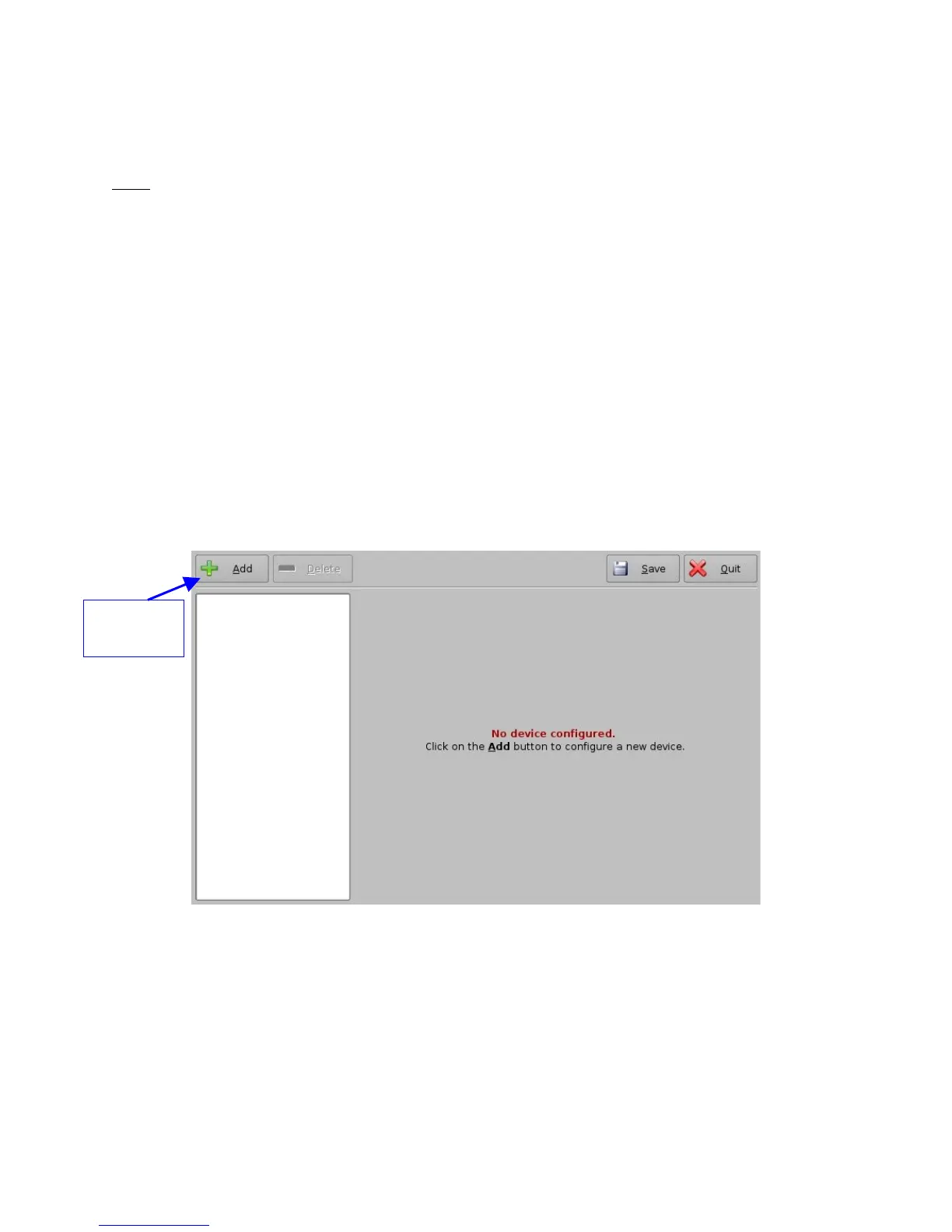
• The following window will appear:
Figure 84: Device Manager GUI
• Click the “Add” button.
• The list of available devices will appear as presented below:
_____________________________________________________________________________________
SHV.OM.001293.DRM Page 89 Version 1.3
Doremi Cinema LLC Confidential
"Add"
button



 To Next Page