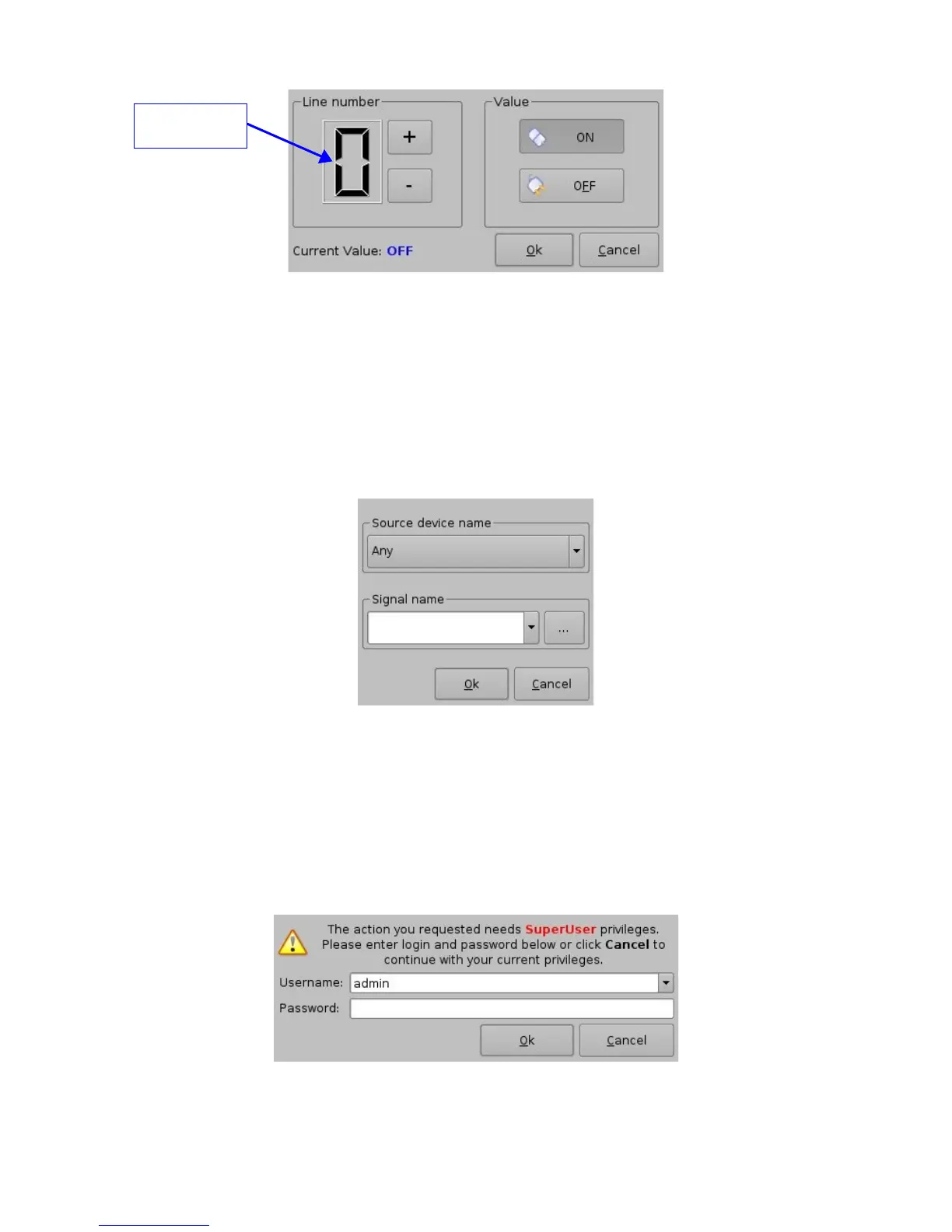
Figure 50: Connection to a GPI Event
• Define the GPI line number and value to connect to the Trigger Cue and click the “Ok”
button
• The connected GPI event will then appear in the right part of the GUI
• To connect the selected Trigger Cue to another signal click the “Signal” button of the
“Connect to an event to add” window (see Figure 49 above)
• The following window will appear:
Figure 51: “Signal name” Window
• Click the “Ok” button when the appropriate signal name is defined
6.3.4 Trigger Cue Saving
• Repeat the Trigger Cue creation operations for all the Trigger Cues are created and click
the “Save” button
• User will be asked for a password to be able to perform the operation
Figure 52: Authentication Window
_____________________________________________________________________________________
SHV.OM.001293.DRM Page 46 Version 1.3
Doremi Cinema LLC Confidential
GPI Line
Number Field



 To Next Page