6.2.2 Action Insertion
• To insert a new action in a Macro Automation Cue, select its Macro name in the “Macro
Window” .
• Click the “Insert a new Action” button (see Figure 28 above).
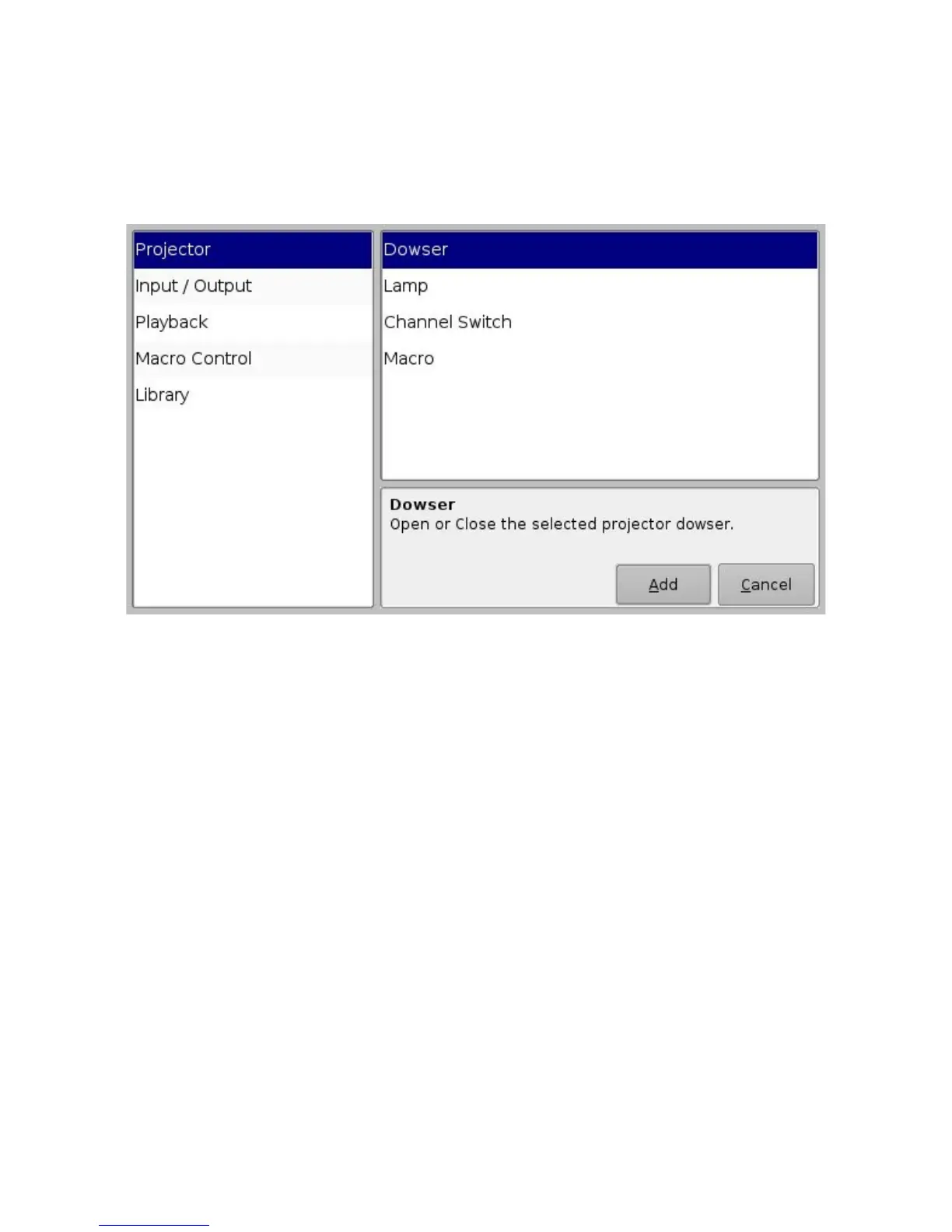
• The following window will be displayed:
Figure 29: “Add a new Action” Window
The “Add a new Action” window provides a list of available actions, on the left side, to be used
within a Macro Automation Cue. Click on each "action", on the left side, to view a list of
available actions The actions available are the following:
• Projector:
◦ Projector Dowser: open or close the projector dowser
◦ Lamp: turn the projector lamp ON or OFF
◦ Projector Channel Switch: switch to a projector channel number from 1 to 16
◦ Macro: used to recall preset DLP projector macros by name (e.g., for Barco)
• Input / Output:
◦ General Purpose Output: change the state of a GPO line
◦ Send Message: used for sending a text or a binary message to a device
• Playback:
◦ Playback Actions: select an action between Play, Pause or Toggle Play/Pause
◦ Video Output Actions: choose between “Default Video Output” and “Play all clips at
48fps”
◦ Sensio3D: allows live streaming into the server
_____________________________________________________________________________________
SHV.OM.001293.DRM Page 33 Version 1.3
Doremi Cinema LLC Confidential



 To Next Page