11.2 Server LCD Screen Maintenance (3RU only)
This section provides the required steps for when the server front panel LCD screen needs
recalibration.
11.2.1 “Root” Logging
To perform the screen recalibration user has to be logged in as “root” as presented in the
procedure below:
• Go to the “Menu → System” menu of the ShowVault and select “Terminal” to launch a
terminal window
• In the terminal window do the following:
• Type: su and then press "Enter"
• Use the "root" password (consult the system administrator or Doremi to know the
default root password)
11.2.2 Server LCD Screen Calibration
Verify that the stylus on the server front panel LCD screen functions as a mouse. Check to see
if the server LCD screen VGA connector is linked to the motherboard VGA connector as
presented in Section 3.1.
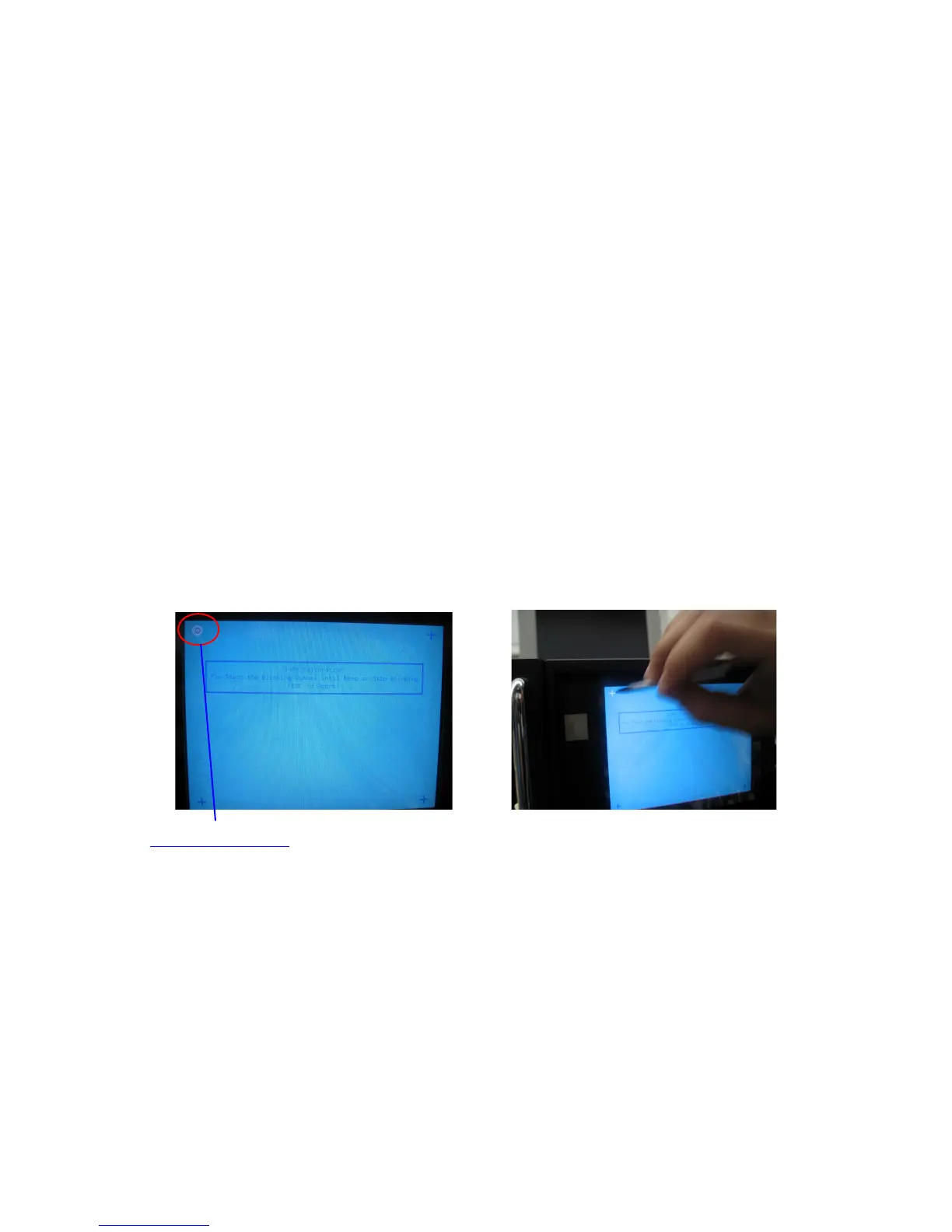
• Go to “Menu → System → Touchscreen Calibration”
• Using the stylus located on the left side of the server LCD screen press on the four
blinking dots one after the other as shown below (there is one dot in each screen corner)
(a) (b)
Figure 78: Server LCD Screen Calibration
_____________________________________________________________________________________
SHV.OM.001293.DRM Page 72 Version 1.3
Doremi Cinema LLC Confidential



 To Next Page