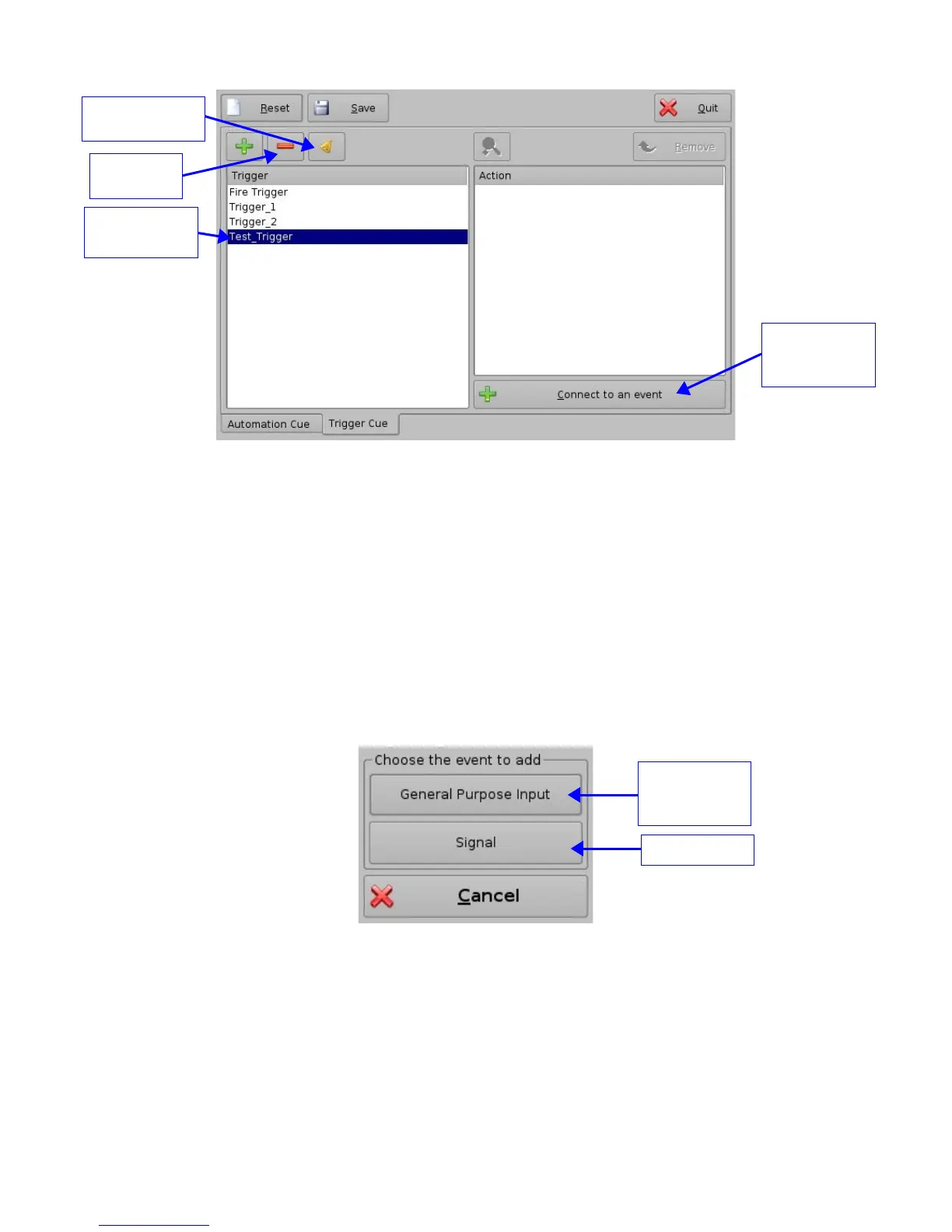
Figure 48: Trigger Cue Defined
• To edit an existing Trigger Cue select it in the “Trigger” window and click on the “Edit
Trigger” button (see Figure 48 above)
• User will be able to edit the name of the Trigger Cue using the same window as
presented in Figure 47
• To remove a Trigger Cue select it in the “Trigger” window and click the “Delete” button
6.3.3 Connection to an Event
• To connect a Trigger Cue to an event select it in the “Trigger” window and click the
“Connect to an event” button (see Figure 48 above)
• The following window will appear:
Figure 49: “Choose the event to add” Window
• To connect the selected Trigger Cue to a GPI event click the “General Purpose Input”
button of the “Choose the event to add” window (see Figure 49 above)
• The following window will appear:
_____________________________________________________________________________________
SHV.OM.001293.DRM Page 45 Version 1.3
Doremi Cinema LLC Confidential
New Trigger
Cue created
“Connect to an
event” button
button
“Edit Trigger”
button
“Delete”
button
"General
Purpose Input"
Button
"Signal" Button



 To Next Page