6.2.6 Playback Action Insertion
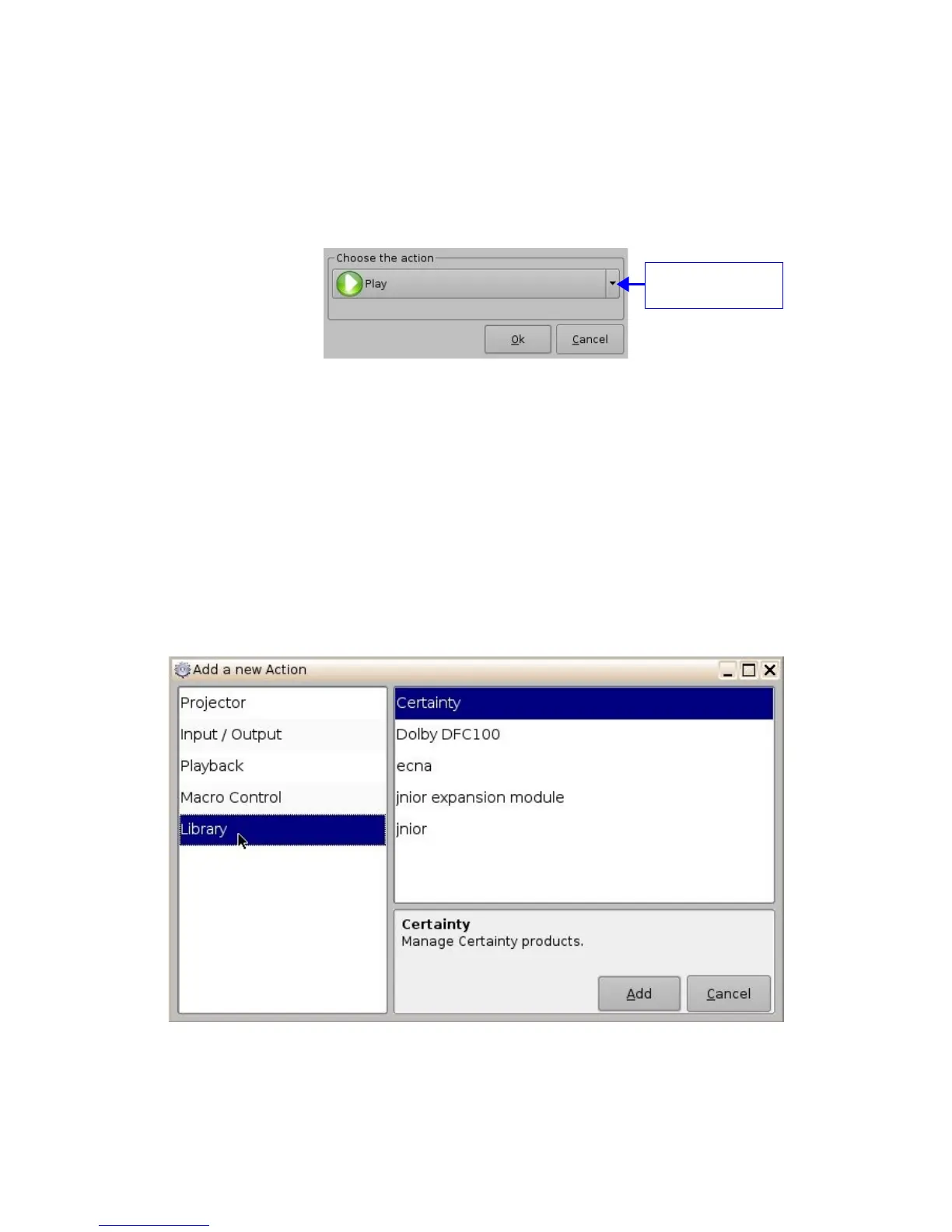
• To add a “Playback Action” click the “Playback Actions” button in the “Add a new Action”
window (see Figure 29 above)
• Select "Playback" and then select "Playback Actions"
• The following window will appear:
Figure 42: Playback Actions Setup Window
• Select the proper playback action between “Play”, “Pause”, “Toggle Play/Pause” or
“Recue Show” and click the “Ok” button
6.2.7 Automation Library Usage
When one of the supported devices (e.g. eCNA and JNior) is added according to Section 5.2,
the Macro Editor will allow the user to use the corresponding commands for each device.
• To use a library command click on “Library” in the “Add a new Action” window (see
Figure 29 above)
• Select one of the available devices in the left part of the following window and choose
the appropriate command (belonging to the selected device) in its right part:
Figure 43: Macro Editor GUI Automation Setup Example
• Click the “Ok” button to validate or “Cancel” to cancel the command addition
_____________________________________________________________________________________
SHV.OM.001293.DRM Page 41 Version 1.3
Doremi Cinema LLC Confidential
Playback action
selection button



 To Next Page