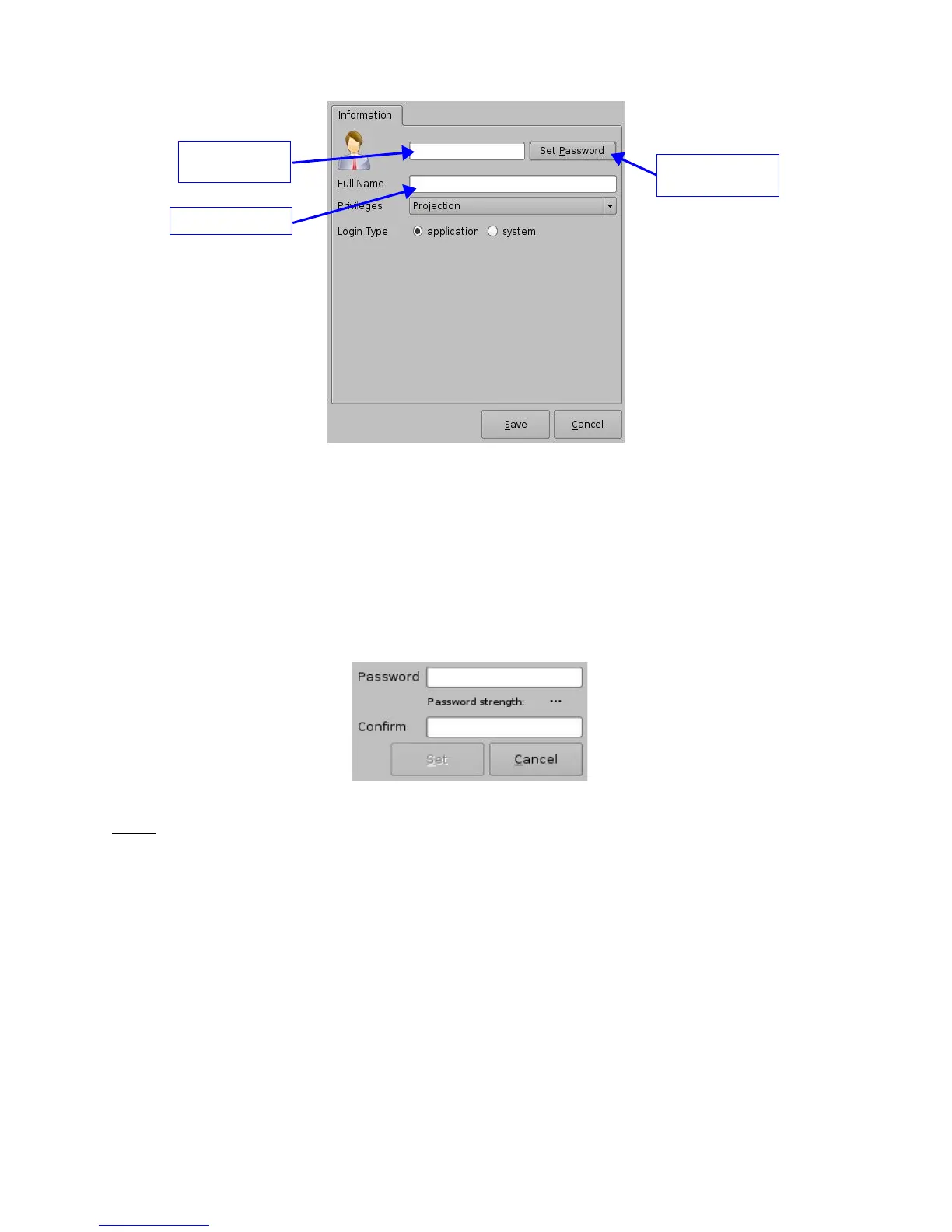
Figure 56: Account Manager GUI – New User Addition
• Enter the username (to be used for login) in the upper empty field and the associated
“Full Name” used to describe the user
• Both names will be displayed in the Control Panel window after the new user addition is
completed
• Define the associated password by clicking the “Set Password” button
• The following window will appear:
Figure 57: Password Definition Window
Note: The user will be provided information about the strength of the chosen password. Click
the “Set” button when the appropriate password is defined. Confirm the password in the
“Confirm” field. The user privileges need to be defined using the list box.
• Select the proper privileges. They are listed below from the lowest level to the highest
level of privileges:
1) Projectionist: is a standard user allowed to use the Doremi applications present on the
ShowVault without changing the configuration.
2) Show Manager: in addition to a Projectionist's privileges, a ShowManager user is
allowed to ingest and delete content.
3) SuperUser: in addition to Show Manager's right, a SuperUser has the privileges to
configure the unit. For example, the SuperUser can update the firmware and software.
4) Administrator: an Administrator user will be a user in the group of “root”.
_____________________________________________________________________________________
SHV.OM.001293.DRM Page 51 Version 1.3
Doremi Cinema LLC Confidential
"Set Password"
Button
'Full Name" Field
"Username"



 To Next Page