Vigor3900 Series User’s Guide
360
Remote IP
Display the WAN IP address with subnet mask of this
profile.
GRE IP
Display the GRE interface IP address for local host.
Remote IP / Subnet
Mask
Display the IP address and subnet mask of remote client.
H
H
o
o
w
w
t
t
o
o
c
c
r
r
e
e
a
a
t
t
e
e
a
a
G
G
R
R
E
E
V
V
P
P
N
N
p
p
r
r
o
o
f
f
i
i
l
l
e
e
Below will guide you to create a GRE profile for VPN connection:
1. Open VPN and Remote Access >> VPN Profiles.
2. Switch to the tab of GRE. Simply click the Add button.
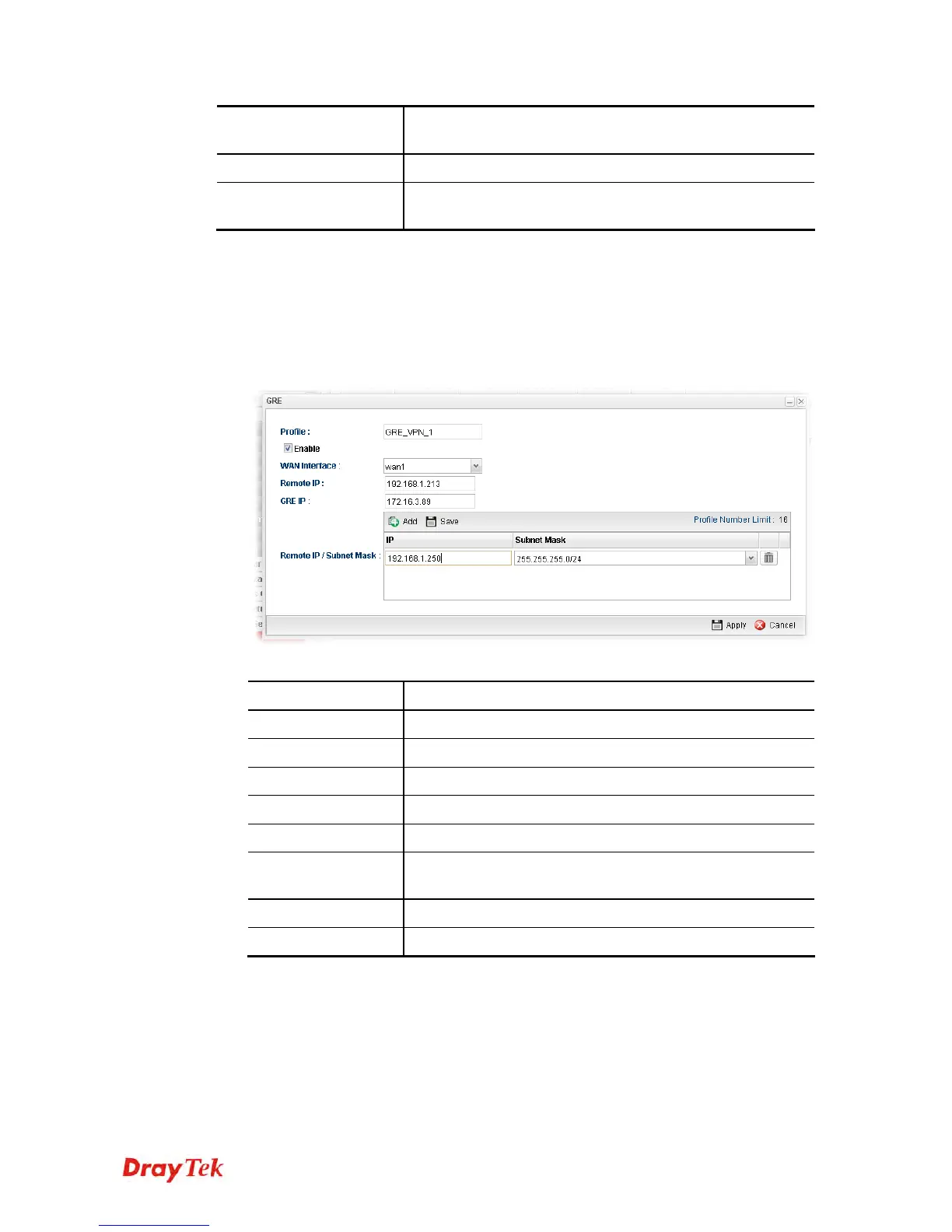
3. The following dialog will appear.
Available parameters are listed as follows:
Item Description
Profile
Display the name of the profile.
Enable
Check this box to enable this profile.
WAN Interface
Specify a WAN interface used for GRE tunnel.
Remote IP
Type the LAN IP address for the remote host.
GRE IP
Type the GRE interface IP address for local host.
Remote IP/Subnet
Mask
Type the IP address and subnet mask of remote client.
Apply
Click it to save the configuration.
Cancel
Click it to exit the page without saving the configuration.
4. Enter all of the settings and click Apply.
5. A new GRE LAN-to-LAN profile has been created.






 To Next Page