Vigor3900 Series User’s Guide
66
3
3
.
.
1
1
2
2
C
C
V
V
M
M
A
A
p
p
p
p
l
l
i
i
c
c
a
a
t
t
i
i
o
o
n
n
-
-
H
H
o
o
w
w
t
t
o
o
u
u
p
p
g
g
r
r
a
a
d
d
e
e
C
C
P
P
E
E
f
f
i
i
r
r
m
m
w
w
a
a
r
r
e
e
t
t
h
h
r
r
o
o
u
u
g
g
h
h
V
V
i
i
g
g
o
o
r
r
3
3
9
9
0
0
0
0
?
?
3
3
.
.
1
1
2
2
.
.
1
1
I
I
m
m
p
p
o
o
r
r
t
t
f
f
i
i
r
r
m
m
w
w
a
a
r
r
e
e
f
f
i
i
l
l
e
e
f
f
r
r
o
o
m
m
y
y
o
o
u
u
r
r
P
P
C
C
t
t
o
o
V
V
i
i
g
g
o
o
r
r
3
3
9
9
0
0
0
0
1. Suppose the newest firmware file is located on your PC. You can upload it from your
PC to Vigor3900.
2. Log into the web user interface of Vigor3900.
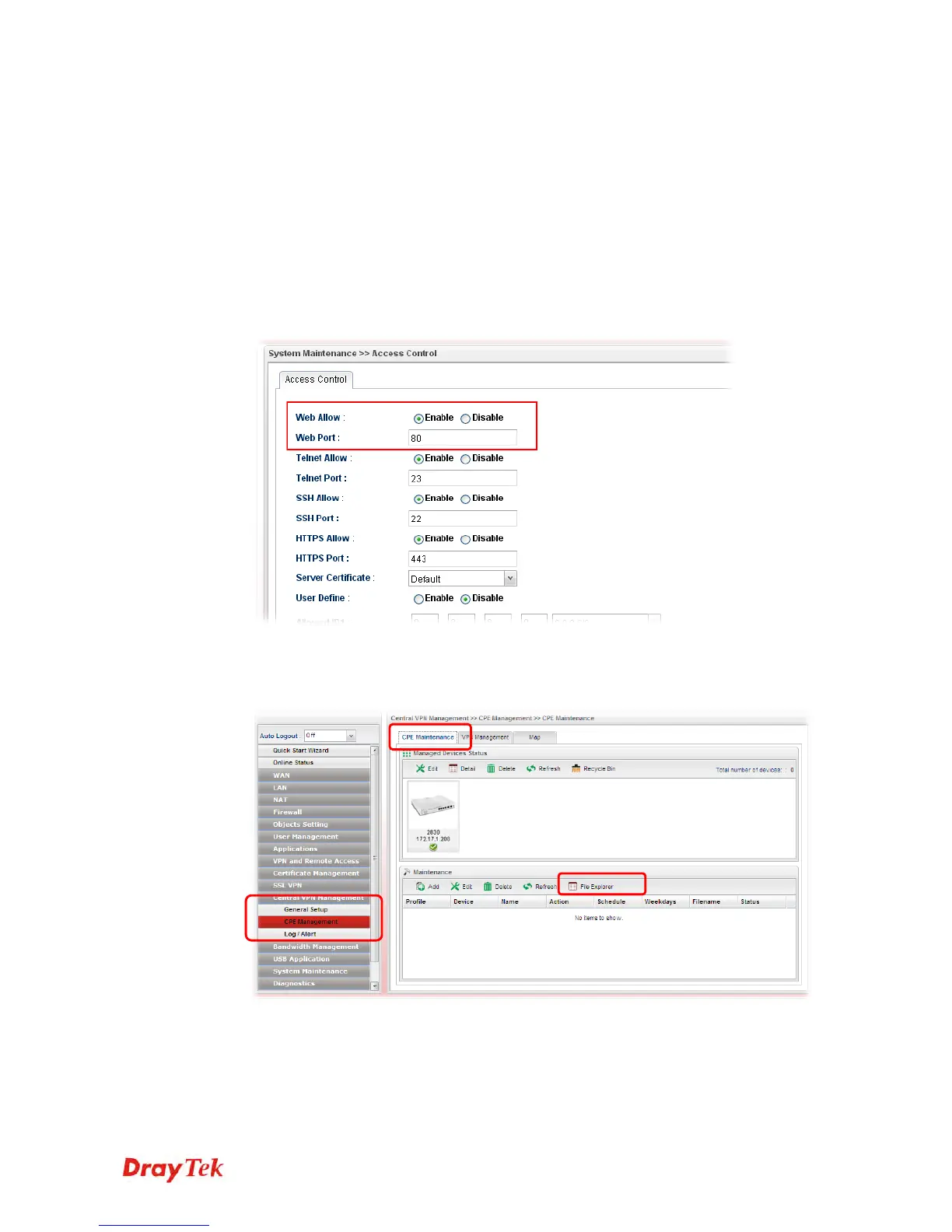
3. Open System Maintenance>>Access Control. Check Enable for Web Allow and
type the value for Web Port. Then click Apply to save the settings.
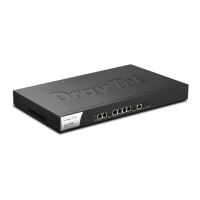
4. Open Central VPN Management>>CPE Management. Click CPE Maintenance. In
the Maintenance area, click File Explorer.






 To Next Page