Vigor3900 Series User’s Guide
58
3
3
.
.
1
1
0
0
C
C
V
V
M
M
A
A
p
p
p
p
l
l
i
i
c
c
a
a
t
t
i
i
o
o
n
n
-
-
H
H
o
o
w
w
t
t
o
o
m
m
a
a
n
n
a
a
g
g
e
e
t
t
h
h
e
e
C
C
P
P
E
E
(
(
r
r
o
o
u
u
t
t
e
e
r
r
)
)
t
t
h
h
r
r
o
o
u
u
g
g
h
h
V
V
i
i
g
g
o
o
r
r
3
3
9
9
0
0
0
0
?
?
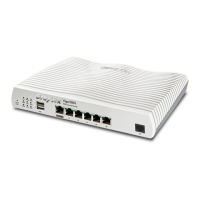
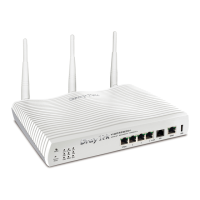
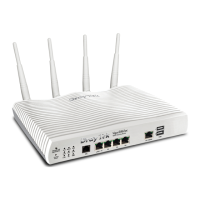
To manage CPEs through Vigor3900, you have to set URL on CPE first and set username
and password for Vigor3900. For this section, we use Vigor2830 series as the example. The
firmware upgrade for the CPE can be done through Vigor2830 series.
3
3
.
.
1
1
0
0
.
.
1
1
C
C
o
o
n
n
f
f
i
i
g
g
u
u
r
r
e
e
S
S
e
e
t
t
t
t
i
i
n
n
g
g
s
s
o
o
n
n
V
V
i
i
g
g
o
o
r
r
3
3
9
9
0
0
0
0
1. Access into the web user interface of Vigor3900.
2. Open System Maintenance>>Access Control. Check Enable for Web Allow and
type the value for Web Port. Then click Apply to save the settings.
3. Open Central VPN Management>>CPE Management. On the page of CPE
Maintenance, there is no CPE managed by Vigor3900.
4. Open Central VPN Management>>General Setup.






 To Next Page