Vigor3900 Series User’s Guide
449
4
4
.
.
1
1
5
5
.
.
6
6
T
T
r
r
a
a
f
f
f
f
i
i
c
c
G
G
r
r
a
a
p
p
h
h
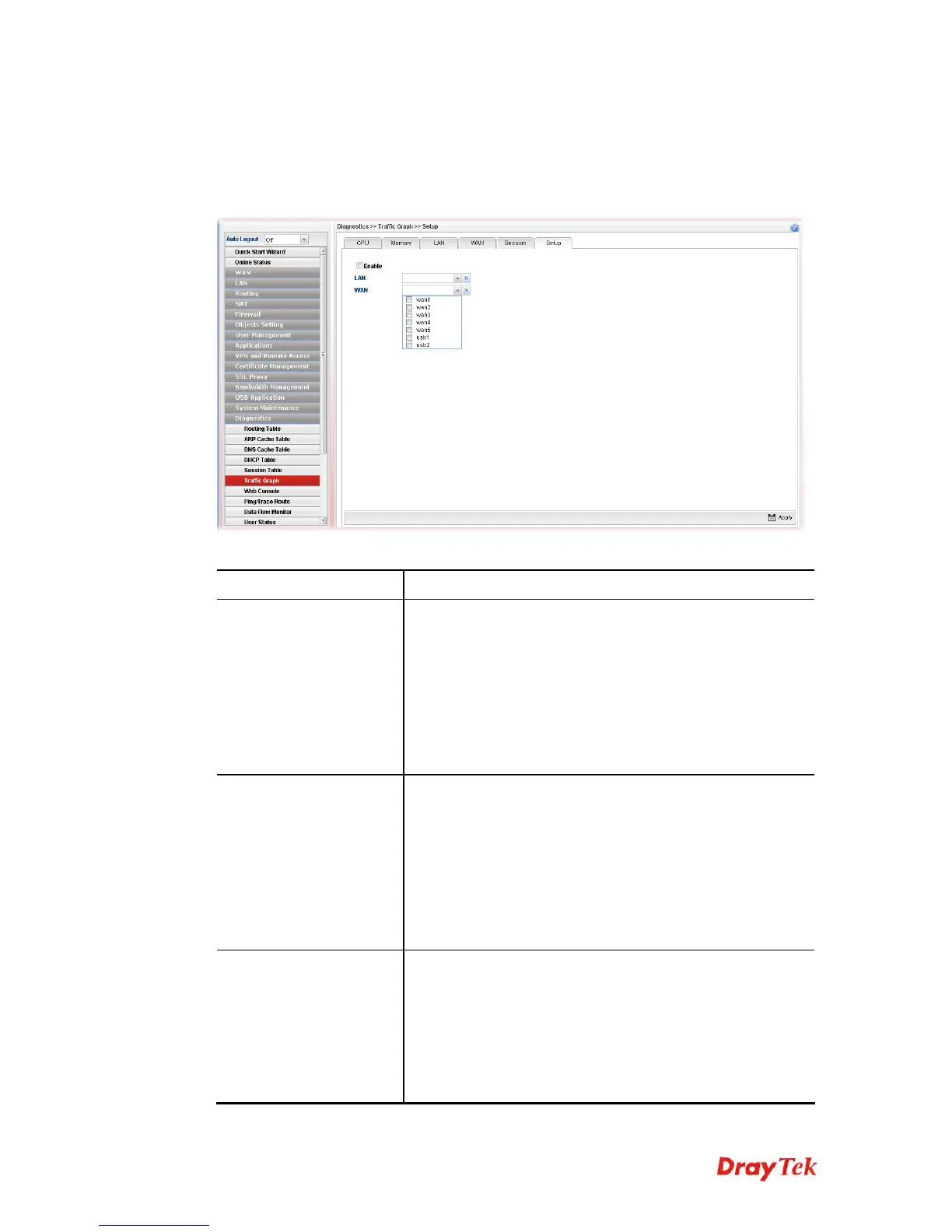
Click Diagnostics and click Traffic Graph to pen the web page. Choose the Setup tab to
specify LAN and WAN profiles to display corresponding graphs for CPU, Memory, LAN,
WAN configurations and session. Click Refresh to renew the graph at any time.
Each item will be explained as follows:
Item Description
Setup
In this page, simply specify which LAN profile and WAN
profile will be applied. The traffic graph will be drawn
based on the profiles selected.
Enable – Check this box to enable such profile.
LAN – Use the drop down menu to choose a LAN profile.
WAN –Use the drop down menu to choose a WAN profile.
Apply - Click it to save the configuration configured under
the Setup tab.
CPU
Click the CPU tab.
There are three selections provided for you to specify.
Recent 24 Hours – Display the information of CPU
operation about recent 24 hours.
Recent 7 Days – Display the information of CPU operation
about recent 7 days.
Recent 4 Weeks – Display the information of CPU
operation about recent 4 weeks.
Memory
Click the Memory tab.
There are three selections provided for you to specify.
Recent 24 Hours – Display the information of memory
operation about recent 24 hours.
Recent 7 Days – Display the information of memory
operation about recent 7 days.
Recent 4 Weeks – Display the information of memory






 To Next Page