Vigor3900 Series User’s Guide
365
Destination Port End
Display the end point specified in the Dest Port Range for
this entry.
Load Balance Pool
Display the selection of load balance pool.
H
H
o
o
w
w
t
t
o
o
a
a
d
d
d
d
a
a
L
L
o
o
a
a
d
d
B
B
a
a
l
l
a
a
n
n
c
c
e
e
R
R
u
u
l
l
e
e
p
p
r
r
o
o
f
f
i
i
l
l
e
e
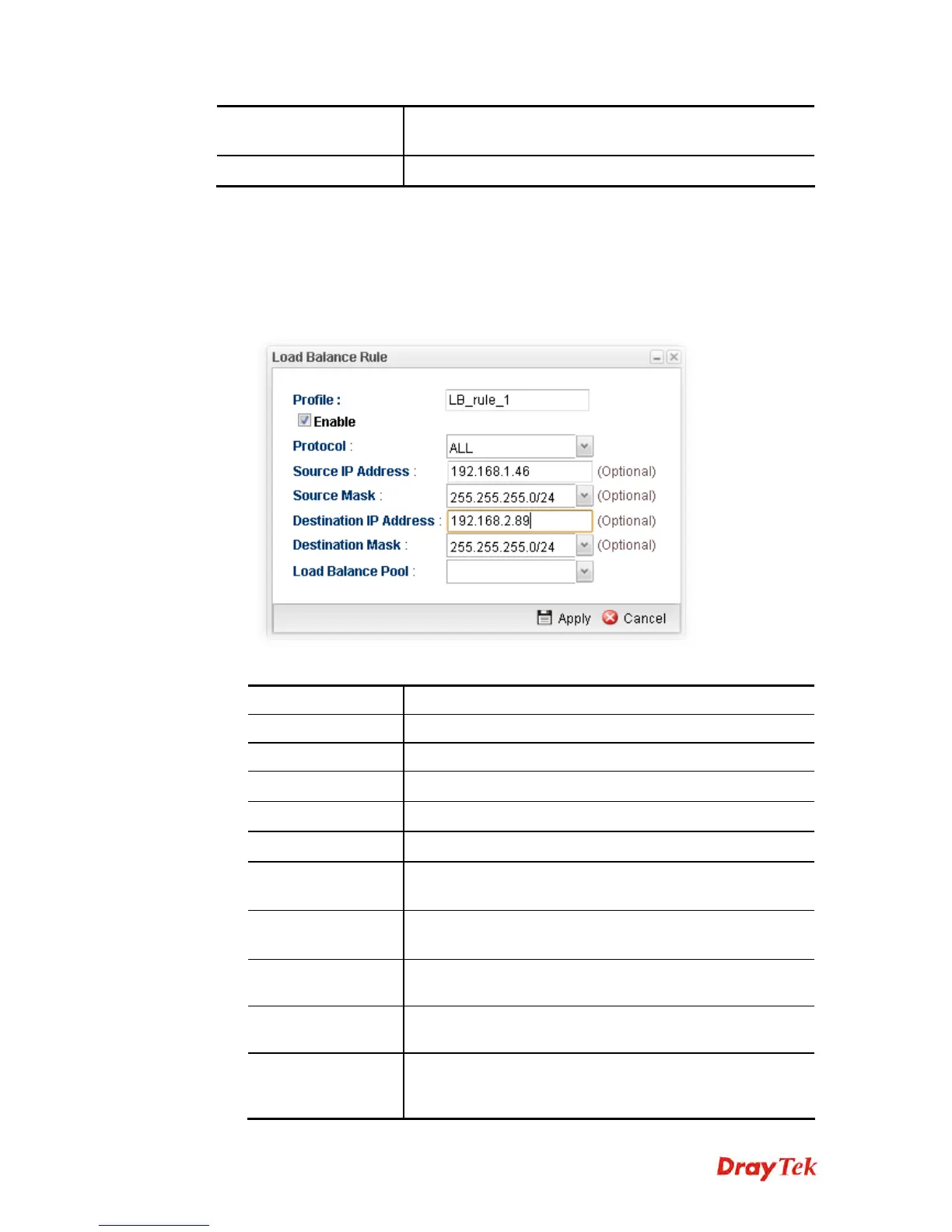
1. Open VPN and Remote Access >>VPN TRUNK Management and click the Load
Balance Rule tab.
2. Simply click the Add button.
3. The following dialog will appear.
Available parameters are listed as follows:
Item Description
Profile
Type the name of the profile.
Enable
Check this box to enable such profile.
Protocol
Choose the protocol for such profile.
Source IP Address
Type the source IP address specified for this profile.
Source Mask
Type the subnet mask address specified for the source IP.
Destination IP
Address
Type the destination IP address specified for this entry.
Destination Mask
Type the subnet mask address specified for the destination
IP.
Destination Port
Start
Type the start point.
Destination Port
End
Type the end point.
Load Balance Pool
Use the drop down list to choose one profile configured in
load balance pool. Then, such rule will be applied by the
pool.






 To Next Page