Messages
84
Inbox. The display shows the next message (if any) or the
message list.
•
Select Delete all and press
Yes
to delete all the messages. When
the display shows Deleted: All Messages, all the messages are
deleted from the
Inbox
. The display shows the next message (if
any) or the Messages sub-menu.
•
Select
Reply
. This invokes the edit screen. Edit message text
and press
Ok
to reply to the message originator.
•
Select Forward. This invokes the edit screen. The old message
body serves as the default message. Press
Ok
to forward the
message to selected target. See Sending the message on
page 81.
•
Press
Back
to return to the previous display.
Q
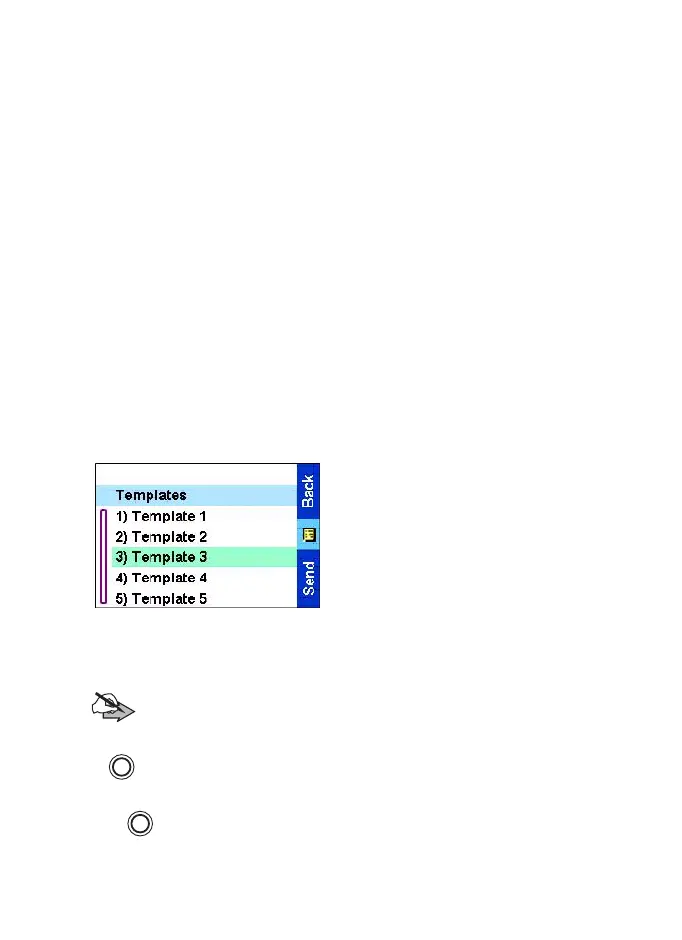
User defined templates
The user defined message
templates are received, new,
sent or programmed messages
that are stored in the templates
list and may be used for sending
messages.
1.From the
Main menu
, select
Messages
→
Templates. The first
template in the template list is
displayed.
Note:
It is possible that the templates numbers are not
consecutive.
2. In the templates list, scroll to the template you want to use. Press
and select one of the following options:
•
View
to view the message in the template
Press to enter the Editor Menu. Select
Store
to save the edited
template.
MENU
MENU
TGR990_features.book Page 84 Thursday, December 3, 2009 9:43 AM


 To Next Page